コースを見つけて参加する
コースはそのコースページから、または受講者 appの中で見つけることができます。参加には数分かかります。有料のコースは安全な checkoutで進みます。
Before you start
コースページからコースに参加する
すべての公開されたコースには、クリエイターが共有できる独自のページがあります。そこには そのコースが何をカバーしているか、レッスン数、そして レッスン セクションがあり、 各ユニットごとにすべてのレッスンがリストアップされています。
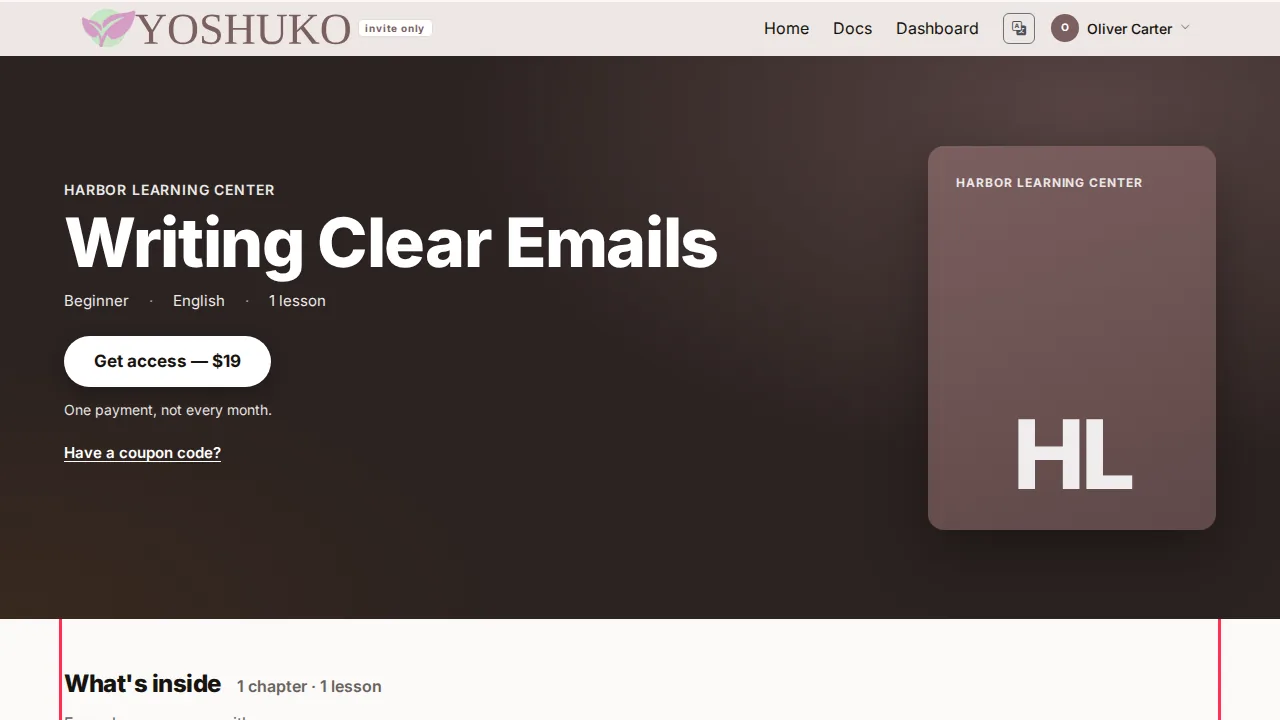
- ページを読んでください。What you'll learnというセクションがある場合、その中には 最終的にあなたができることの一覧が記載されています。
- Free previewと表示されている場合は、それを押して無料のレッスンを体験し、 その後決断してください。
-
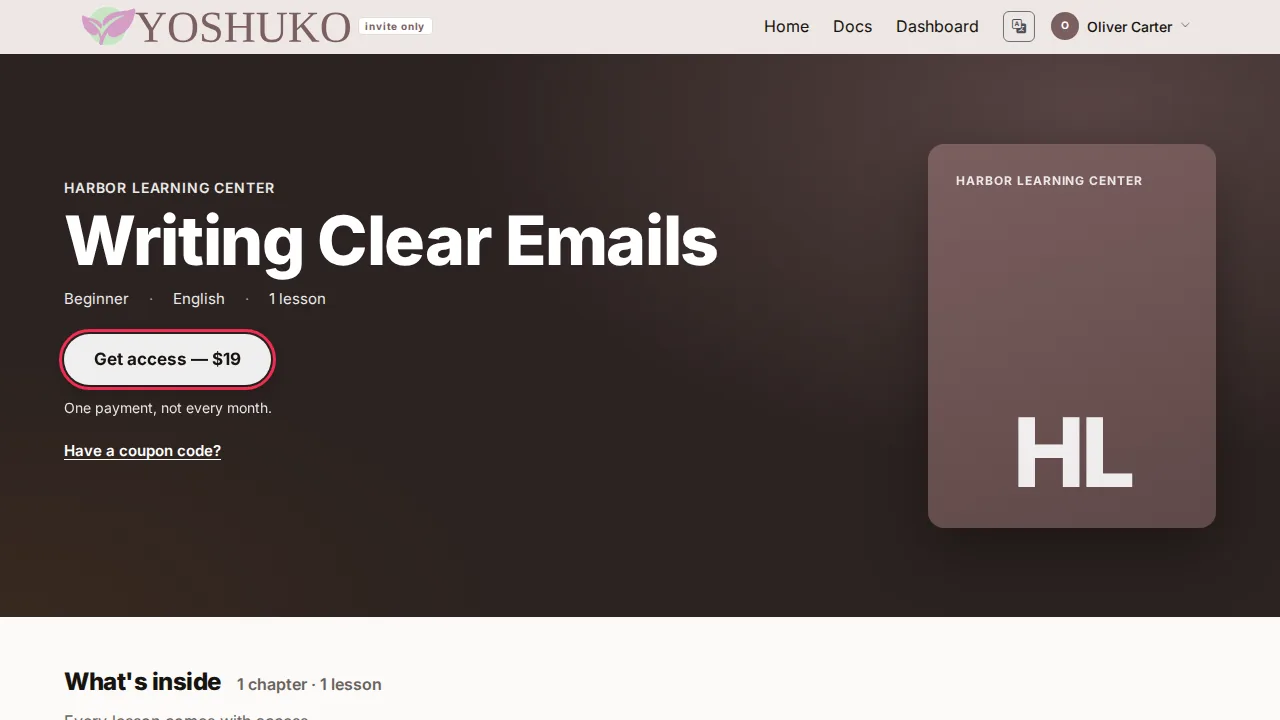
メインボタンを押します:
Enrol freeは無料コースの場合。すぐに参加し、受講者アプリに移動します。- Get access — priceは有料コースの場合。安全な決済ページへ移動して支払いを行います。
-
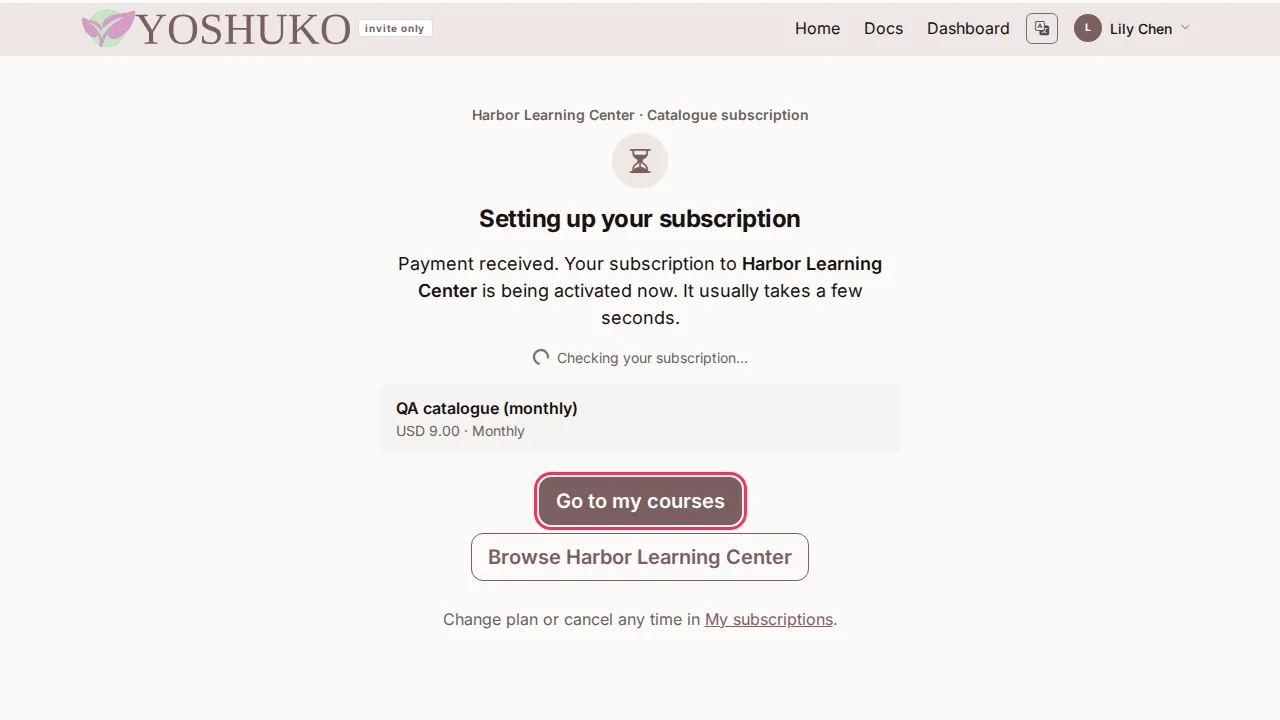
After you pay, you land on Payment received. It says Your access is ready when the course is already in your dashboard. If it says access is still being set up, wait a few seconds and load the page again.
- Press Go to my courses to start, or Back to the course page.
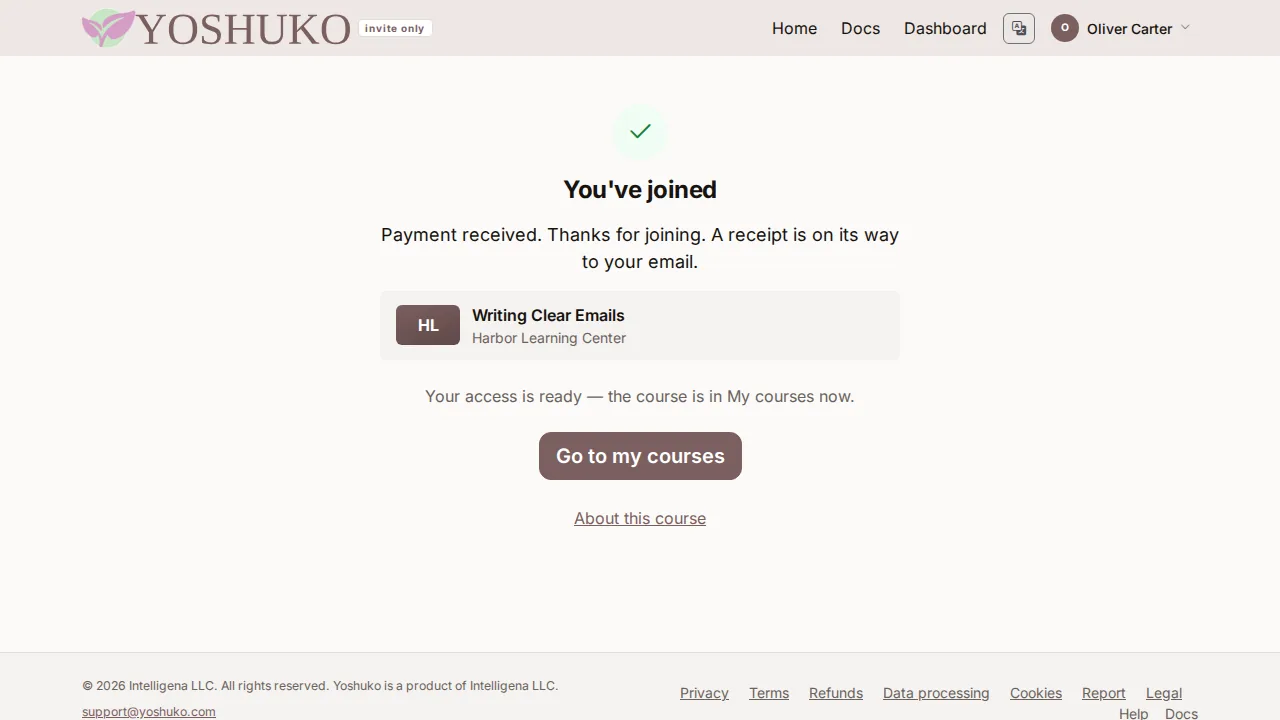
購入後、受講者にレシートがメールで送られます。
アプリ内でコースを確認する
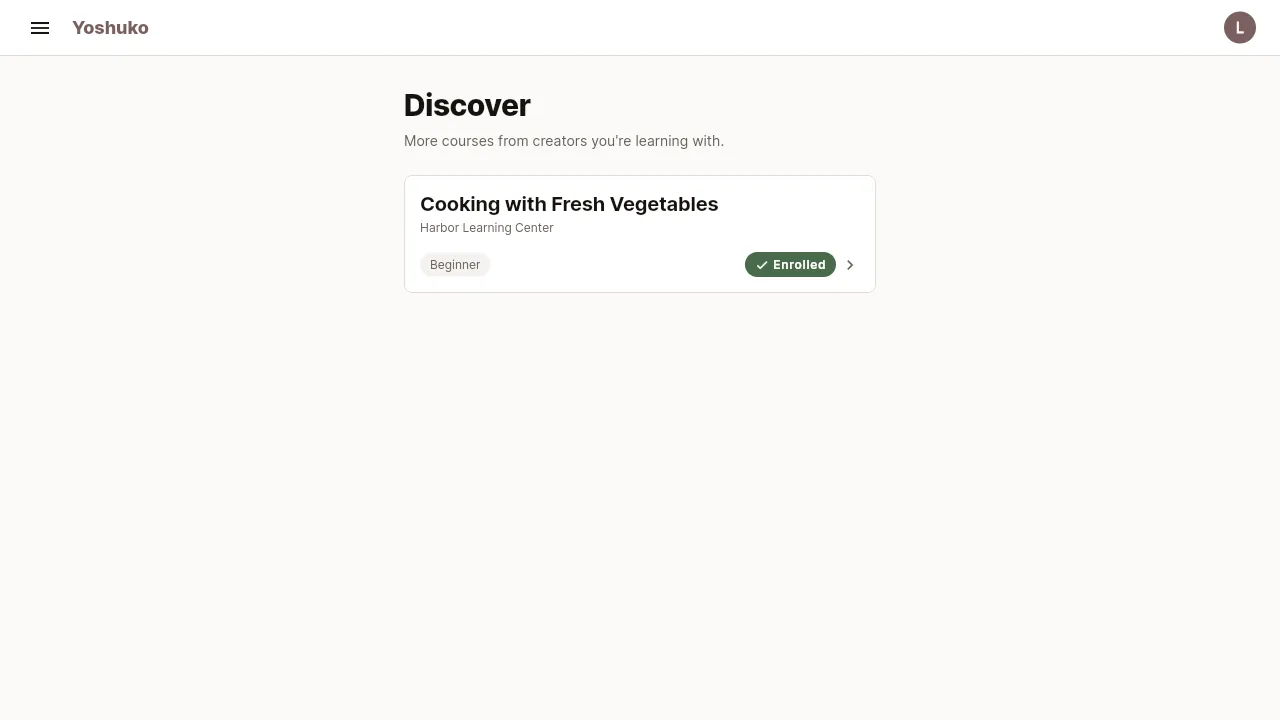
- 受講者アプリでメニューの 発見 を押します。
- 検索ボックス (コースまたはクリエイターで検索) にキーワードを入力して、リストを短くします。
- コースカードを押します。
- すでに参加しているコースはアプリ内ですぐに開きます。
- 参加していないコースはそのコースページを開き、上記の方法で参加できます。
コースがカバーするすべてを見る
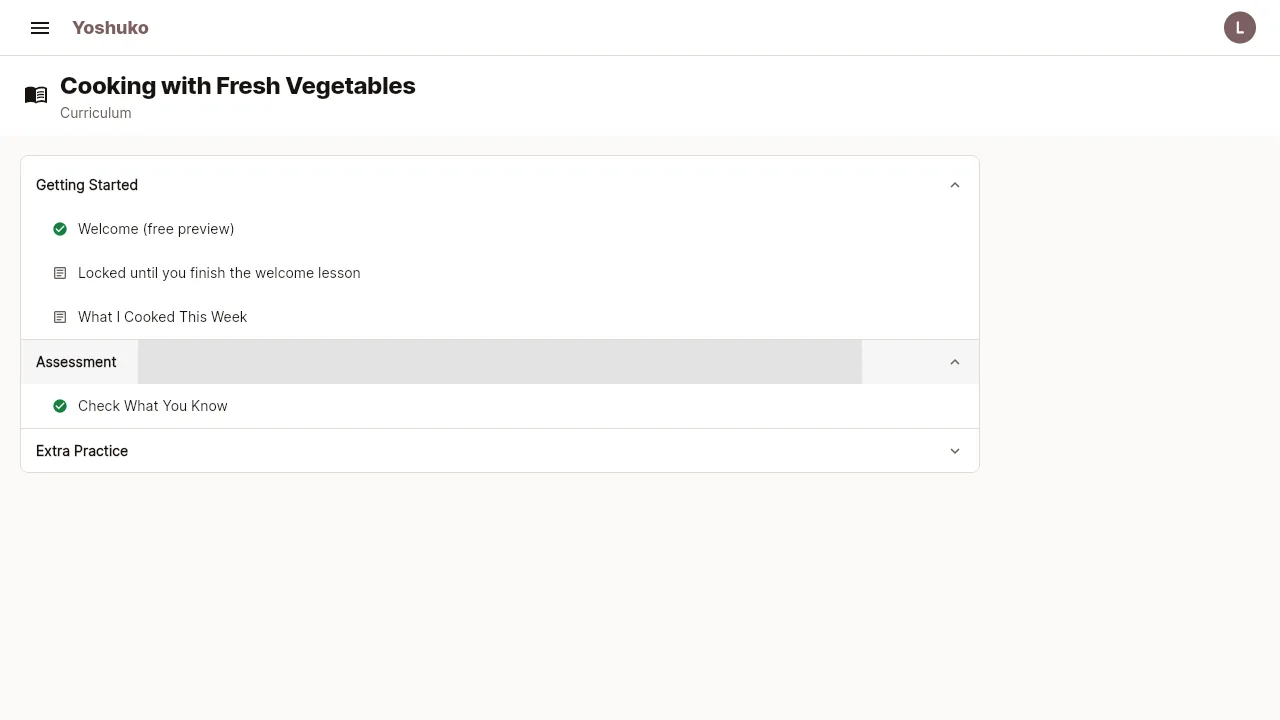
参加したら、コース全体を書かれた順番で読むことができ、そこから任意のレッスンを開くことができます。
- Open the course, then open the course menu (Show the course menu).
- Press Curriculum.
- Press any lesson to open it. Some lessons may be locked until earlier work is done. See Take a course.
クリエイターのすべてのコースを一度で支払う
一部のクリエイターは、彼らが公開するすべてのコース(今後追加されるものも含む)に
subscription を提供しています。その場合、コースページのメインボタン下にこの表示が出ます:
Or subscribe to every course from [creator], including new ones
- Press
Subscribe — price / periodfor the plan you want (a creator may offer more than one, such as monthly and yearly). - Pay on the safe checkout page.
- You land on Payment received. Press Go to my courses.
そのクリエイターが公開したすべてのコースは、これ以降、他の手順なしにあなたに開かれます。
プランを変更またはサブスクリプションをキャンセルする
これらのサブスクリプションはウェブ版またはアプリ内で管理できます。
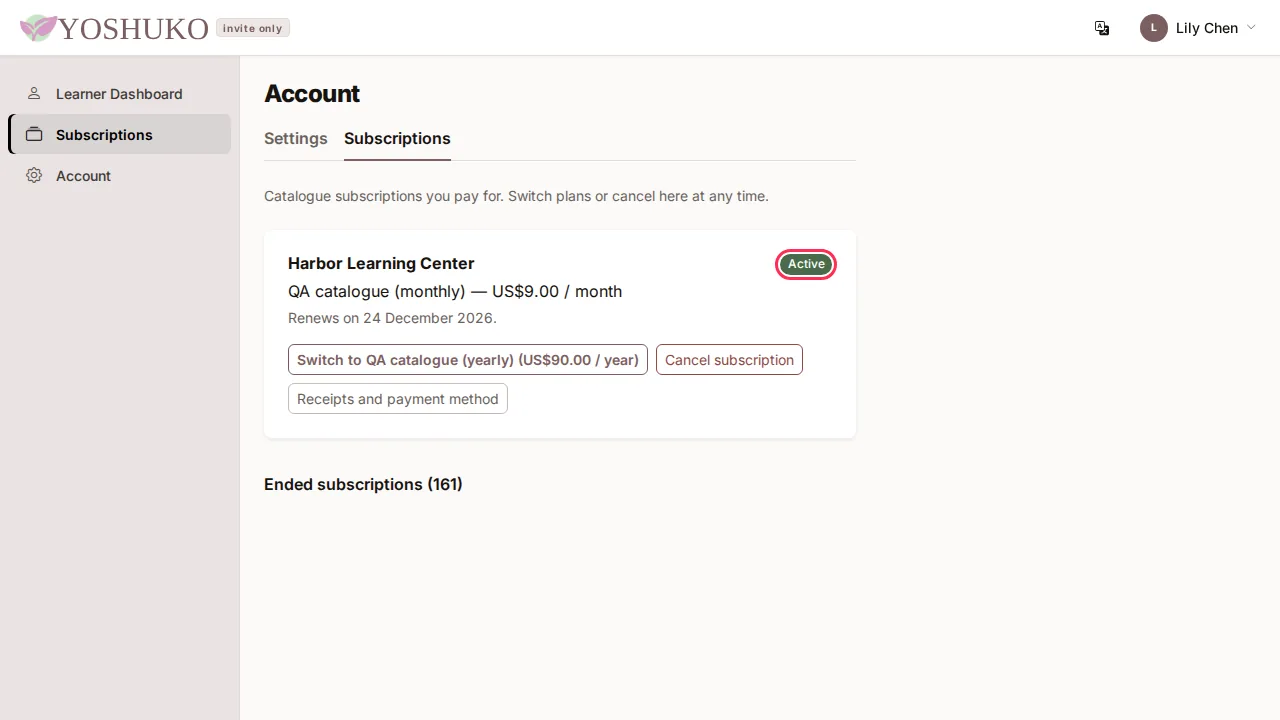
- Open My subscriptions: use the link on the Payment received page, or go
to
/account/subscriptions/. - Each subscription shows its status and the date it starts again and you pay again.
- To change plan, press Switch to plan name (price), then Switch plan. You pay only for the part you use: money for the part of your current plan that you have not used is taken off what you pay.
- To cancel, press Cancel subscription, then End subscription. Press Keep subscription if you change your mind.
- Accountメニューを開き、Settingsを押します。
- My subscriptionsを押します。
- Switch to plan name (price)またはCancel subscriptionを押して「はい」を選択してください。
キャンセルするとアクセスが即座に終了します
キャンセルすると、サブスクリプションがすぐに終了し、そのクリエイターのコースを開くことができなくなります。再び支払いは必要ありません。その後、サブスクリプションは「Cancelled」(キャンセル済み)と表示され、何もしなくてよい状態になります。
状態の意味
| 状態 | その意味 |
|---|---|
| Active | サブスクリプションが有効で、各期間ごとに自動的に再開されます。 |
| Trial | 無料のテスト期間中です。 |
Activating |
あなたの最初の支払いはまだ確認中です。 |
Payment retrying |
最後の支払いが通じませんでした。私たちはカードを自動で再試行し、その間、あなたはコースを開くことができます。 |
Ended — unpaid |
支払いができなかったのでアクセスが終了しました。 |
| Cancelled | サブスクリプションが終了し、コースを開けなくなりました。 |
何か問題が発生した場合
| You see | What it means | What to do |
|---|---|---|
You are taken to a sign-in page when you press Get access or Enrol free |
You are not signed in as a learner | Sign in or create an account. You come back to the course page. |
Checkout is unavailable for this course right now. |
Nobody can buy the course at the moment | Try again later, or contact the creator. |
| Could not reach checkout. Please try again. | A problem with the network | Check your connection and press the button again. |
| Your access is being set up now after paying | Payment is done, and access takes a few seconds | Load the page again in a moment, then press Go to my courses. |
| No courses match your search. in Discover | Nothing matches what you typed | Try a shorter search, or a creator's name. |
| Failed to load courses in Discover | The list could not load | Press Retry. |
Your subscriptions could not be loaded. |
The page could not load | Press Try again. |
| That did not work. Nothing has changed — please try again. | A switch or a cancel failed | Nothing was changed. Try again. |