Find and join a course
You can join a course from its course page, or find one inside the learner app. Joining takes a minute; a paid course takes you through a secure checkout.
Before you start
- You need a learner account. If you are not signed in when you join, you are sent to sign in or create one first, then brought back to the same course page.
- Prices are set by each creator. See pricing for Yoshuko's own plans.
Join a course from its course page
Every published course has its own page, which a creator can share with you. It shows what the course covers, how many lessons it has, and a Lessons section listing every lesson, unit by unit.
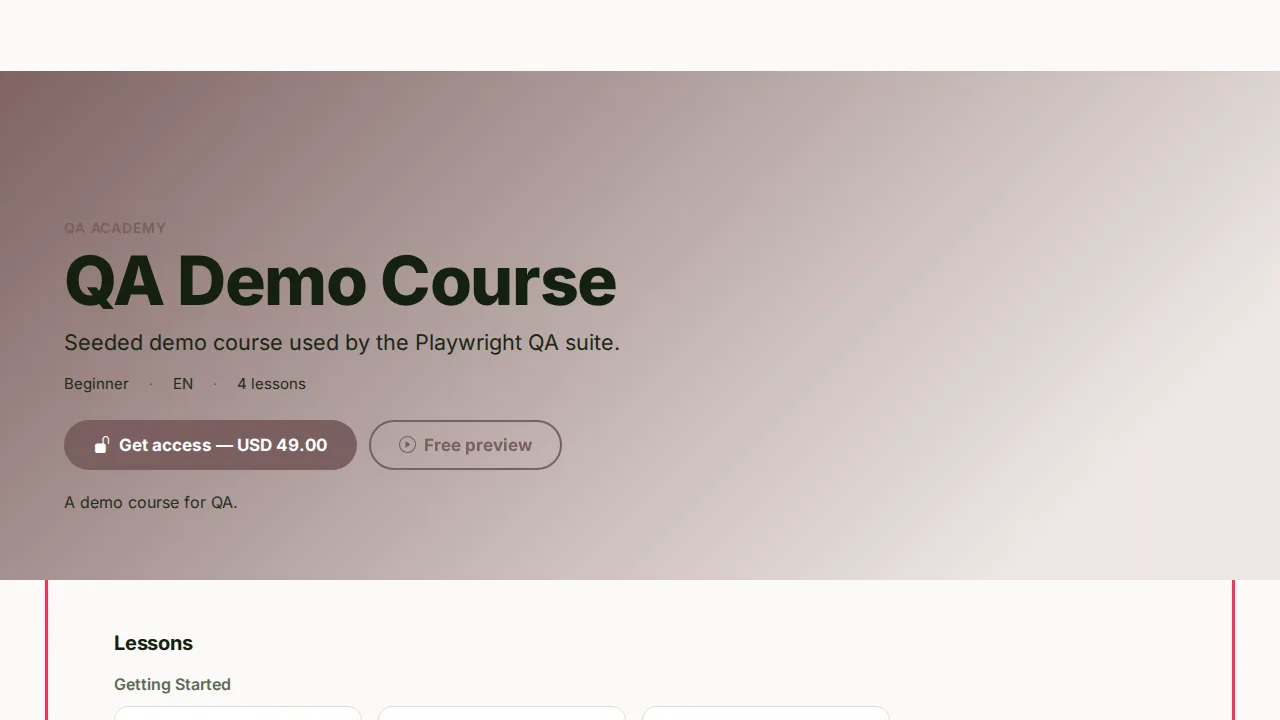
- Read the page. If there is a What you'll learn section, it lists the outcomes.
- If you see Free preview, press it to try a free lesson before you decide.
-
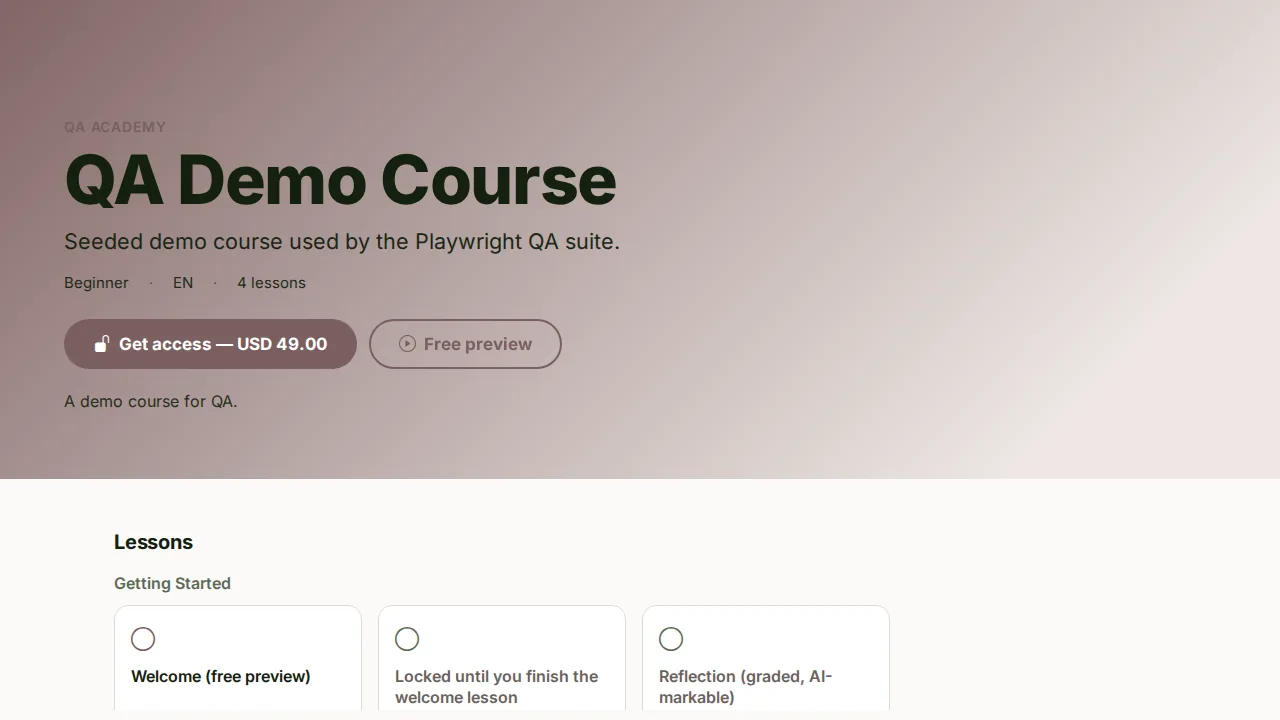
Press the main button:
- Enrol free on a free course. You are enrolled at once and taken to the learner app.
- Get access — price on a paid course. You go to a secure checkout page to pay.
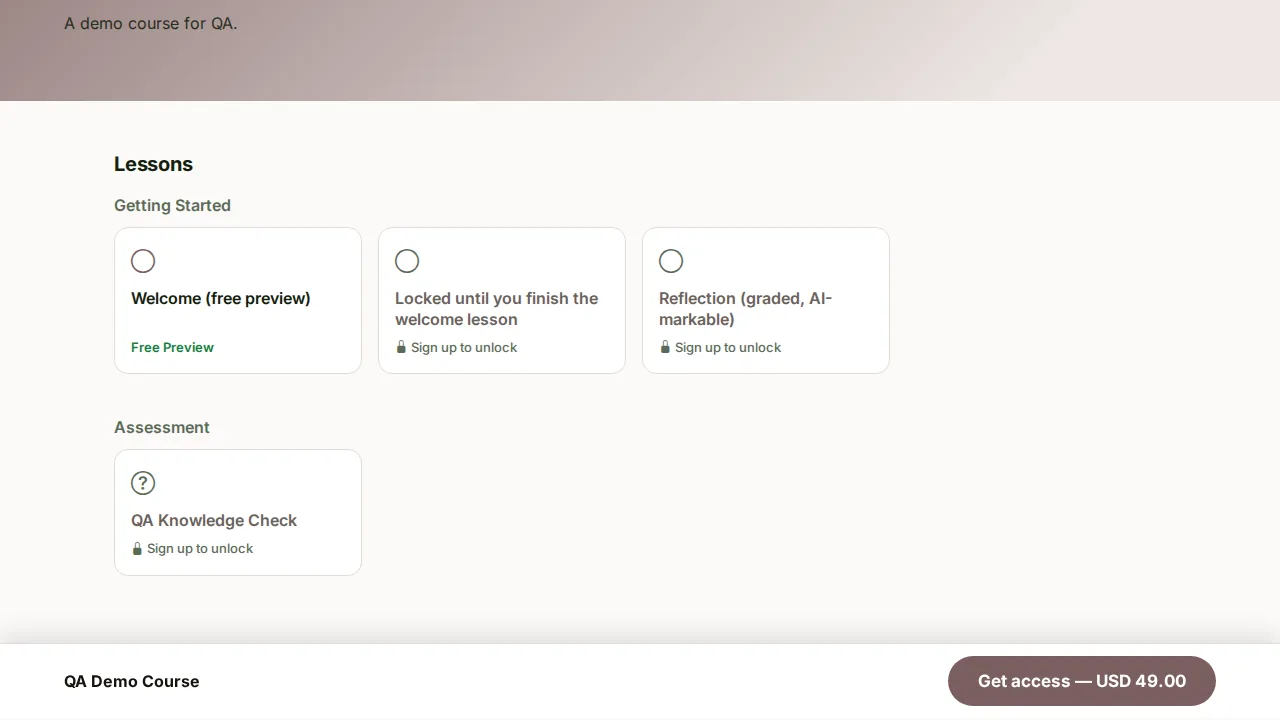
-
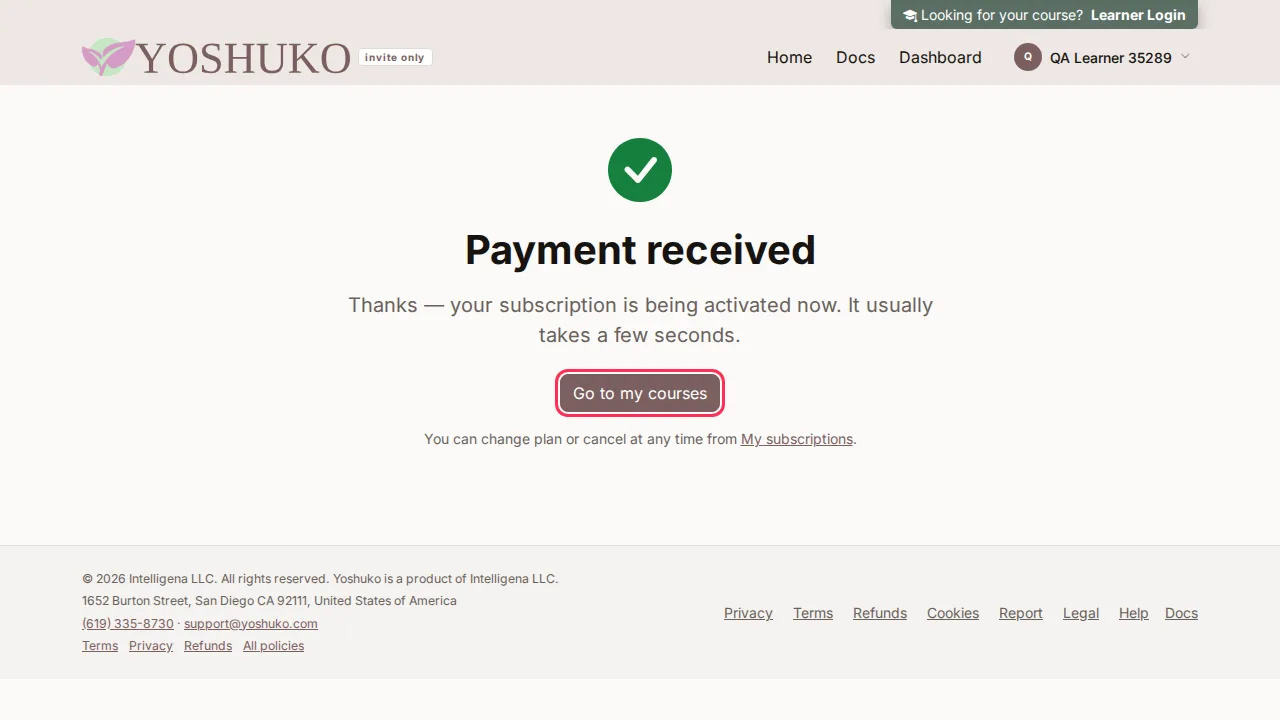
After you pay, you land on Payment received. It says Your access is ready when the course is already in your dashboard. If it says access is still being set up, wait a few seconds and refresh.
- Press Go to my courses to start, or Back to the course page.
A receipt is emailed to you after a purchase.
Browse courses inside the app
- In the learner app, press Discover in the menu.
- Type in the search box (Search by course or creator) to narrow the list.
- Press a course card.
- A course you have already joined opens straight in the app.
- A course you have not joined opens its course page, where you can join it as above.
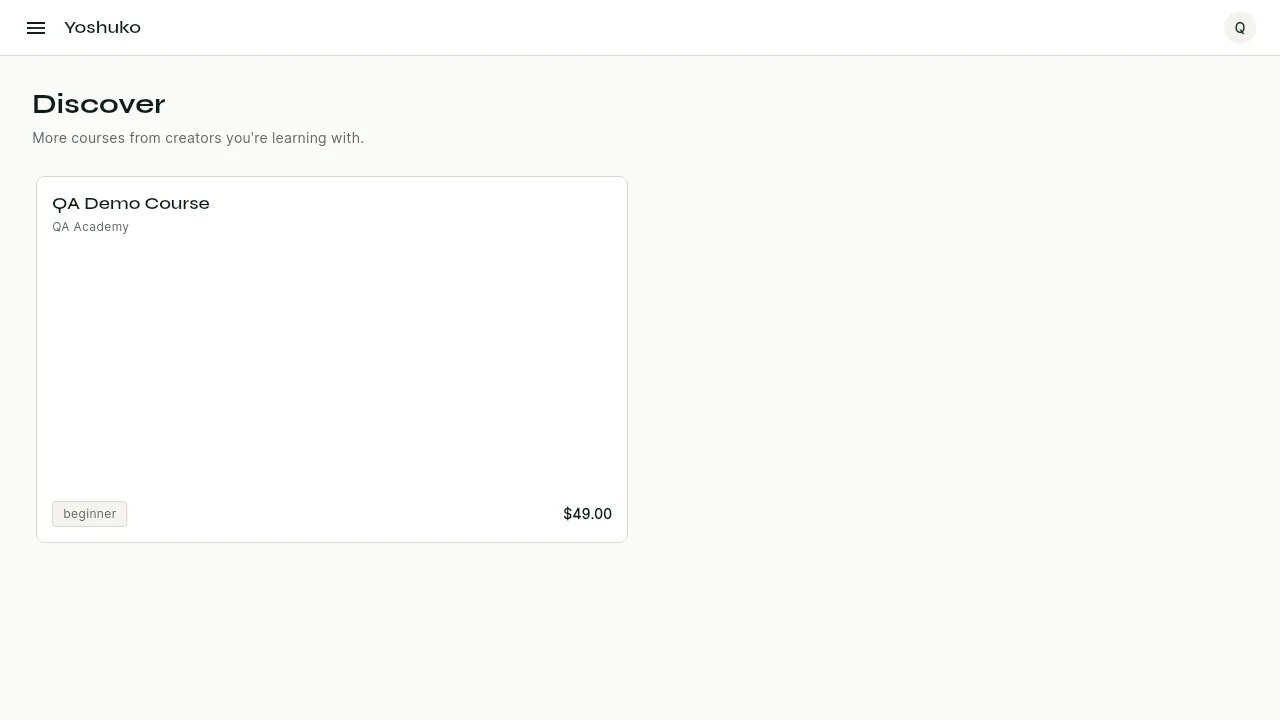
See everything a course covers
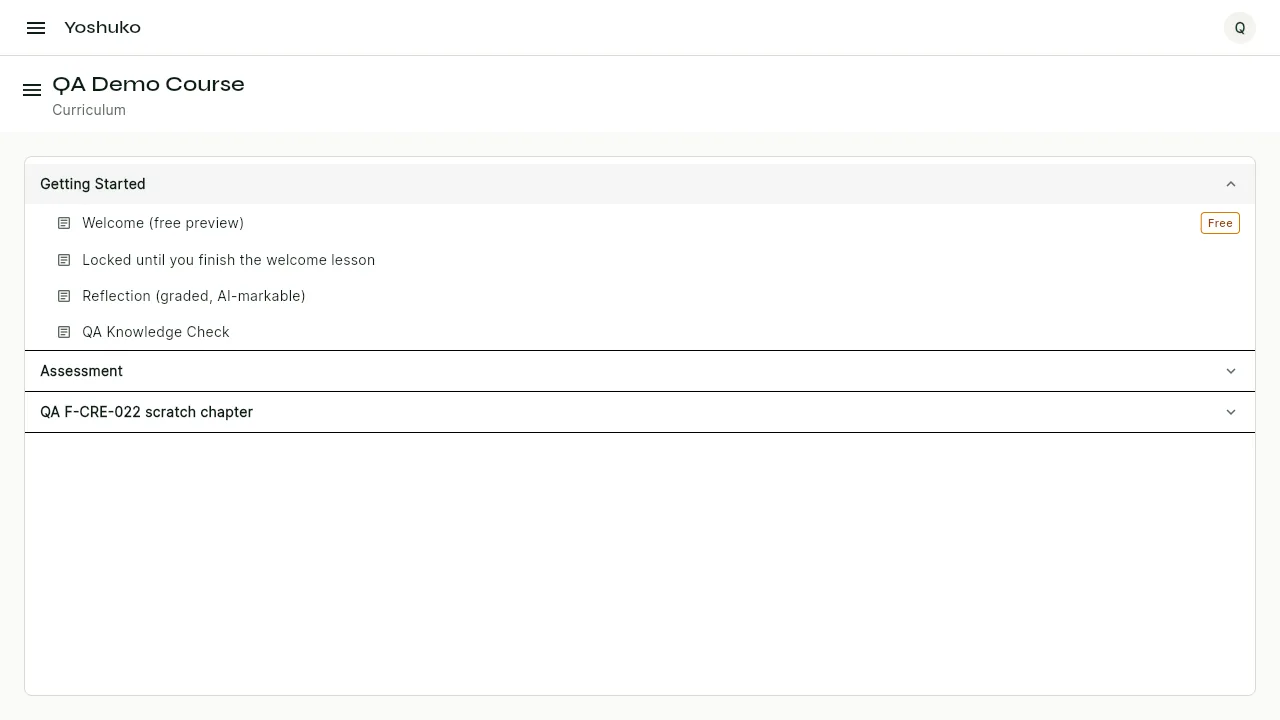
Once you have joined, you can read the whole course in the order it was written and open any lesson from there.
- Open the course, then open the course menu (Show the course menu).
- Press Curriculum.
- Press any lesson to open it. Some lessons may be locked until earlier work is done — see Take a course.
Subscribe to a creator's whole catalogue
Some creators offer a subscription to every course they publish, including courses they add later. When they do, the course page shows Or subscribe to every course from [creator], including new ones under the main button.
- Press Subscribe — price / period for the plan you want (a creator may offer more than one, such as monthly and yearly).
- Pay on the secure checkout page.
- You land on Payment received. Press Go to my courses.
Every published course from that creator is now open to you, with no further step.
Switch plan or cancel a subscription
You can manage catalogue subscriptions on the web or in the app.
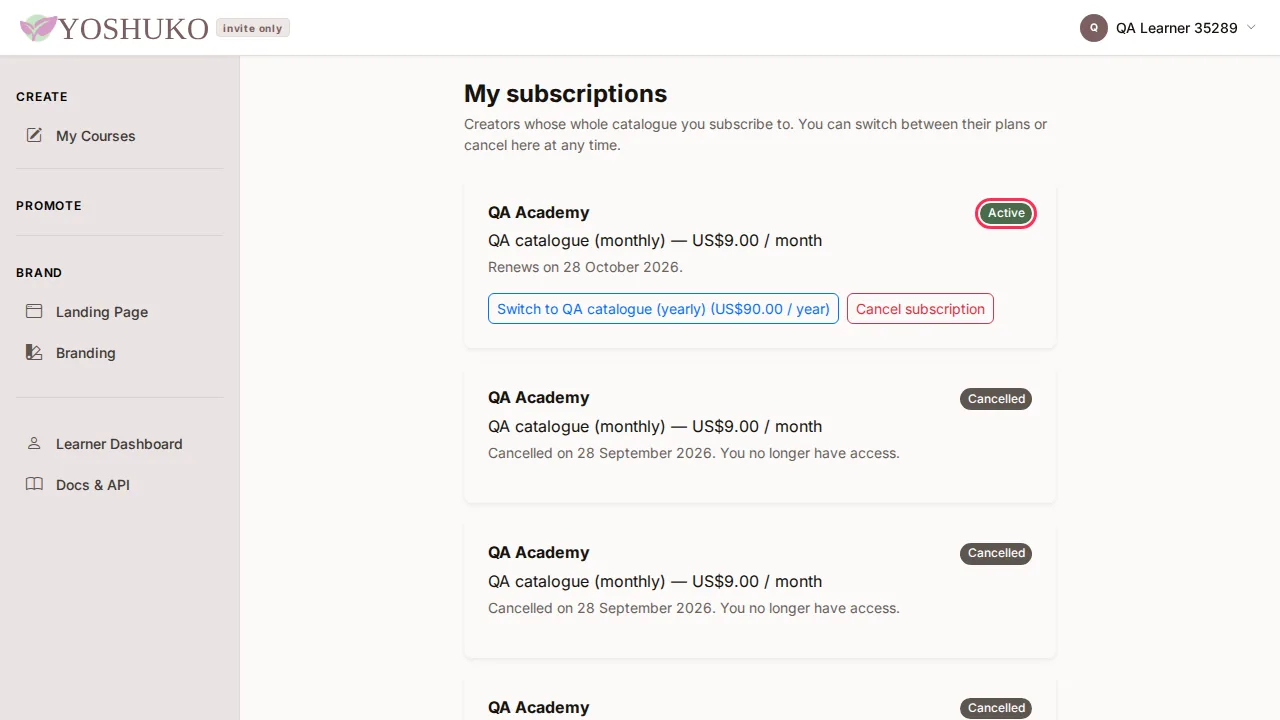
- Open My subscriptions — from the link on the Payment received page, or at
/account/subscriptions/. - Each subscription shows its status and when it renews.
- To change plan, press Switch to plan name (price), then Switch plan. The change is prorated: you are credited for the unused part of your current plan.
- To cancel, press Cancel subscription, then End subscription. Press Keep subscription if you change your mind.
- Open the Account menu and press Settings.
- Press My subscriptions.
- Press Switch to plan name (price) or Cancel subscription, and confirm.
Cancelling ends access straight away
When you cancel, your subscription ends immediately and you lose access to that creator's courses. You will not be charged again. The subscription then reads Cancelled with no actions left.
What the status means
| Status | What it means |
|---|---|
| Active | Your subscription is running and renews automatically. |
| Trial | You are in a trial period. |
| Activating | Your first payment is still being confirmed. |
| Payment retrying | Your last payment did not go through. The card will be retried automatically and your access continues meanwhile. |
| Ended — unpaid | The payment could not be collected, so access has ended. |
| Cancelled | The subscription has ended and you no longer have access. |
If something goes wrong
| You see | What it means | What to do |
|---|---|---|
| You are taken to a sign-in page when you press Get access or Enrol free | You are not signed in as a learner | Sign in or create an account; you come back to the course page. |
| Checkout is unavailable for this course right now. | The course cannot be bought at the moment | Try again later, or contact the creator. |
| Could not reach checkout. Please try again. | A network problem | Check your connection and press the button again. |
| Your access is being set up now after paying | Payment is confirmed, access takes a few seconds | Refresh in a moment, then press Go to my courses. |
| No courses match your search. in Discover | Nothing matches what you typed | Try a shorter search, or a creator's name. |
| Failed to load courses in Discover | The list could not load | Press Retry. |
| Your subscriptions could not be loaded. | The page could not load | Press Try again. |
| That did not work. Nothing has changed — please try again. | A switch or cancel failed | Nothing was changed; try again. |