Security and passwords
Keep your Yoshuko account safe: reset a forgotten password, choose a new one, add a mobile number, and turn on an authenticator app for sign-in. Each task takes a few minutes.
Before you start
- Anyone with a Yoshuko account can do everything on this page.
- Have your email inbox to hand — most changes send a code there to prove it's you.
Reset a forgotten password
-
On the sign-in page, press Forgot password?
-
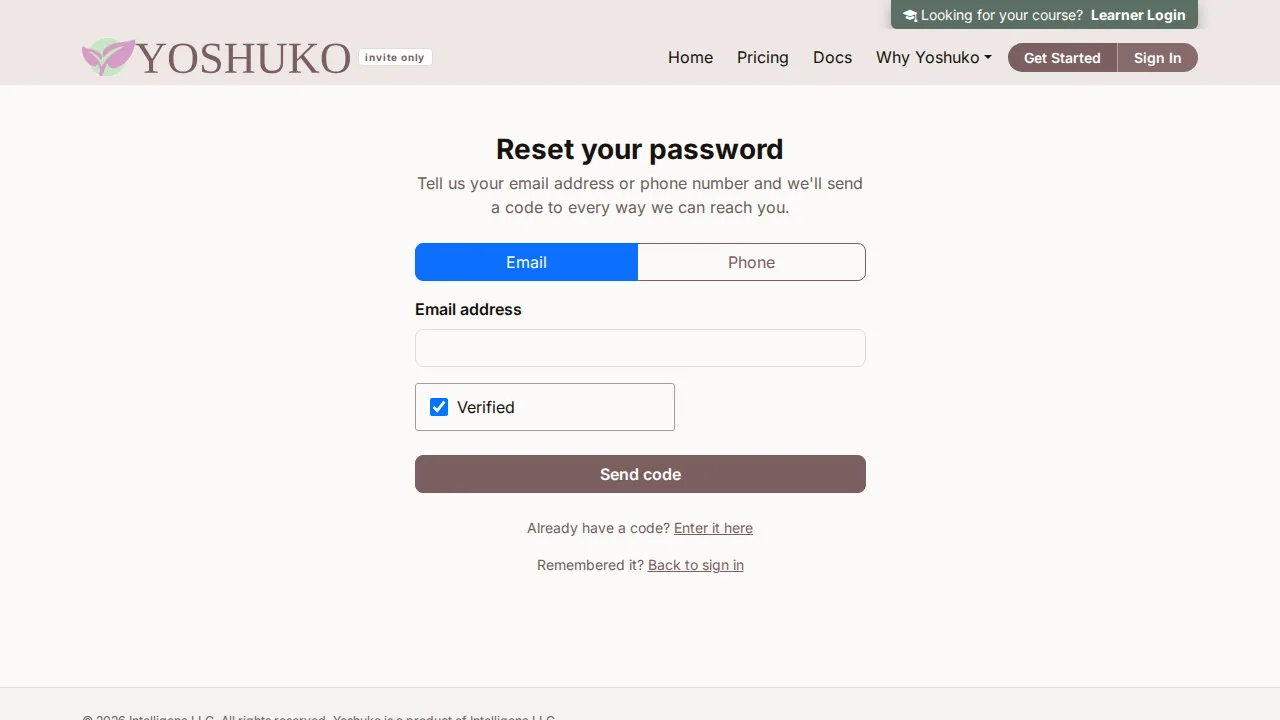
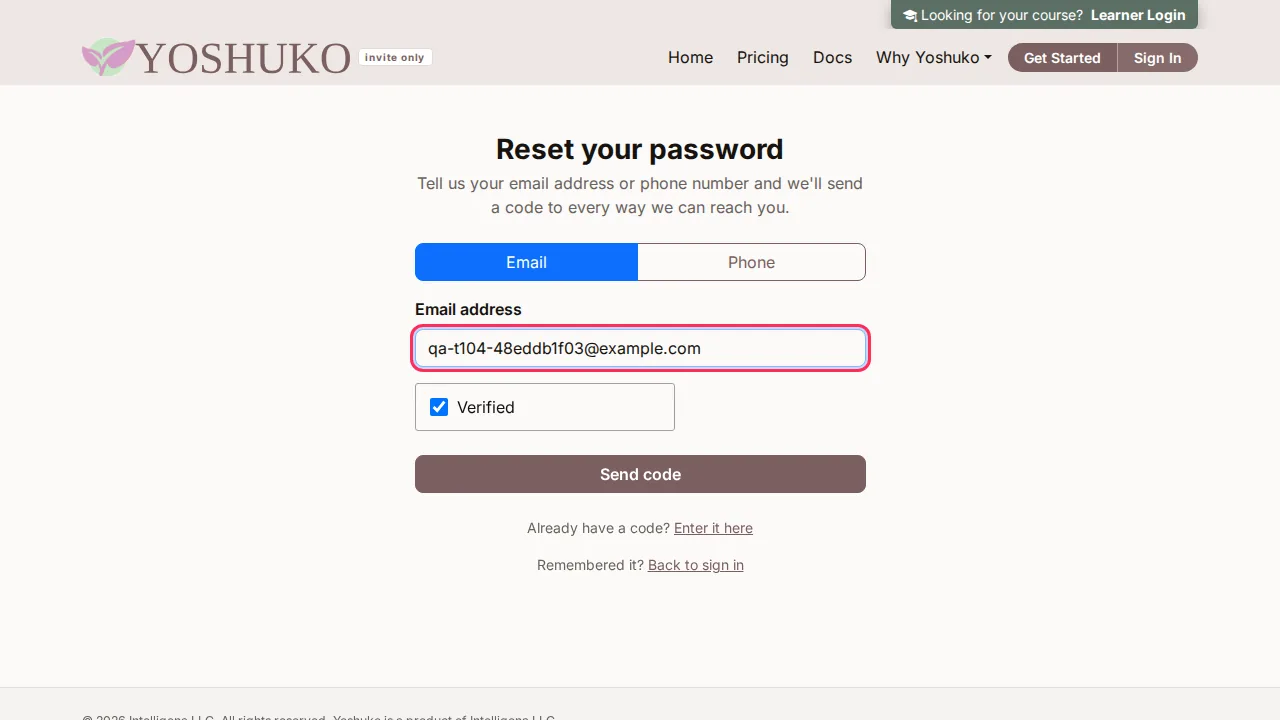
On Reset your password, choose Email or Phone, then enter your Email address (or Phone number). We send a code to every way we can reach you.
-
Press Send code once it becomes available (a short automatic security check runs first).
-
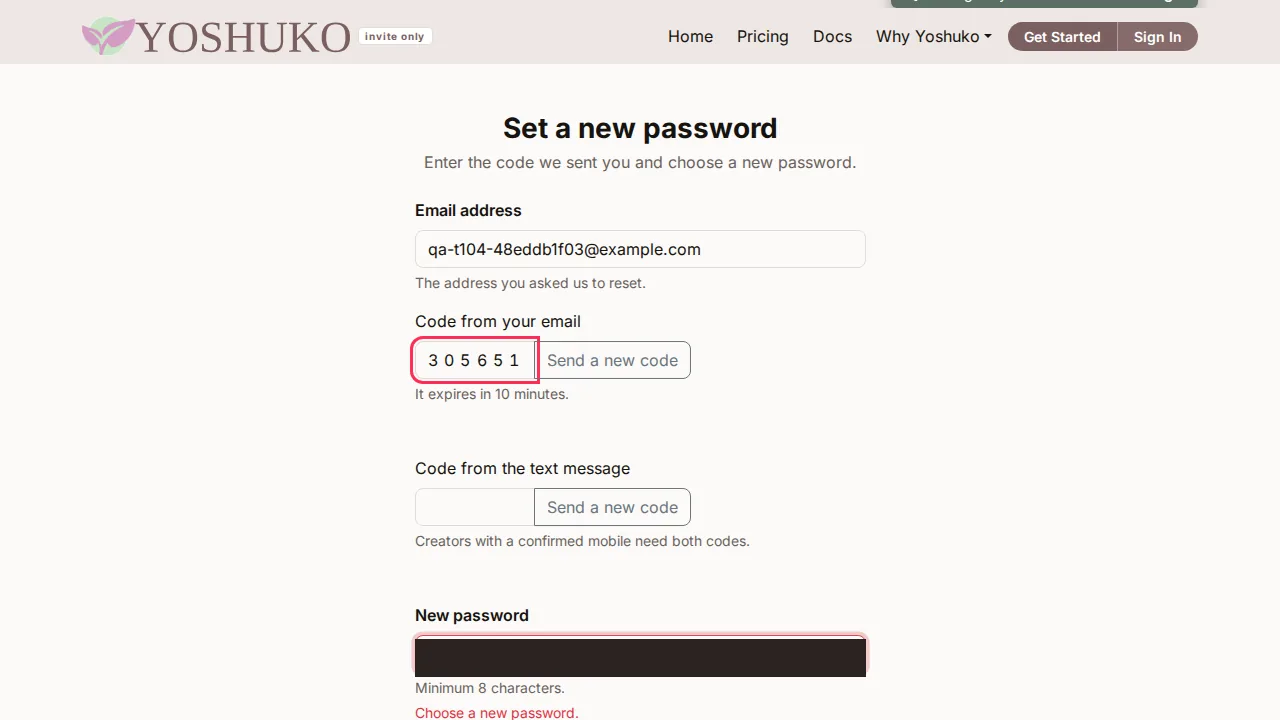
On Set a new password, enter the Code from your email. It expires in 10 minutes.
-
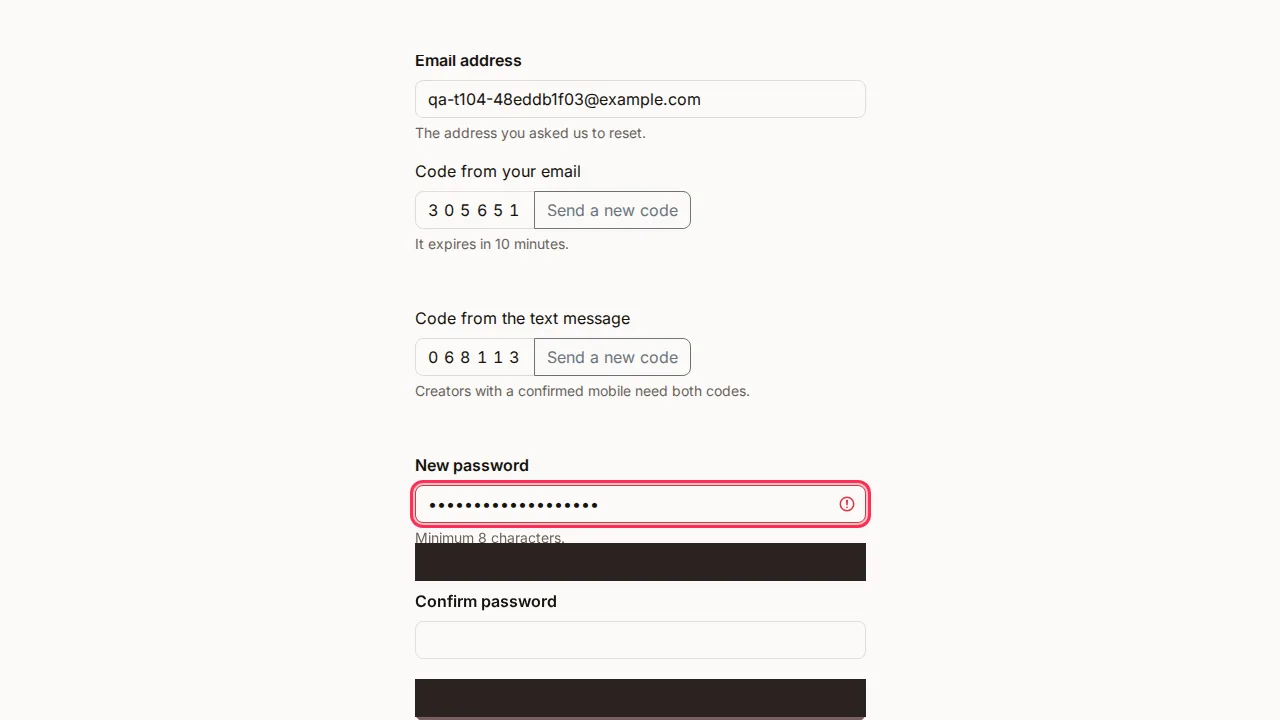
If your account has a confirmed mobile number, you also see Code from the text message. Enter that code too — creators with a confirmed mobile need both codes.
-
Enter your New password (at least 8 characters) and type it again in Confirm password.
-
Press Set password. Your old password stops working, and you can sign in with the new one.
Lost the page? Go back to Reset your password and use Already have a code? Enter it here.
When you're asked to confirm your card
If you run an organisation that pays for its plan by card, and your account has no mobile number, Yoshuko may ask for one more proof after your emailed code has been accepted.
- After pressing Set password, you see One more step: confirm your card.
-
Press Confirm my card. You are sent to Stripe, our payment provider, to enter the card on your organisation's billing. We never see your card details, and you are not charged.
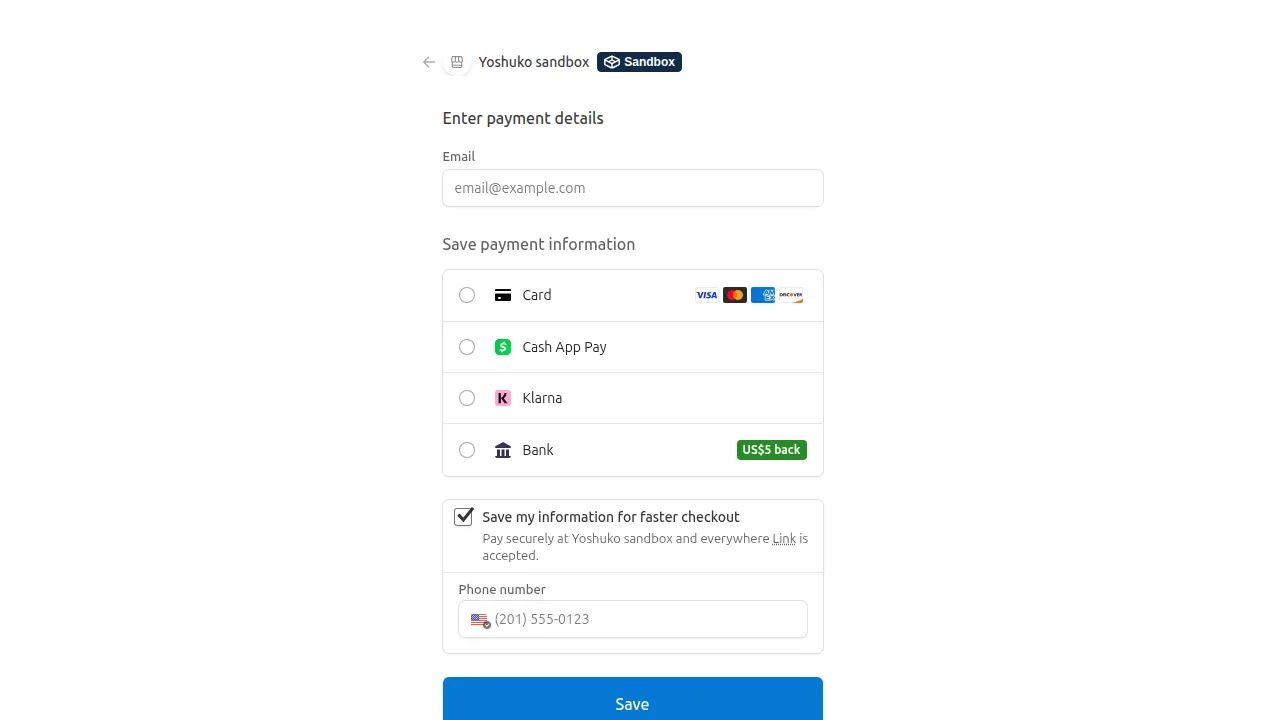
-
You come back to Confirming your card… while it is checked, and then to the form.
- Press Set password again to finish.
If the card can't be matched, you see We couldn't confirm that card. Press Back to the reset form and try again with the card your organisation pays with.
Change your password
As a creator:
- Open the account menu (your name, at the top of the studio) and choose Change Password. Your Profile page opens at the Password section.
- Enter your Current password.
- Enter a New password (at least 8 characters, and not a common password) and type it again in Confirm new password.
- Press Change password. You see Password changed.
If you have forgotten your current password, use Reset it instead in the same section, which takes you to resetting a forgotten password.
As a learner:
- Open the account menu and choose Settings, then Password (Choose a new password).
- Enter your Current password.
- Enter a New password (at least 8 characters) and type it again in Confirm new password.
- Press Change password. You see Your password has been changed.
If you were given a password by your teacher or organisation
When your account was set up for you with a password somebody else chose, Yoshuko asks you to choose your own the first time you sign in. You see a notice explaining that somebody else has seen the password you were given, and the rest of Yoshuko waits until you change it.
Fill in Current password (the one you were given), New password and Confirm new password, then press Change password. Press Continue to my courses to carry on.
Add or change your mobile number
Your mobile number is used for two-step sign-in and to get back into your account if you forget your password.
-
Open your Profile page (creators: the account menu, then Profile). The Mobile number card shows Your number: with a shortened version of it, or No mobile number on this account.
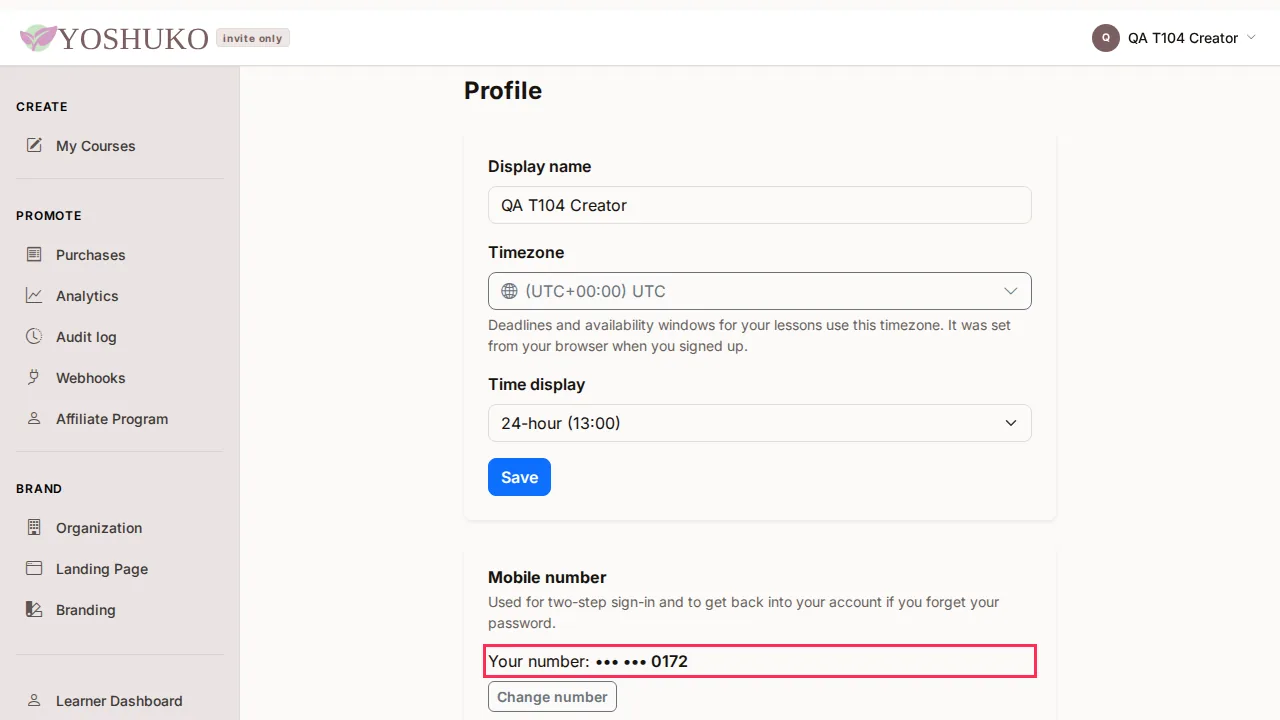
-
Press Add a number (or Change number).
-
Enter your New mobile number. Include your country code, or enter it the way you would dial it at home.
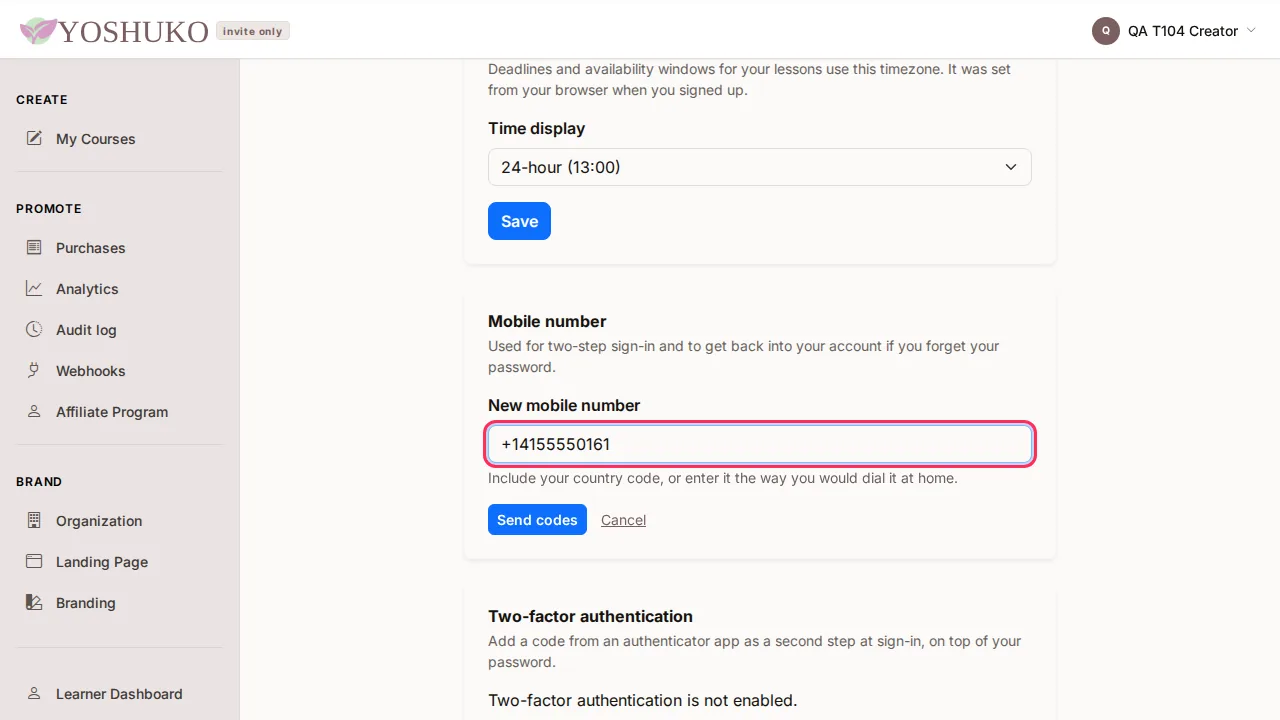
-
Press Send codes.
-
Enter every code we sent:
- Code texted to the new number
- Code texted to your current number — only when you are replacing a number
- Code from your email
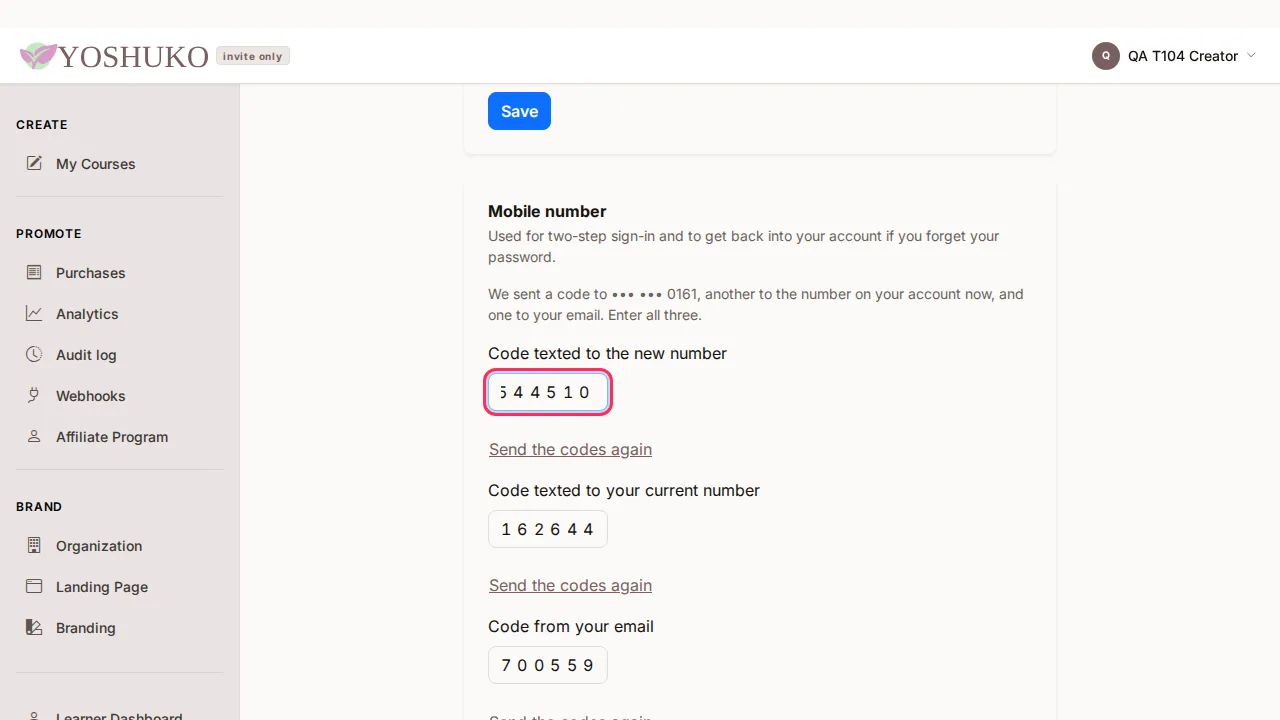
-
Press Confirm. The card now shows your new number.
Didn't get a code? Use Send the codes again. Changed your mind? Press Cancel.
Note
A number change always needs a code sent by email. An account with no email address cannot add or change a number here — if your account was created for you, ask whoever set it up.
Turn on two-factor authentication
Add a code from an authenticator app as a second step at sign-in, on top of your password.
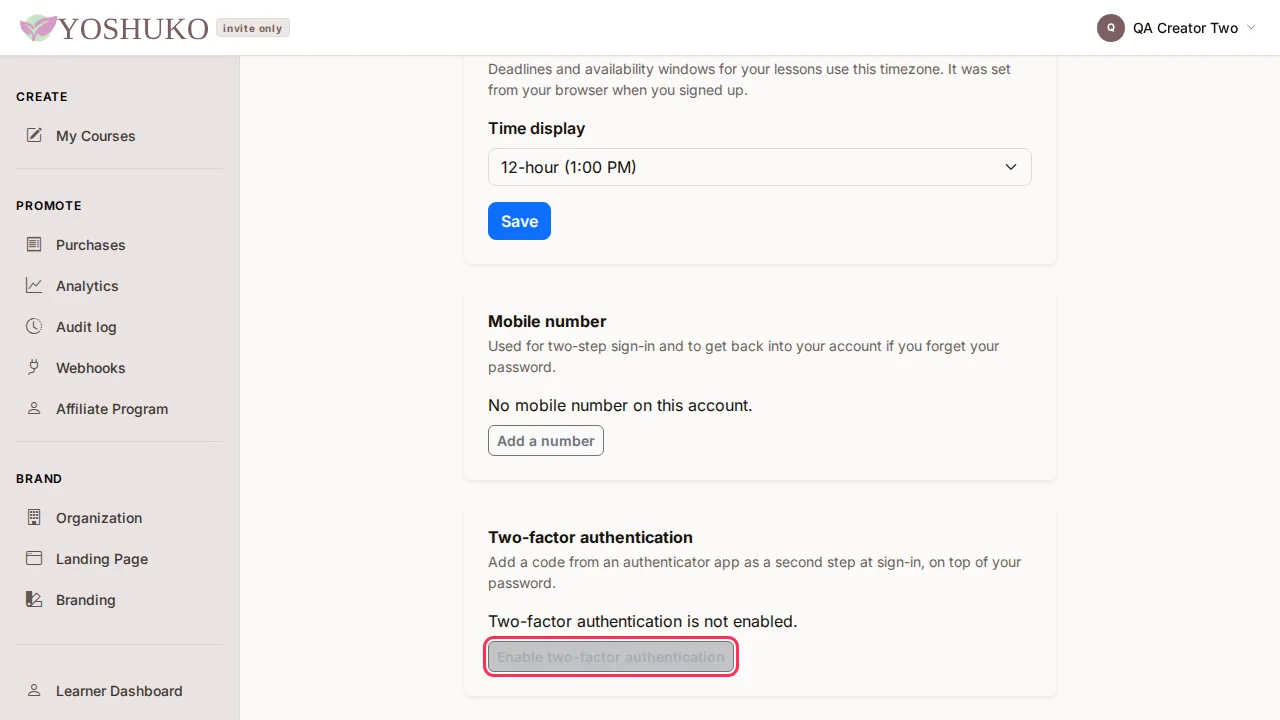
- On your Profile page, find Two-factor authentication. It says Two-factor authentication is not enabled.
-
Press Enable two-factor authentication.
-
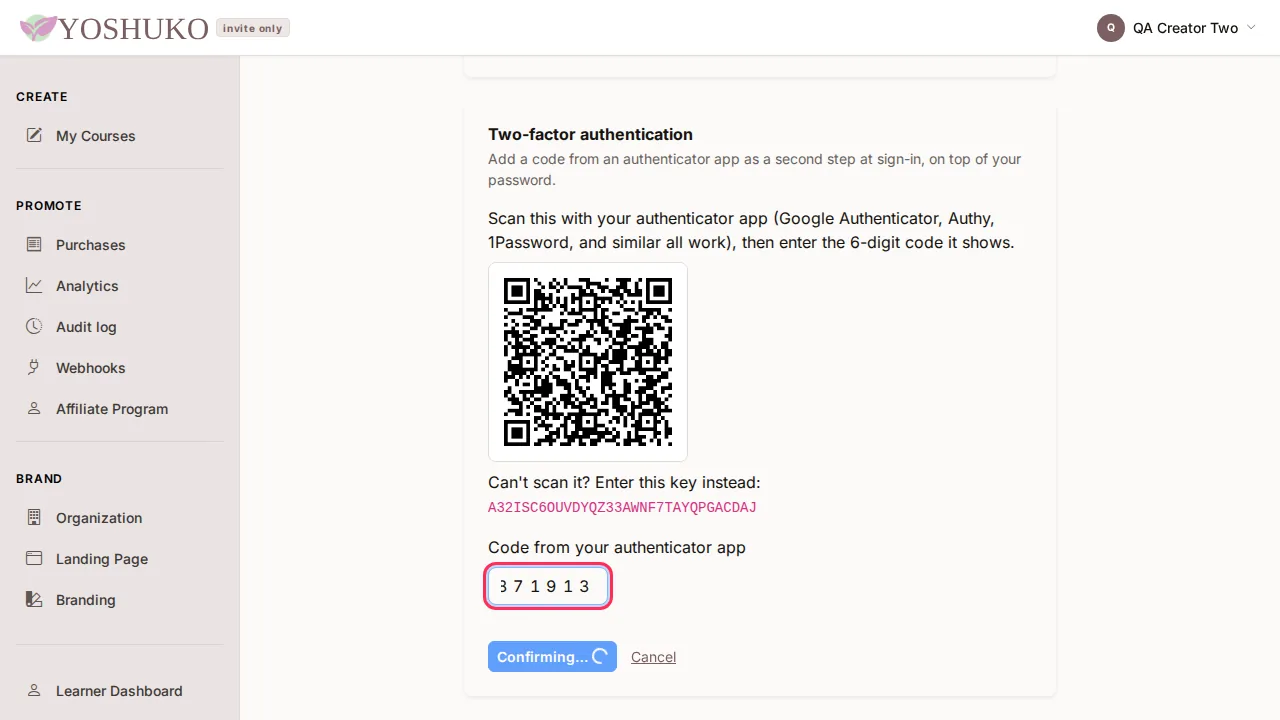
Scan the QR code with your authenticator app (Google Authenticator, Authy, 1Password and similar all work). Can't scan it? Type in the key shown under the code instead.
-
Enter the 6-digit code your app shows into Code from your authenticator app and press Confirm.
-
Save the backup codes you're shown somewhere safe. Each works once, and this is the only time they will be shown. Press I've saved these codes.
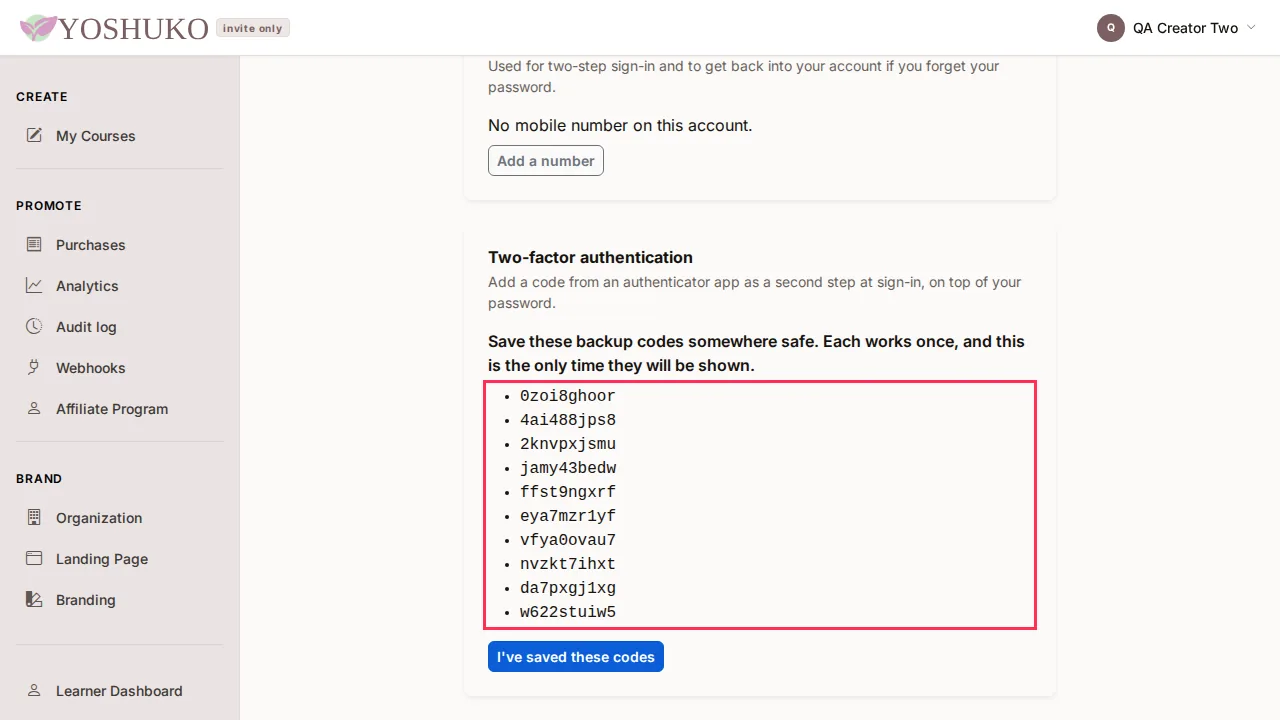
The card now says Two-factor authentication is enabled. From now on, you sign in with your password and a code from your app — see sign in.
New backup codes, or turning it off
- Regenerate backup codes gives you a new set. Every code you were shown before stops working.
- Disable turns two-factor authentication off after you confirm. Creators are then asked for an emailed code at sign-in instead.
Sign out
As a learner: open the account menu and choose Sign out.
As a creator: open the account menu and choose Log out.
Signing out ends your session on that device. Anyone who uses the browser after you has to sign in again.
If something goes wrong
| You see | What it means | What to do |
|---|---|---|
| That code is not correct or has expired. | The code was mistyped, already used, or more than 10 minutes old. | Use Send a new code (or Send the codes again) and enter the newest one. |
| Those two passwords do not match. | The two password boxes are different. | Type the same new password in both. |
| We couldn't confirm that card | The card didn't match the one on your organisation's billing. | Press Back to the reset form and try the card your organisation pays with. |
| Your password was changed, but you still see the change-password screen | You're signed in with a password someone else gave you. | Choose your own password; the rest of Yoshuko opens once you do. |
| You can't add a mobile number | Your account has no email address. | Ask whoever set up your account. |