Import and export courses
Take a copy of any course away as a file, or bring a course you already teach elsewhere into Yoshuko. You choose exactly which units and lessons travel. An export or import of an ordinary course takes a few minutes.
Before you start
- You need to be a creator in the organisation that owns the course.
- Learners, grades, submissions and enrolments never travel, in either direction. No course export format carries them.
Export a course
- Open the course and go to Details (under Settings in the course menu).
- In the Import / Export card, press Export.
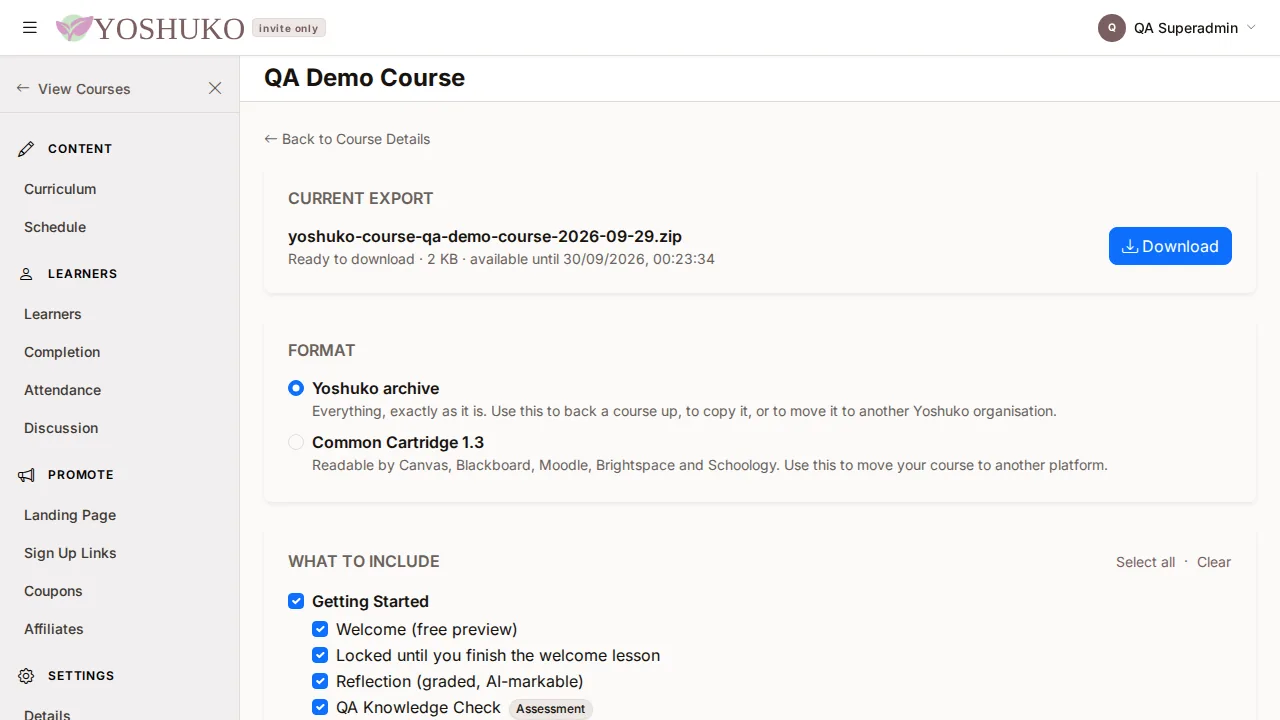
- Under Format, choose:
- Yoshuko archive — everything, exactly as it is. Use it to back a course up, to copy it, or to move it to another Yoshuko organisation.
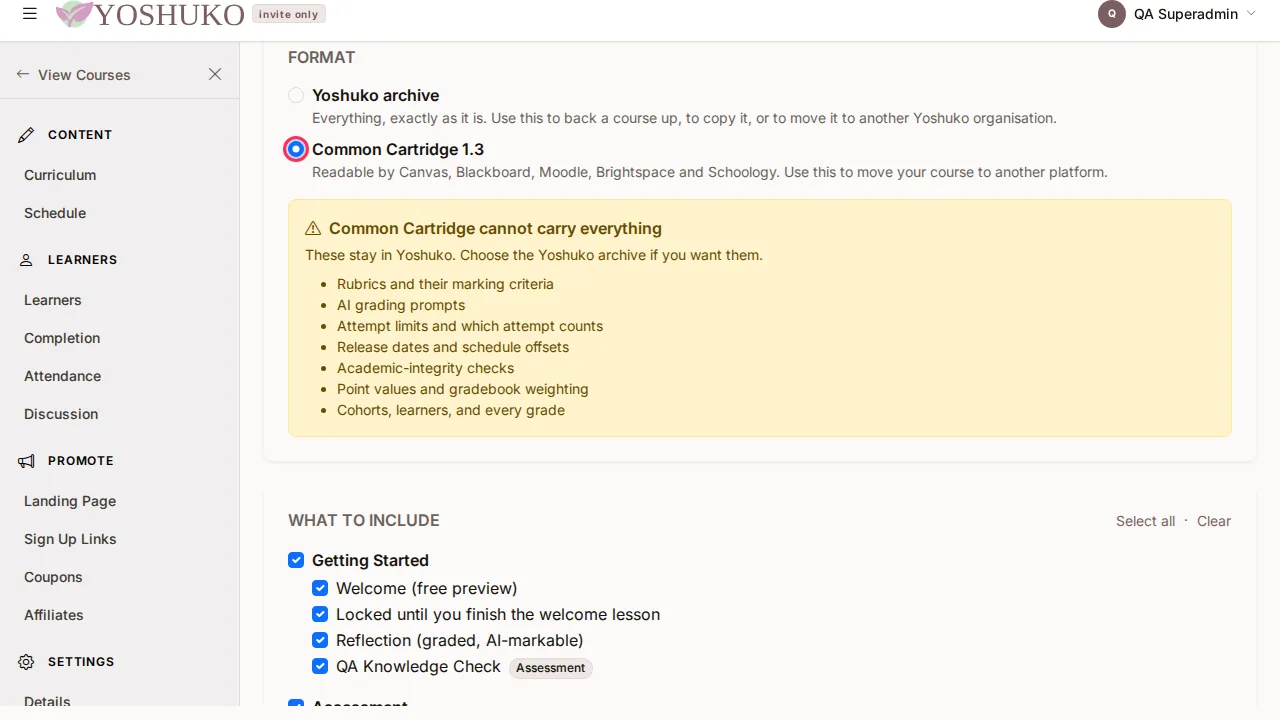
- Common Cartridge 1.3 — readable by Canvas, Blackboard, Moodle, Brightspace and Schoology. Use it to move your course to another platform.
- Under What to include, tick the units and lessons to export. Select all and Clear tick or untick everything.
- Press Start export. When the file is ready, press Download.
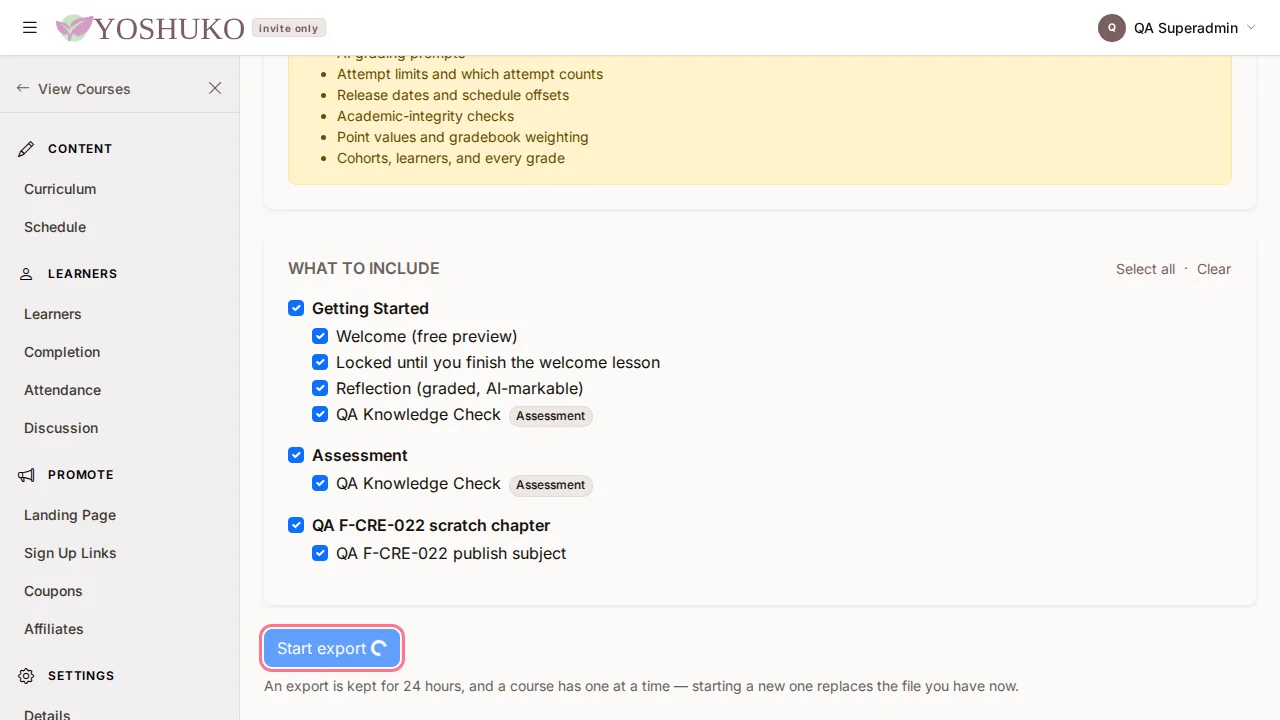
An export is kept for 24 hours, and a course has one at a time — starting a new export replaces the file you have now.
Common Cartridge cannot carry everything
When you choose Common Cartridge 1.3, these stay behind in Yoshuko:
- Rubrics and their marking criteria
- AI grading prompts
- Attempt limits and which attempt counts
- Release dates and schedule offsets
- Academic-integrity checks
- Point values and gradebook weighting
- Cohorts, learners, and every grade
Choose the Yoshuko archive if you need them.
What you can import
| From | Export it like this | You get |
|---|---|---|
| Canvas | Settings → Export Course Content → Course | an .imscc file |
| Moodle 2.0 and later | Course → Backup, with "Include question bank" ticked | an .mbz file |
| Blackboard Learn | Packages and Utilities → Export Course → Common Cartridge | an .imscc file |
| Brightspace (D2L) | Course Admin → Import/Export/Copy Components → Export as Common Cartridge | an .imscc file |
| Schoology | Course Options → Export → Common Cartridge | an .imscc file |
| Yoshuko | Any course's Export button | a .zip archive |
- From Moodle, tick "Include question bank", or the quizzes arrive empty.
- From Blackboard, use the Common Cartridge export, not the "Course Export" package — that is Blackboard's own format and cannot be read. From Brightspace, likewise, not the Brightspace course package.
- Files can be up to 2048 MB.
What comes across: units, pages, assignments, quizzes and question banks; images and PDFs (images over 2 MB are resized to fit). Video and audio are not stored — Yoshuko links to them, and each one leaves a note naming the file so you can add the link.
What cannot be imported: SCORM packages (a playable file, not an editable course), Moodle 1.9 and earlier (restore it into a current Moodle and back it up again), WebCT / Blackboard Vista and ANGEL archives, and IMS Content Packages.
Start a new course from an existing one
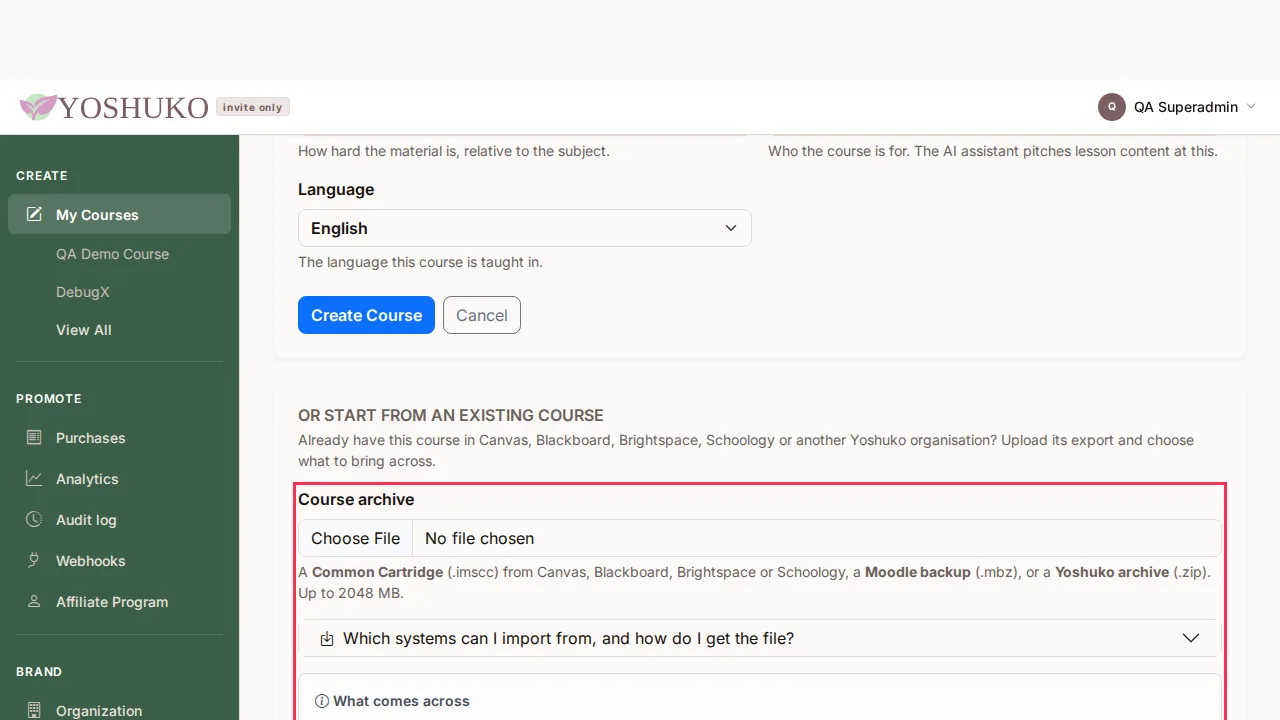
- In the creator studio, press New Course.
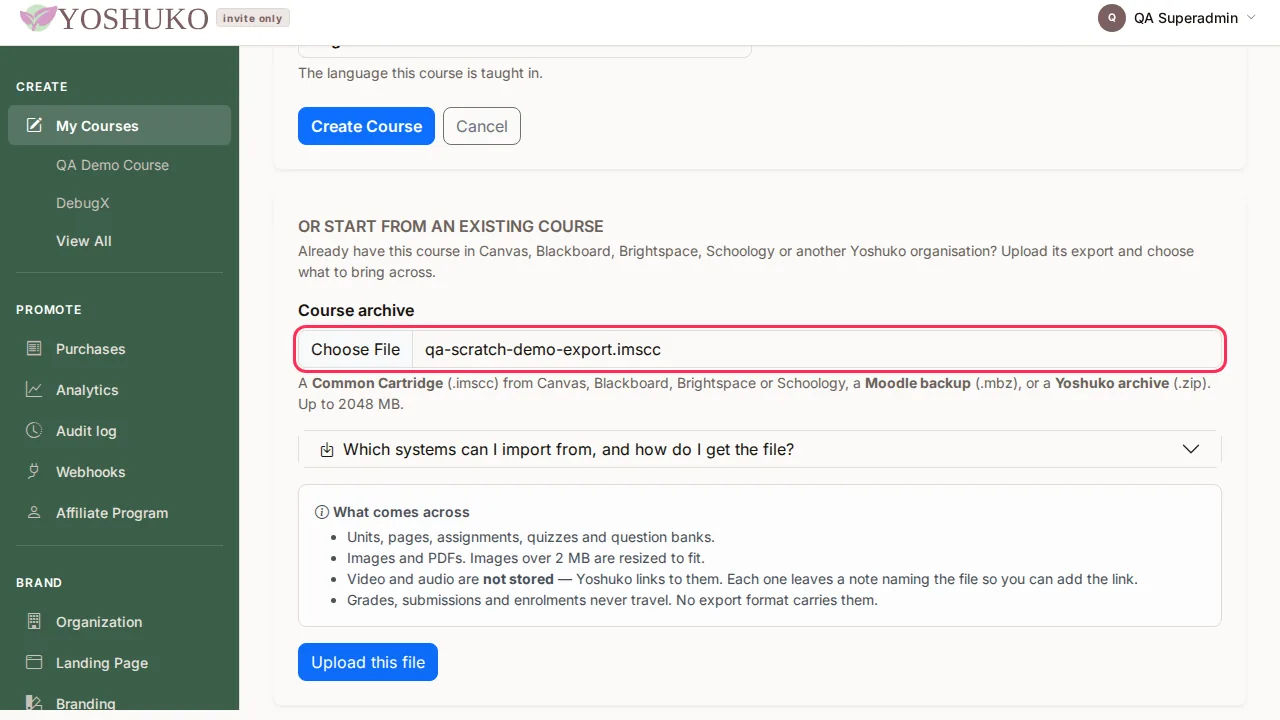
- Scroll to Or start from an existing course.
- Under Course archive, choose your file, then press Upload this file.
- Wait while it uploads and is read. You can leave the page — the course appears in your courses and tells you when it is done.
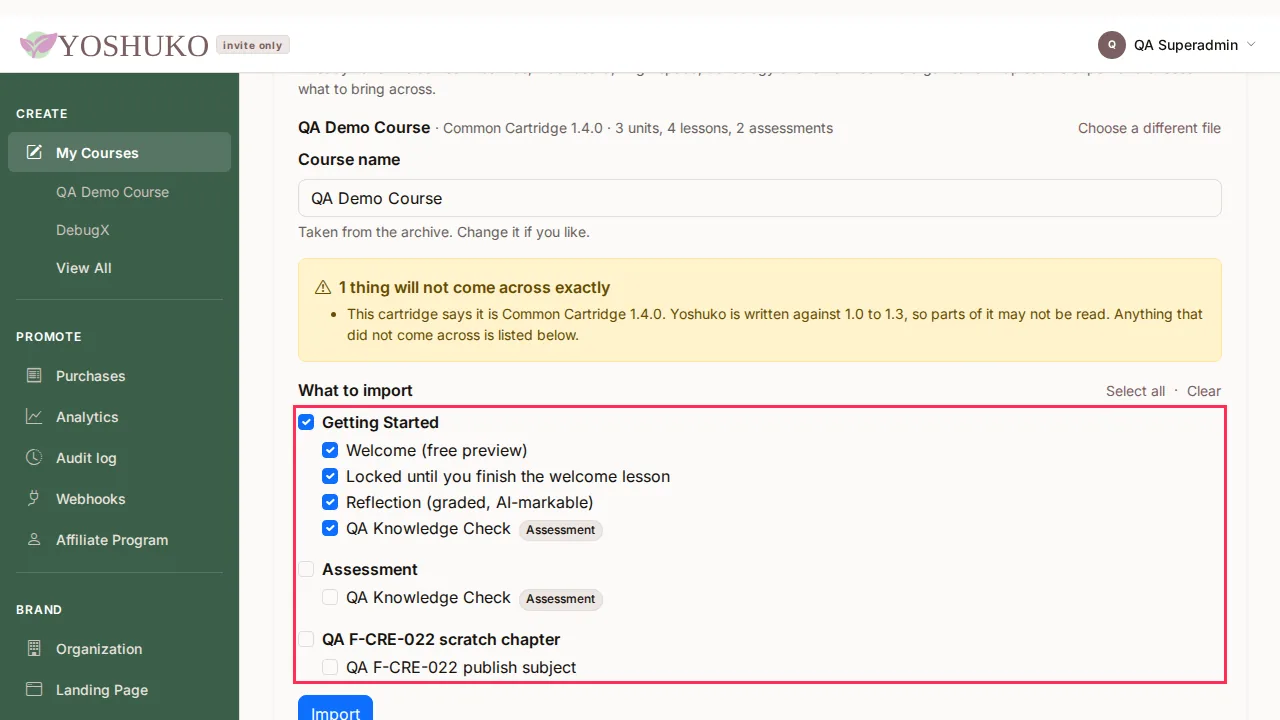
- Check the Course name. It is taken from the archive; change it if you like.
- Read any warnings, then under What to import tick the units you want.
- Press Import.
- When you see Imported, press Open the course.
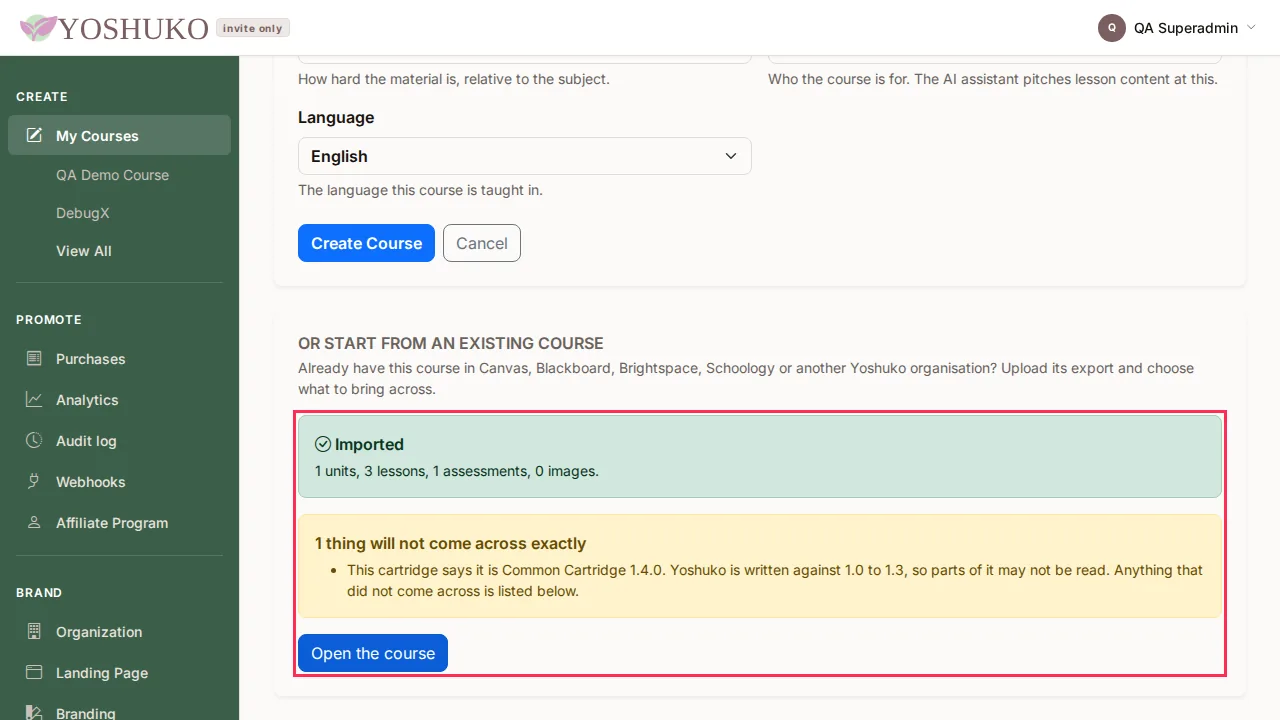
The new course is created as a draft, so no learner sees it until you publish it.
Add units from an archive to a course you already have
- Open the course and go to Details.
- In the Import / Export card, press Import.
- Under Course archive, choose your file and press Upload this file.
- While it works, the panel shows which step is running and how long it has taken.
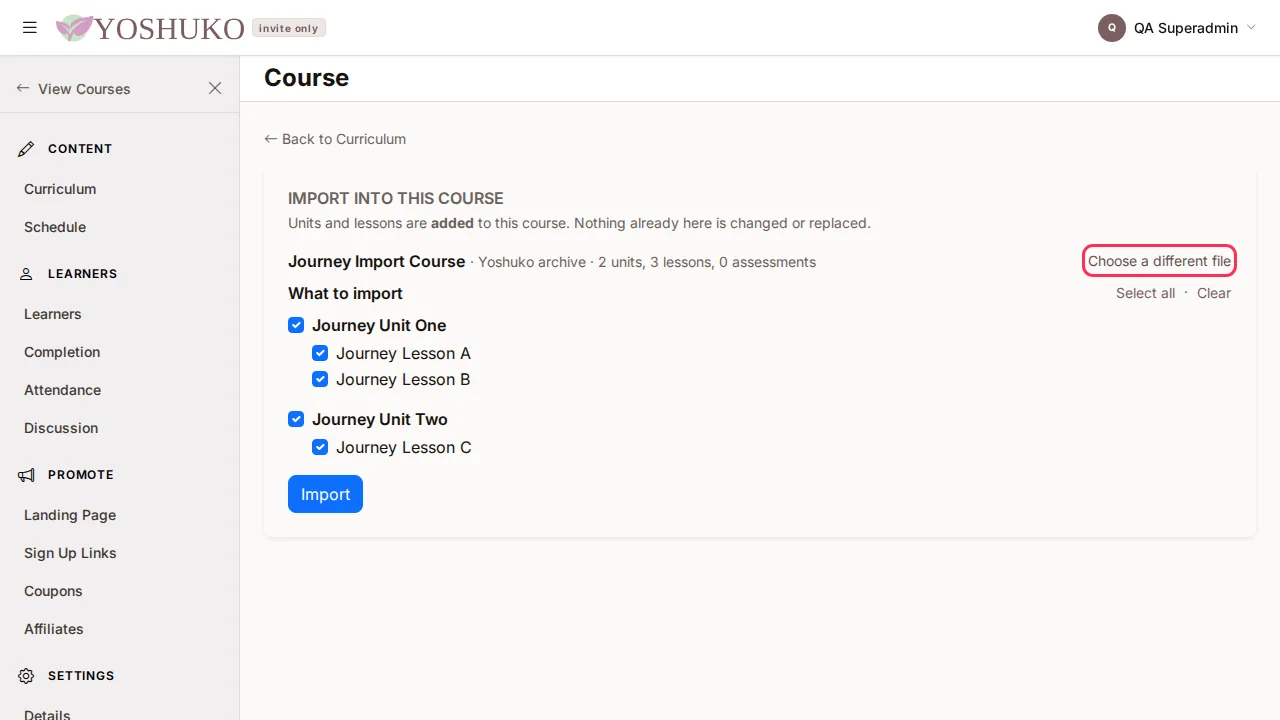
- When it has read the file, you see what the archive says it is and how much is in it. Tick the units and lessons you want under What to import — Select all and Clear help.
- Press Import, then Open the course.
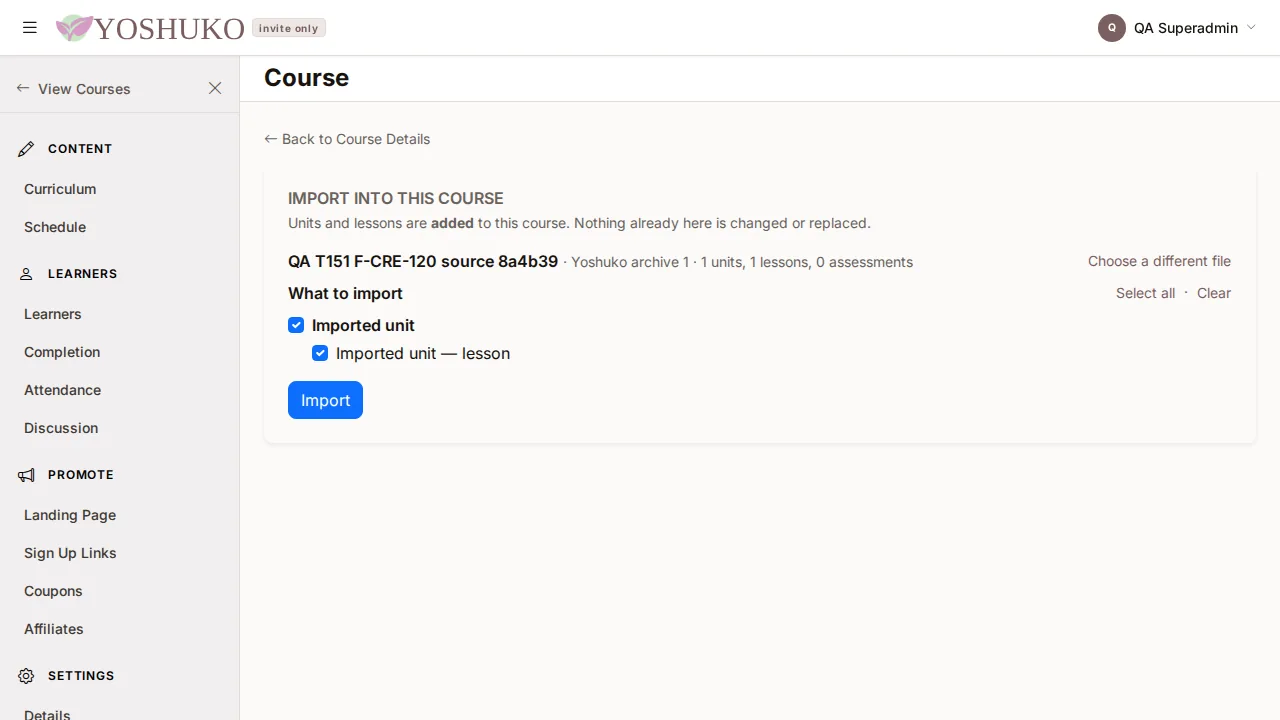
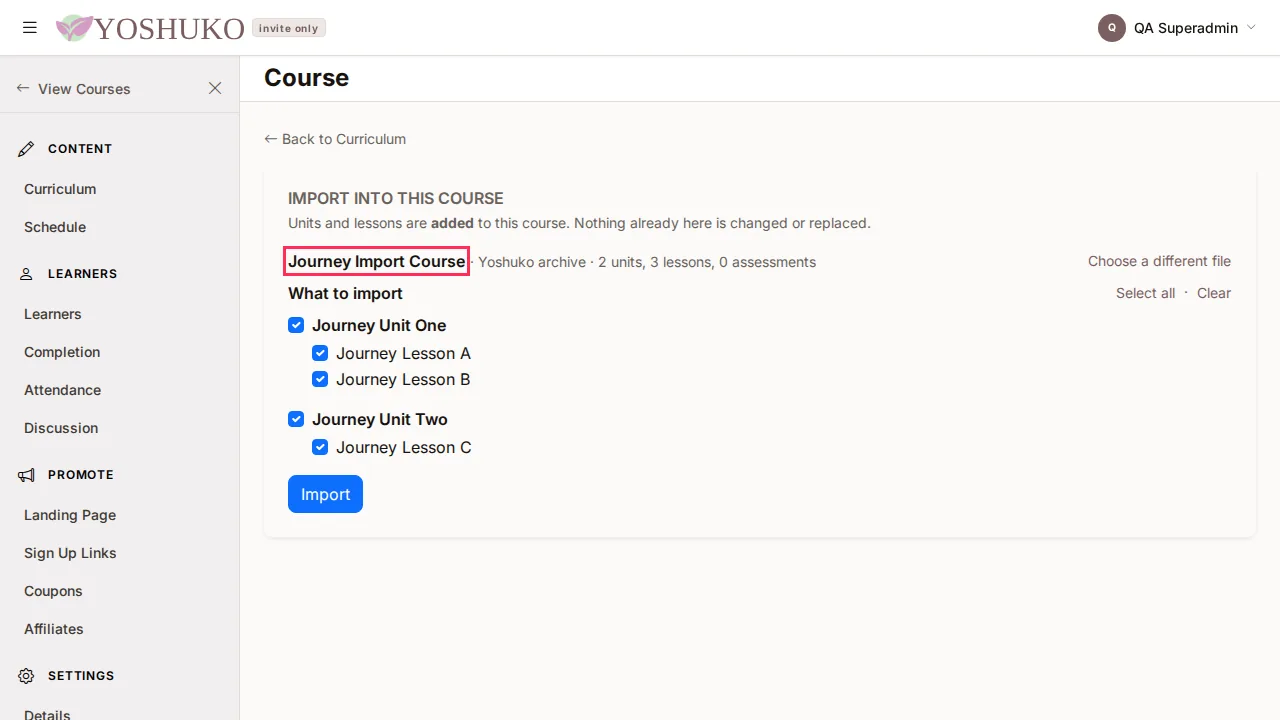
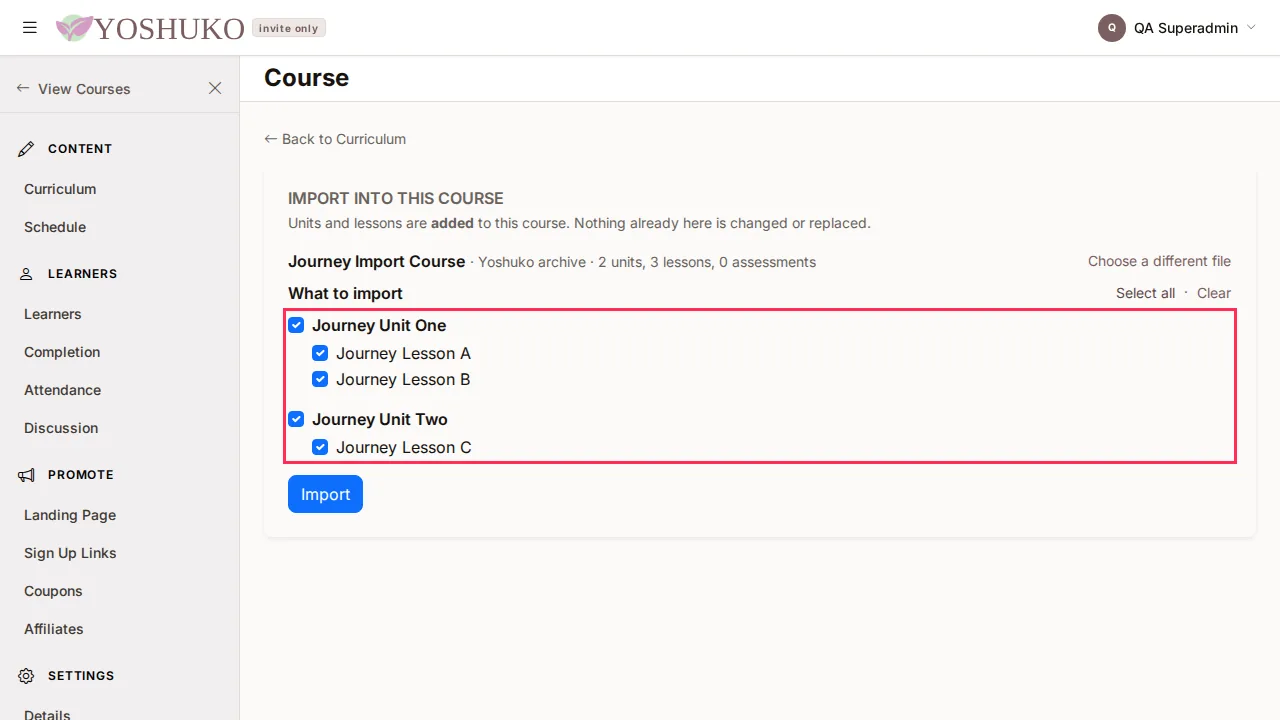
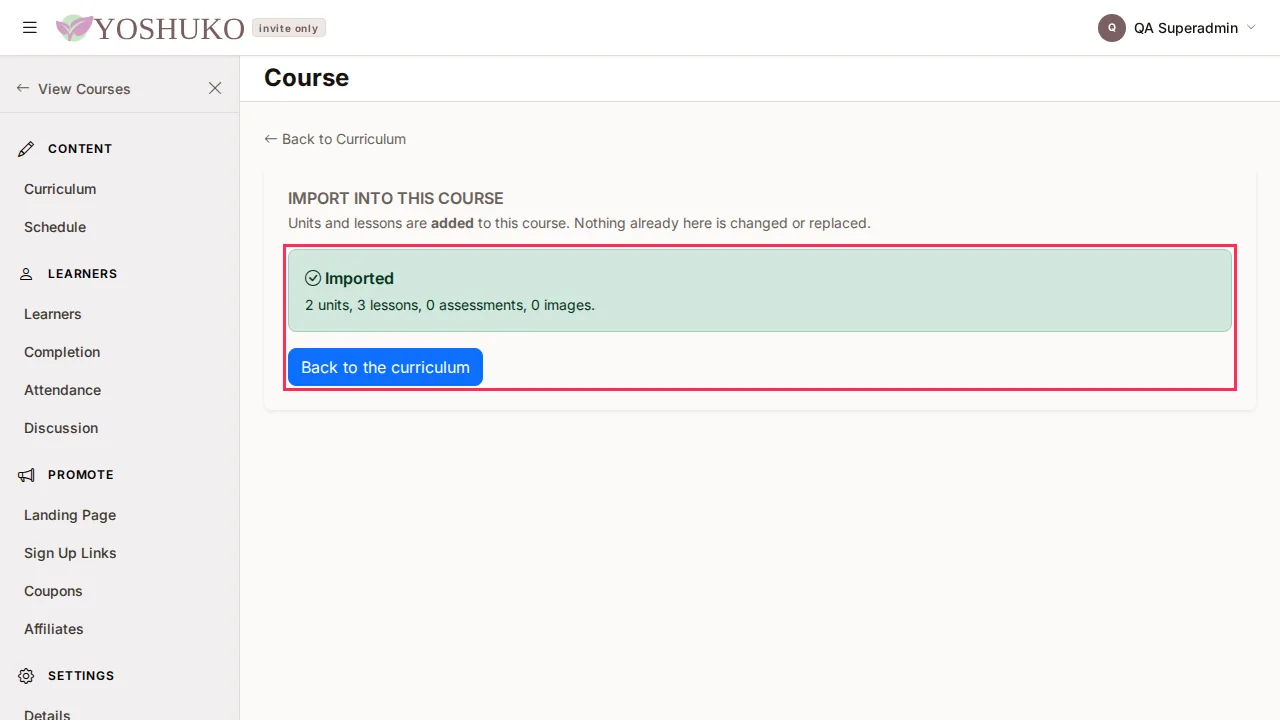
Units and lessons are added after the ones already there. Nothing already in the course is changed or replaced.
See what will not come across, before you import
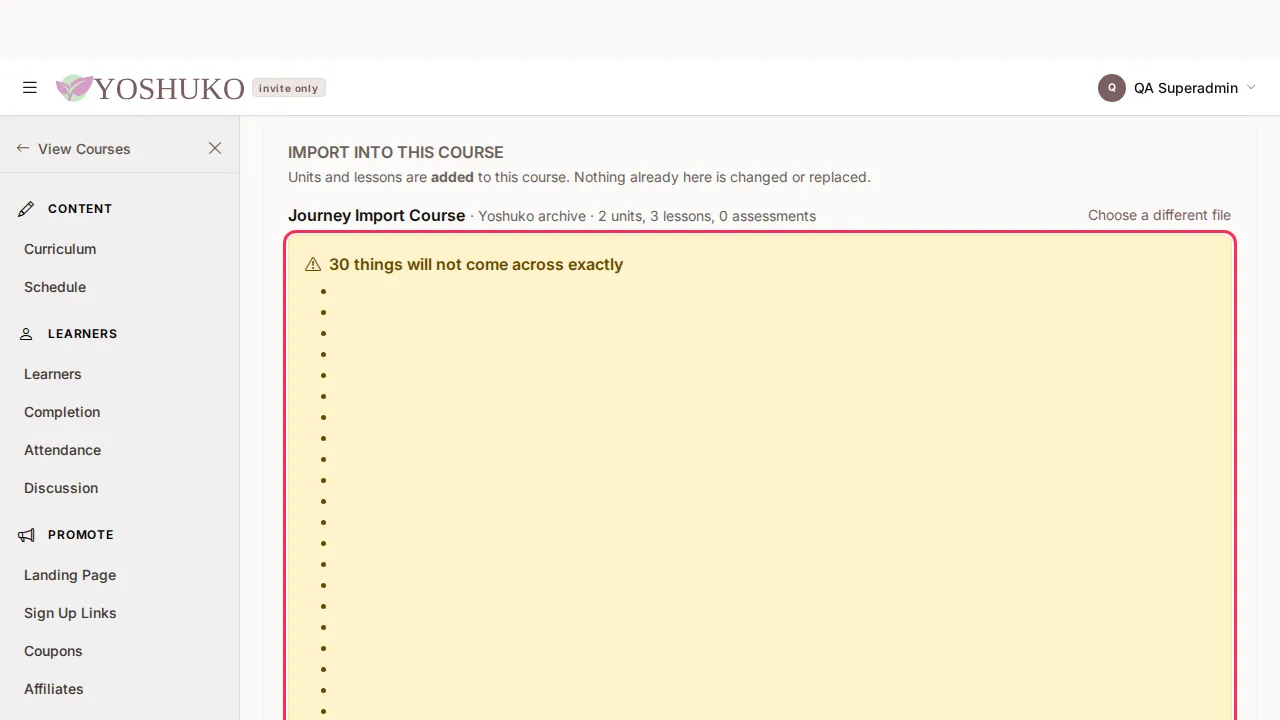
If some of the archive cannot travel exactly, a yellow box above the list says, for example, 3 things will not come across exactly, and lists them. Read it while you choose what to import — the same list is shown again after the import.
Change your mind
- Choose a different file swaps the archive without leaving the page.
- Cancel, while it is still uploading, stops the import and takes you back to the file step.
- Back to … at the top of the page leaves without importing anything.
If something goes wrong
| You see | What it means | What to do |
|---|---|---|
| A message under Course archive saying why the file cannot be used | The file is not one Yoshuko can read. | Check it is one of the formats above, then choose another file. |
| That file could not be imported | The file was uploaded but could not be read as a course. | Press Try another file. |
| This step (…) has not reported for a while. It may still be working. | A long import has gone quiet on the step named. | Wait, or leave the page — if it has stopped, the course will say so. |
| This export has expired — start another to get a new file | Exports are kept for 24 hours. | Press Start export again. |
| This course has no units yet, so there is nothing to export. | The course is empty. | Add content first. See Organise a course. |