Marking and the gradebook
The gradebook shows every learner on a course against every assignment, in one grid. You can type marks straight into it, fill a whole column at once, ask the AI to mark written answers, read what each learner submitted, and download the lot as a spreadsheet. Marking one assignment for a class takes a few minutes.
Before you start
- You need to be a creator on the course.
- The course needs at least one assignment and at least one enrolled learner. See Enrol learners and cohorts.
Open the gradebook
- Open the course in the creator studio.
- In the course menu, under Learners, choose Completion. The page is titled Gradebook.
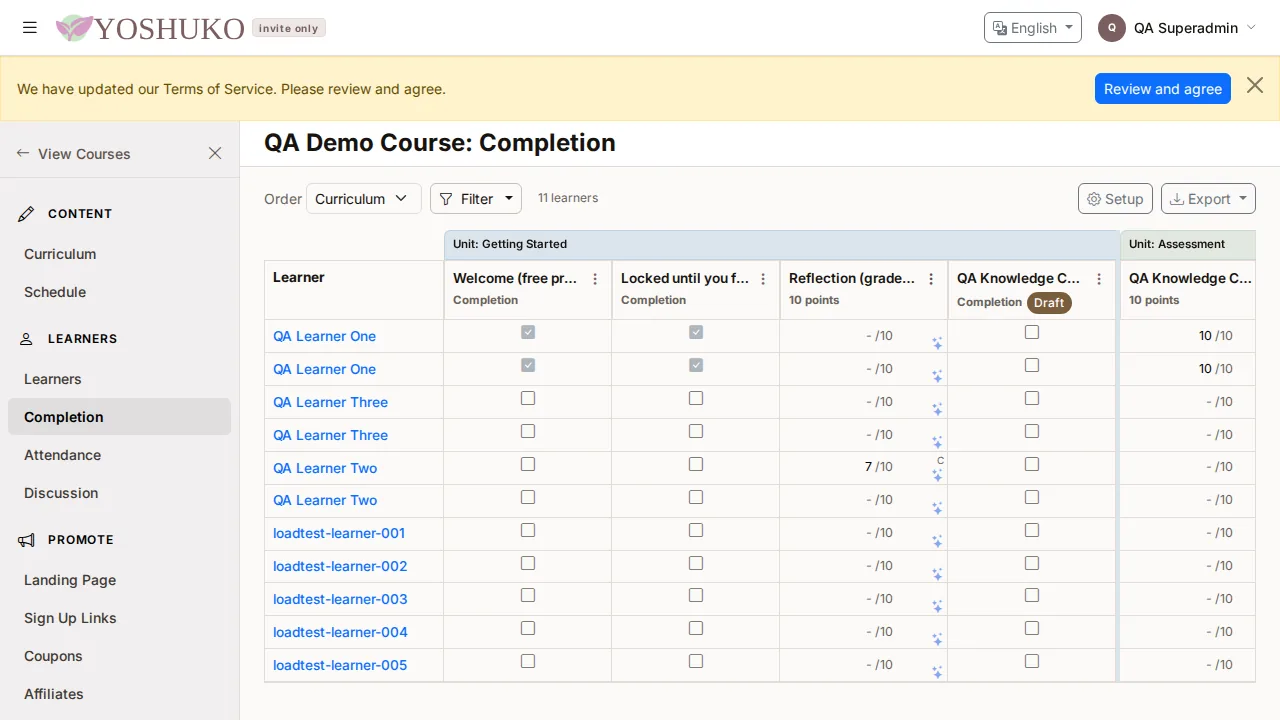
Each row is a learner and each column is an assignment. Columns are grouped by unit, followed by one cumulative column per unit and a Course column. Use Order to sort the columns by Curriculum, Start date or Due date, and Filter to narrow the learners shown.
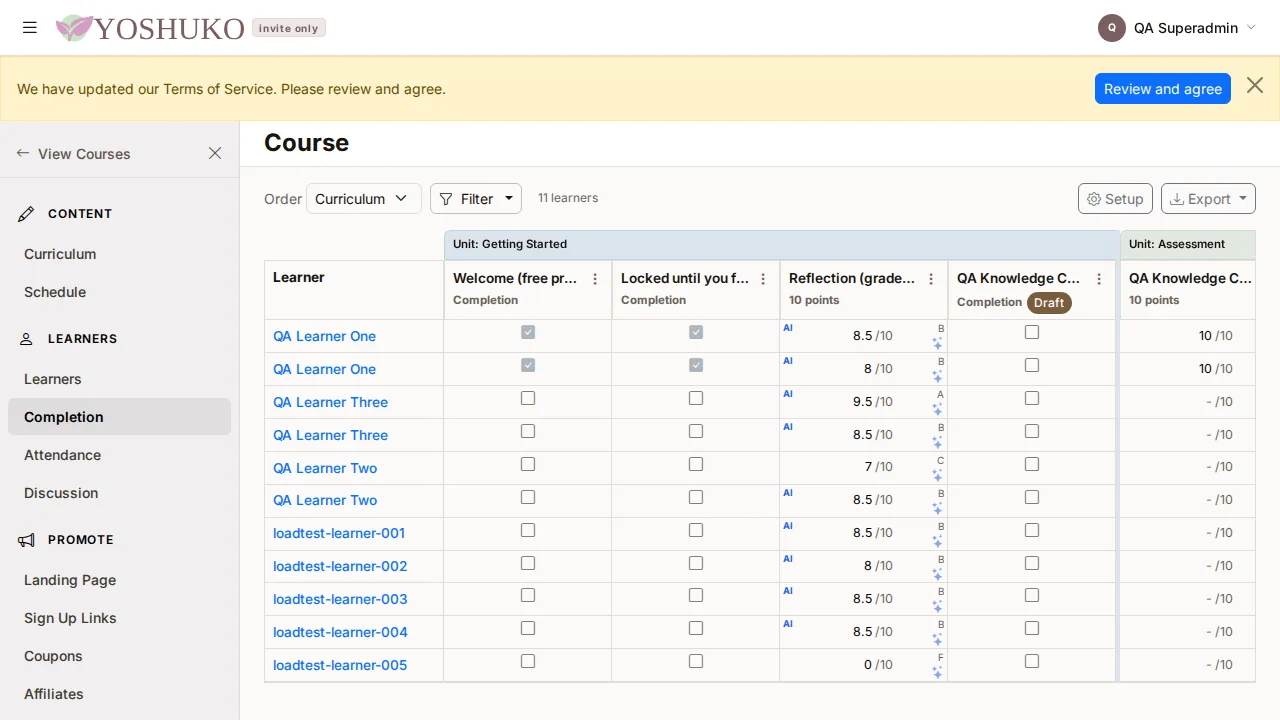
Type a mark into a cell
- Click a learner's cell for the assignment and type the points they earned.
-
Press Enter (or click away) to save. The cell briefly turns green when it is saved.
-
Type EX to excuse the learner. An excused assignment does not count toward their grade.
- Clear the cell to remove the mark.
- The arrow keys and Enter move between cells, like a spreadsheet.
A letter grade appears in the corner of a marked cell, and an AI badge marks a grade the AI produced, so you can tell it from one you typed.
Give every learner a mark for one assignment at once
Useful for recording a zero for everyone who did not hand something in.
- Open the column's menu — the ⋮ button in the assignment's heading.
- Choose Fill grades….
- Under Apply to, choose who gets the mark: All learners, Only those who turned it in, or Only those who have not turned it in.
- Choose Points or Percent, and type the Value. Or tick Excuse instead (does not count toward the grade).
- Press Apply.
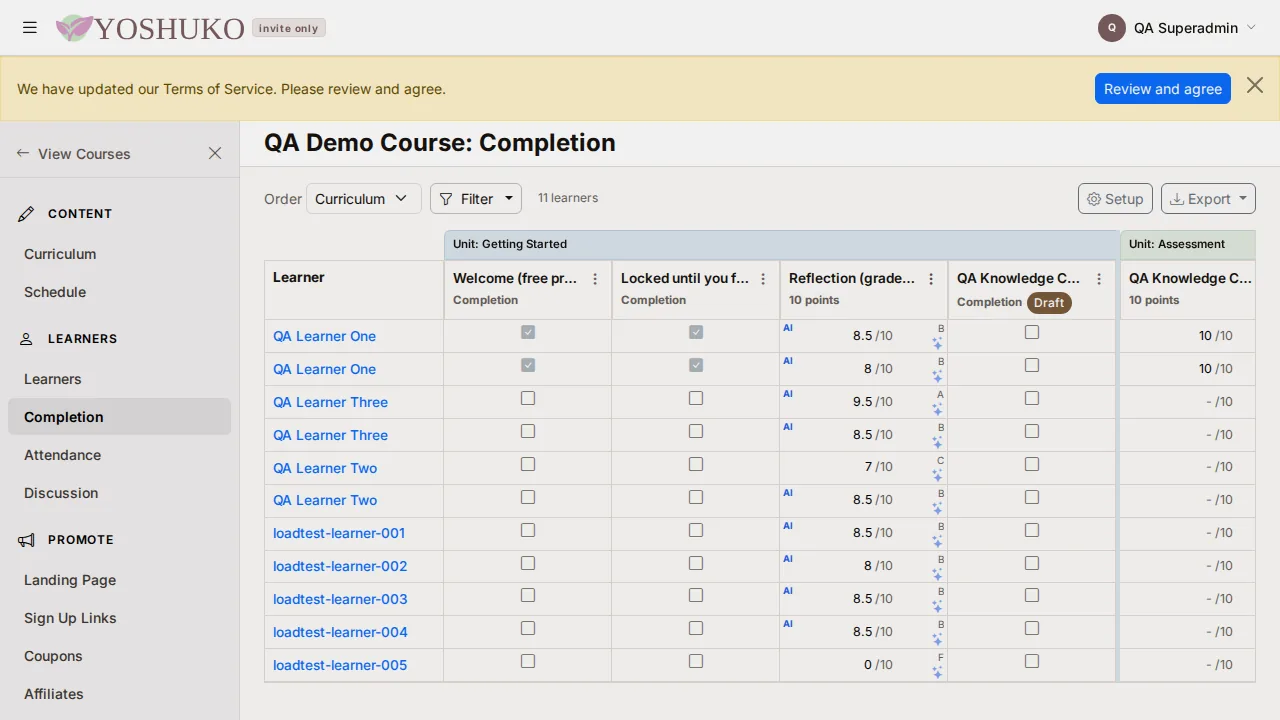
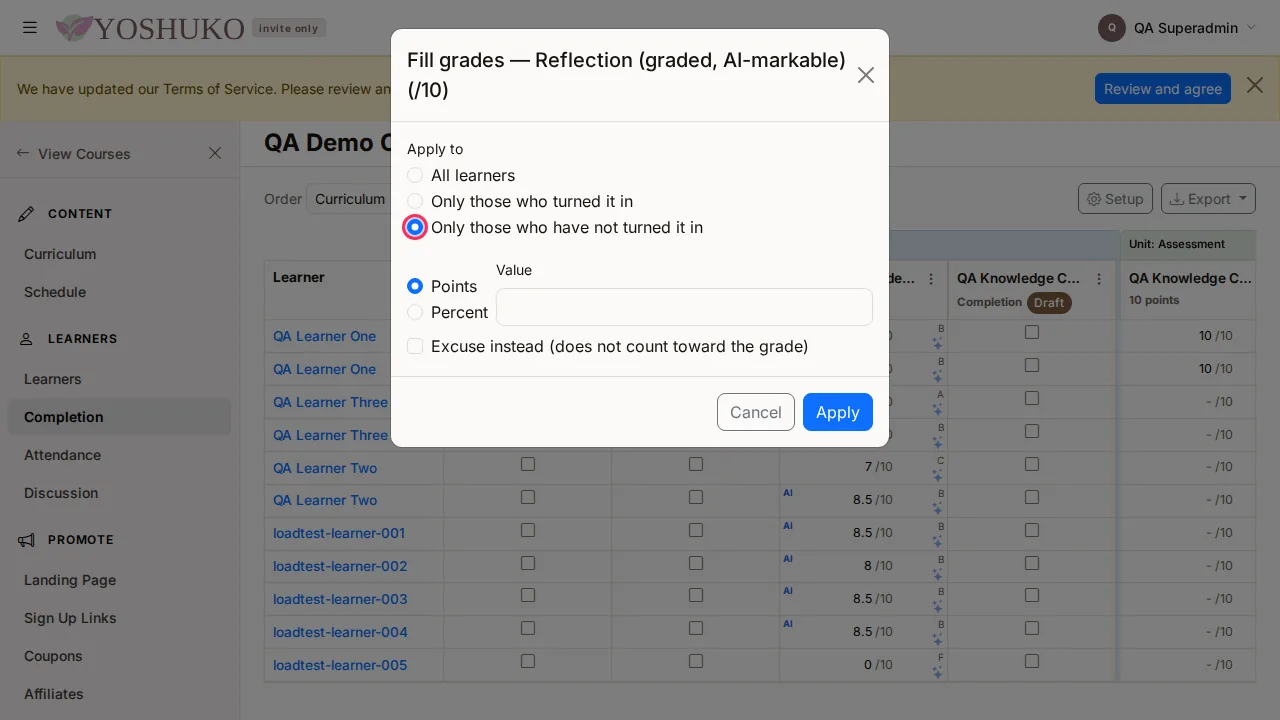
Learners outside the group you chose are left exactly as they were.
Fill grades… appears only on graded columns. A column set to completion shows Completion column in its menu instead.
Read and mark each learner's answers
- Open the column's ⋮ menu and choose Review responses…. (If nobody has answered yet, the menu says No learner response to review.)
- Pick a learner from the list on the left. Use Search learners or the filter to find someone.
- Read their answer, type the Points earned, or tick Excused.
- Press Save.
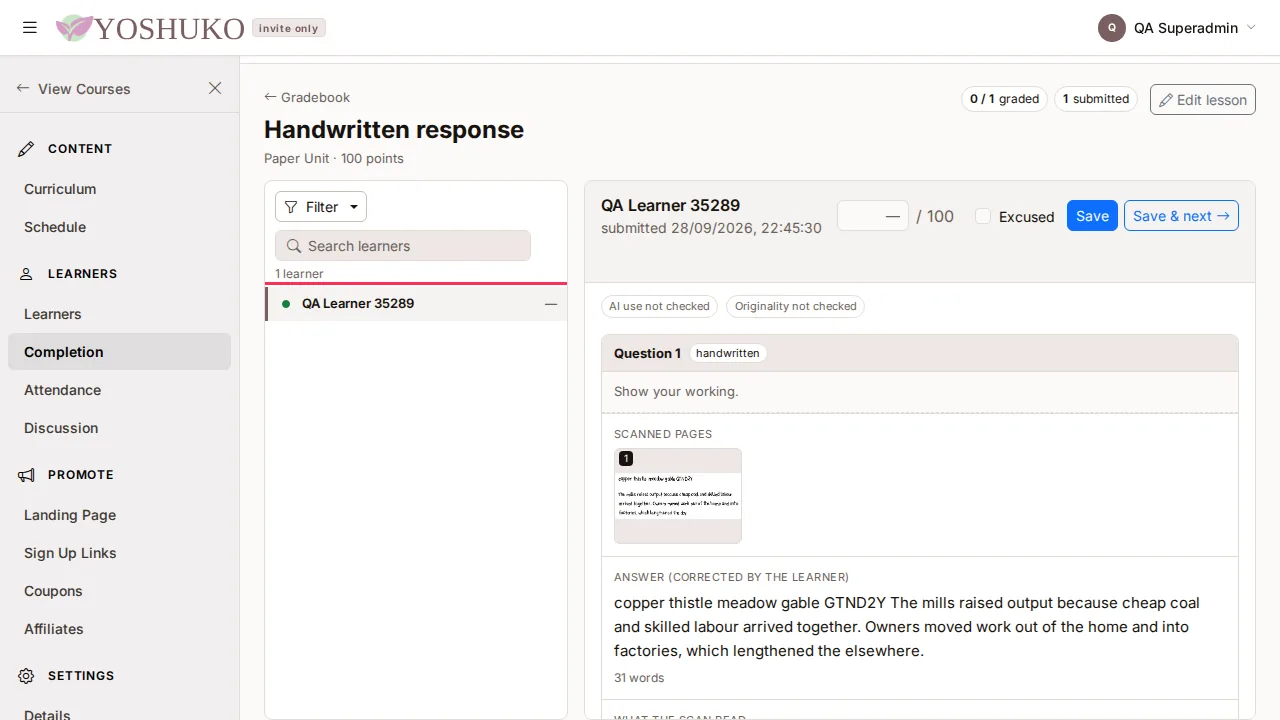
If the assignment is set to Completion, a score would not appear in the gradebook. Yoshuko asks you to confirm a Point value for this assignment and press Make it graded and save, or Cancel.
If someone else — or an AI grading job — recorded a grade after you opened the response, you see This grade changed while you were reviewing. Choose Show me theirs to see their grade, or Keep mine to replace it with yours.
Handwritten answers
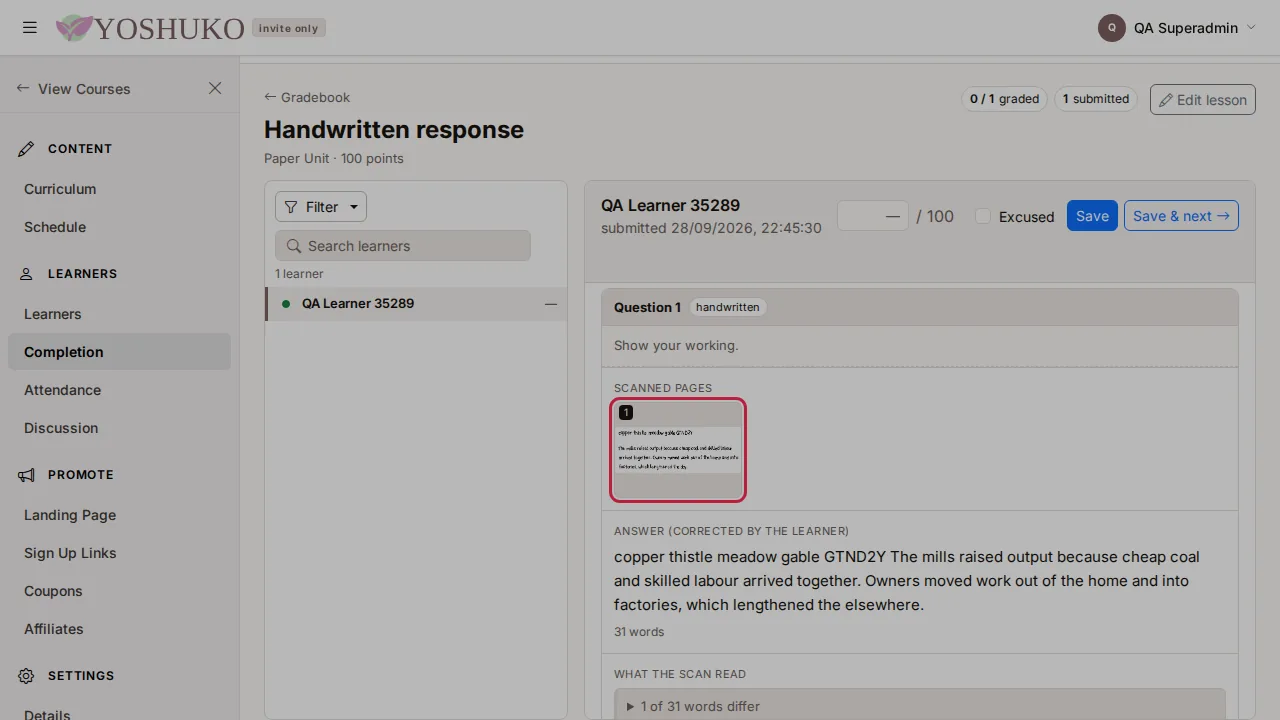
When a learner answers on paper and scans the pages, their pages appear as thumbnails beside the answer.
- Click a page thumbnail to see the scan full size.
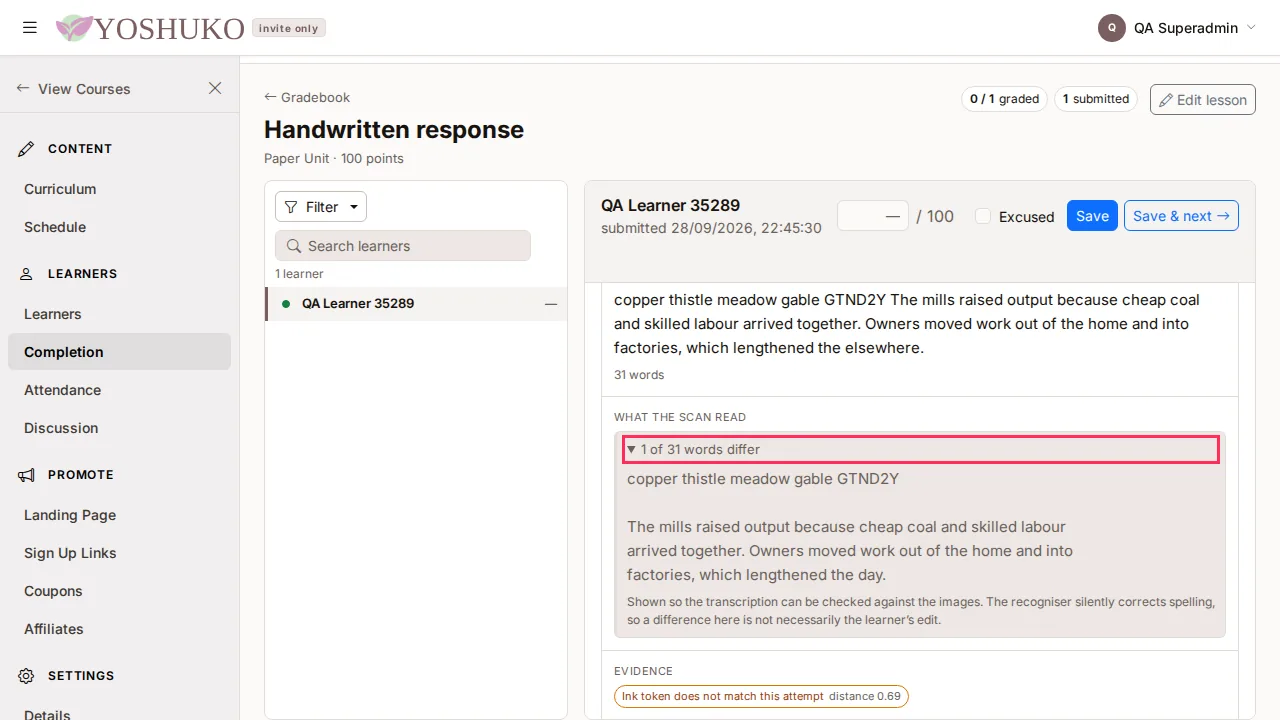
- Open the line that reads, for example, 3 of 120 words differ. It shows what the scanner originally read, so you can compare it with the answer the learner submitted.
Keep in mind:
- The scanner silently corrects spelling, so a difference is not necessarily the learner's own edit.
- When the learner rewrote a lot, the comparison opens by itself and says this is a rewrite, not a fix.
- If the scanner could not read the page at all, the screen says so: the learner typed the answer themselves, and you should read the images to check it.
- If a page image has been removed under the retention policy, its thumbnail says image no longer stored. The submission itself is kept.
Have the AI mark an assignment
The AI can mark assignments that ask for a written text response.
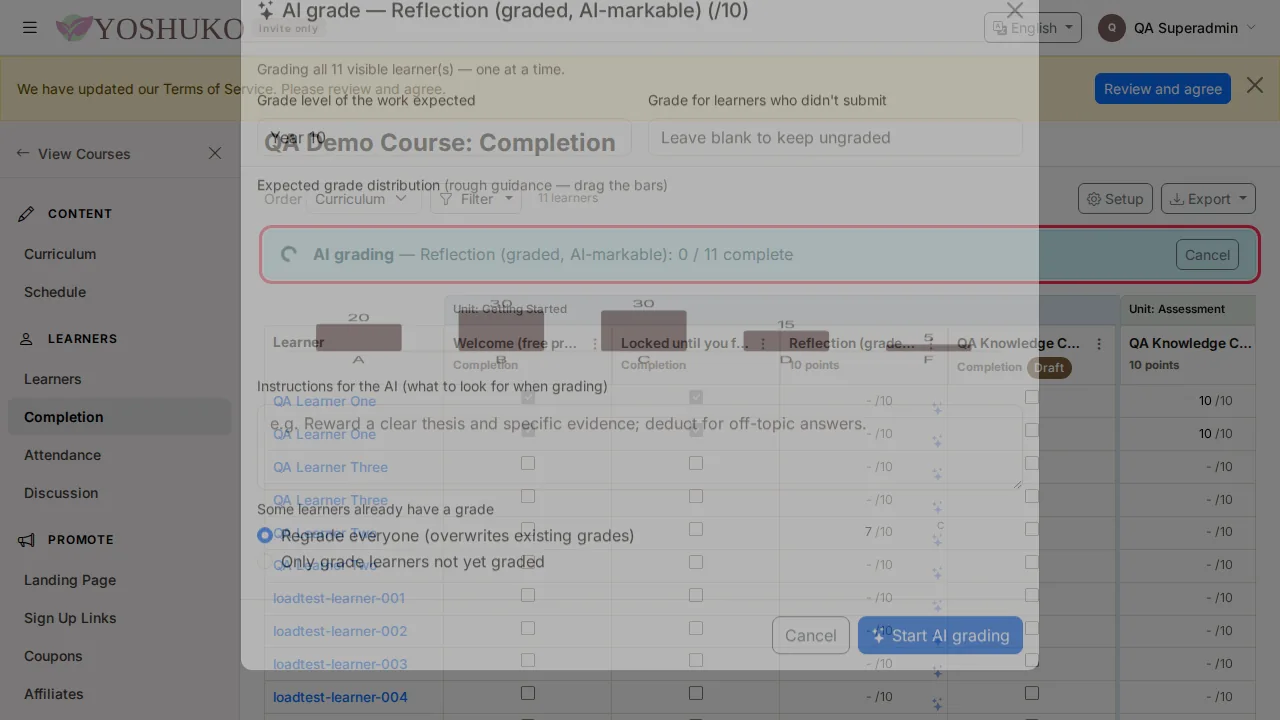
- Open the column's ⋮ menu and choose AI grade all…. (If the assignment has no text response, the menu shows AI grade (needs a text response) and you cannot choose it.)
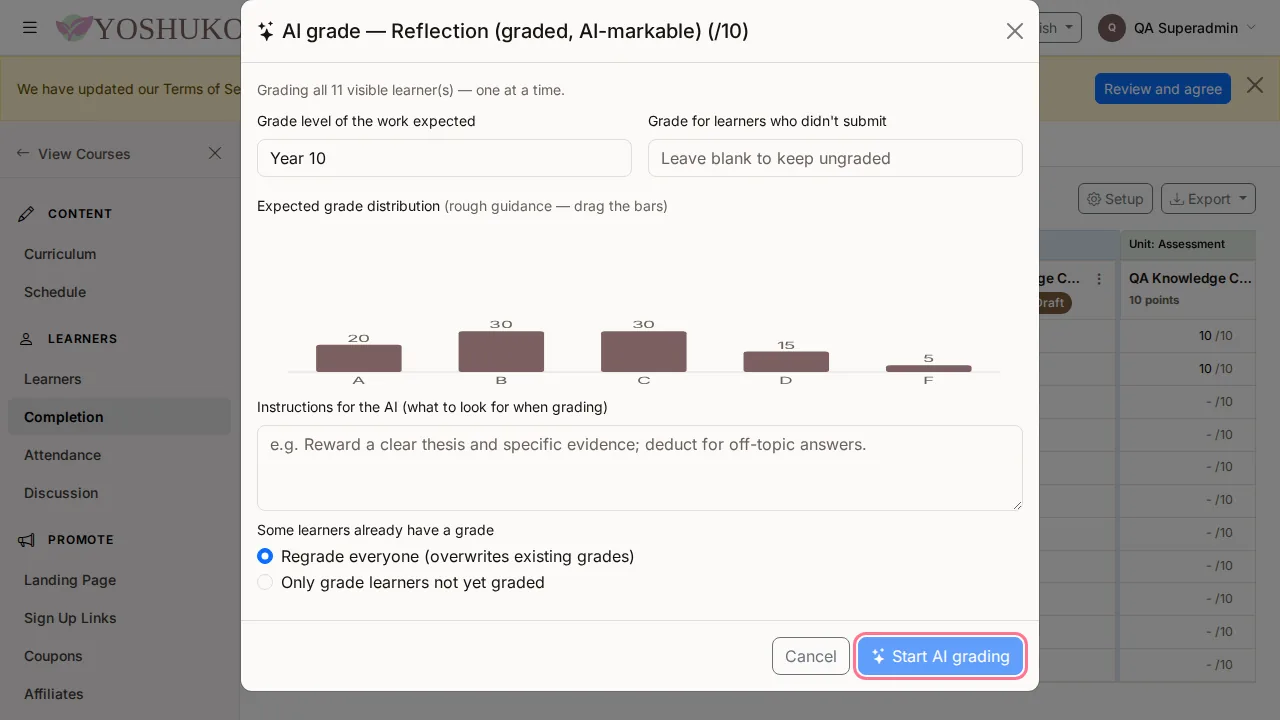
- Fill in the dialog:
- Grade level of the work expected — for example 8th grade or College.
- Grade for learners who didn't submit — leave it blank to leave them ungraded.
- Expected grade distribution — drag the bars to give rough guidance.
- Instructions for the AI (what to look for when grading).
- If some learners already have a grade, choose Regrade everyone (overwrites existing grades) or Only grade learners not yet graded.
- Press Start AI grading.
The AI grades every learner currently shown in the grid (your filters apply), one at a time. A banner at the top shows progress, with Cancel to stop it — and Resume if a run was interrupted. You can keep working while it runs.
To AI-grade a single learner, use the small AI button in that learner's cell (AI grade this learner).
If you AI-grade an assignment that is set to completion, the dialog tells you it will be marked as graded so the scores show.
See how one learner is doing
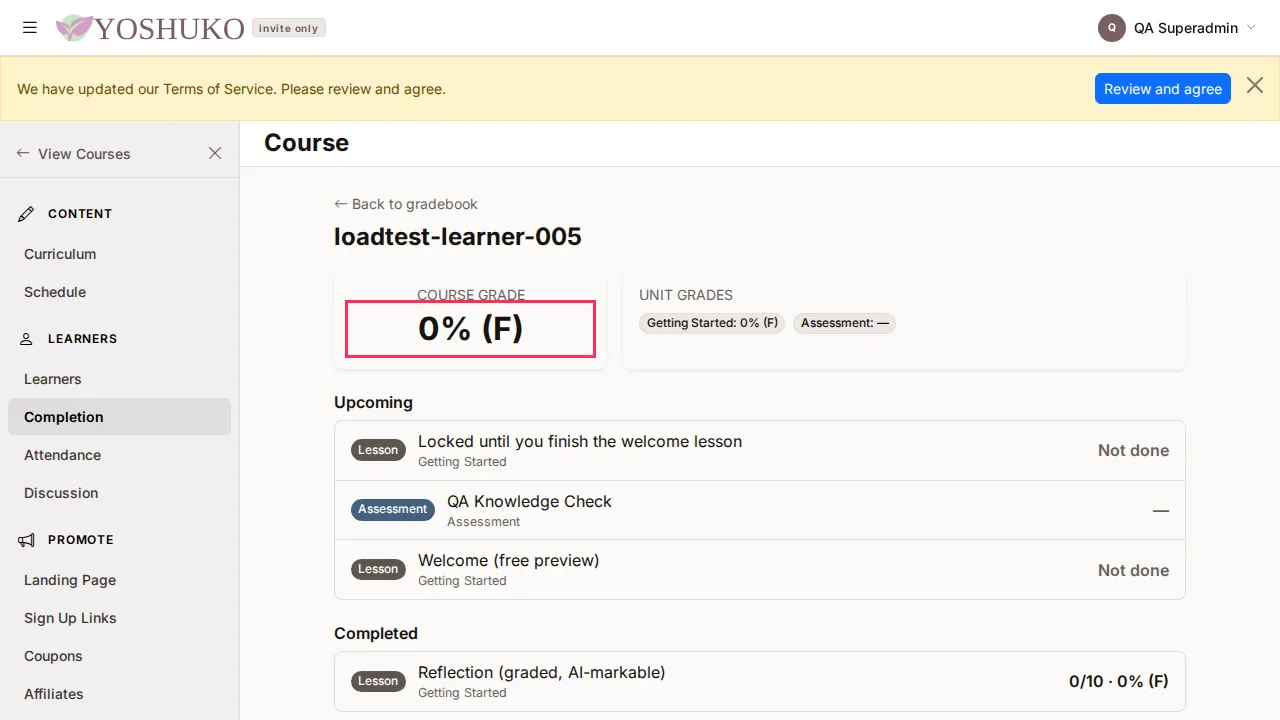
- In the gradebook, click the learner's name.
- Their page shows their Course grade, their Unit grades, and lists of Upcoming and Completed work, with each item's mark, Complete, Not done or Excused.
- Press Back to gradebook to return.
Download the gradebook as a spreadsheet
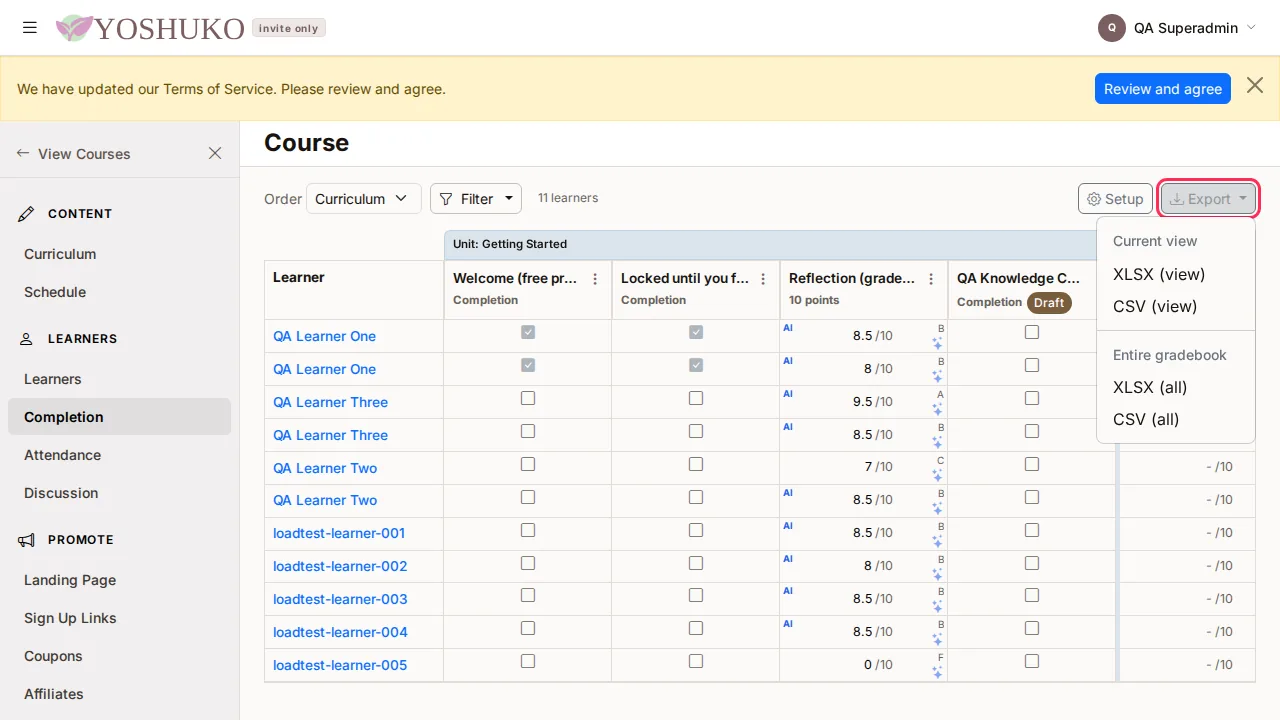
- Press Export.
- Under Current view choose XLSX (view) or CSV (view) to download just the learners and columns you are looking at. Under Entire gradebook choose XLSX (all) or CSV (all) for everything.
Excused marks are written as EX in the file.
Change how the gradebook adds up
Press Setup to open the gradebook settings for this course.
If something goes wrong
| You see | What it means | What to do |
|---|---|---|
| No learners are enrolled on this course yet. | Nobody has joined the course, so there is nothing to mark. | Press Add learners to go to the course's learner list. |
| No learners match the filters you have set. | Your filters hide every learner. | Press Clear filters. |
| Could not load the gradebook. | The grid did not load. | Press Retry. If it keeps failing, reload the page. |
| AI grade (needs a text response), greyed out | The assignment has no written answers for the AI to mark. | Mark it yourself, or with Fill grades…. |
| A cell's value turns red and will not save | The mark is not a number of zero or more. | Type a number, EX, or clear the cell. |
Related
Grading paper answer sheets
Multiple-choice assessments given on paper can be scanned straight into this gradebook. See Paper answer sheets.