Take a course
Everything you do on a course happens in the learner app at /app/. This page shows you
how to pick up where you left off, see what is due, and keep track of how far you have got.
Before you start
- You are signed in and have joined at least one course. See Find and join a course.
Pick up where you left off
- Open My Courses. The Continue learning card names the lesson that is Up next.
- Press Resume. The lesson opens in the course player.
On a narrow screen, such as a phone, the list of lessons is tucked away. Press Curriculum at the top of the player to open it.
Work through a lesson
What you do depends on the lesson:
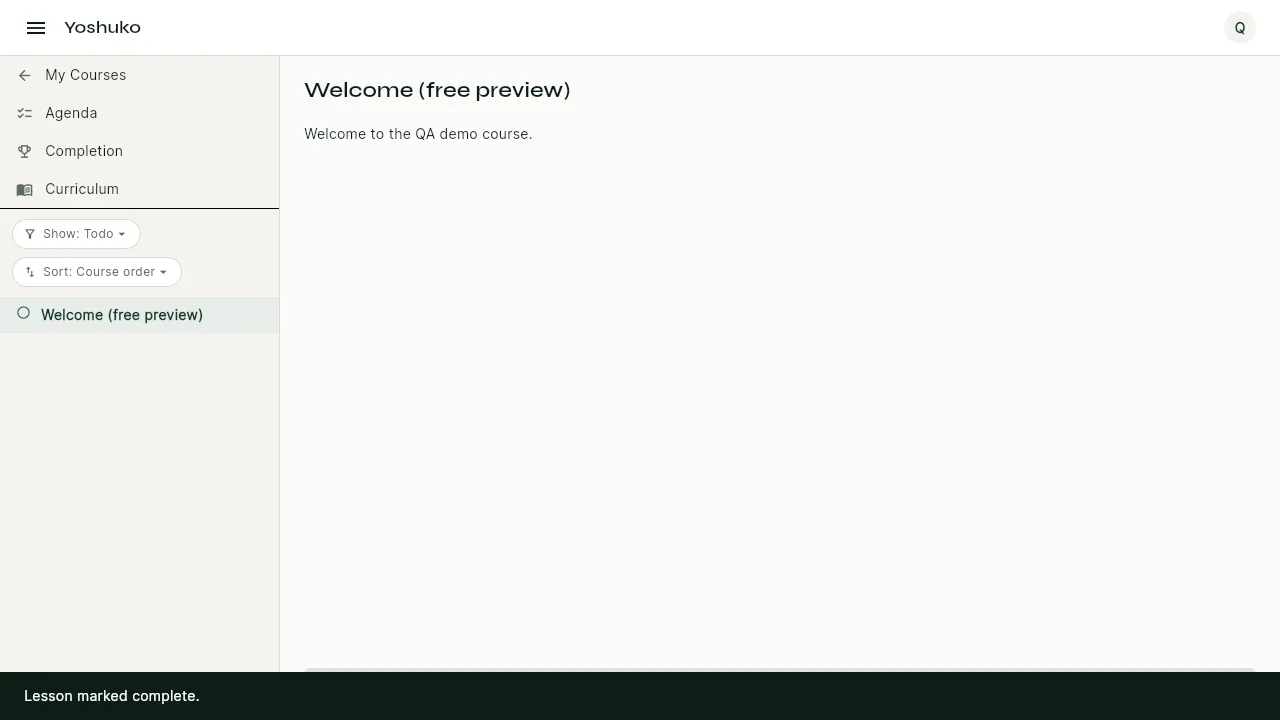
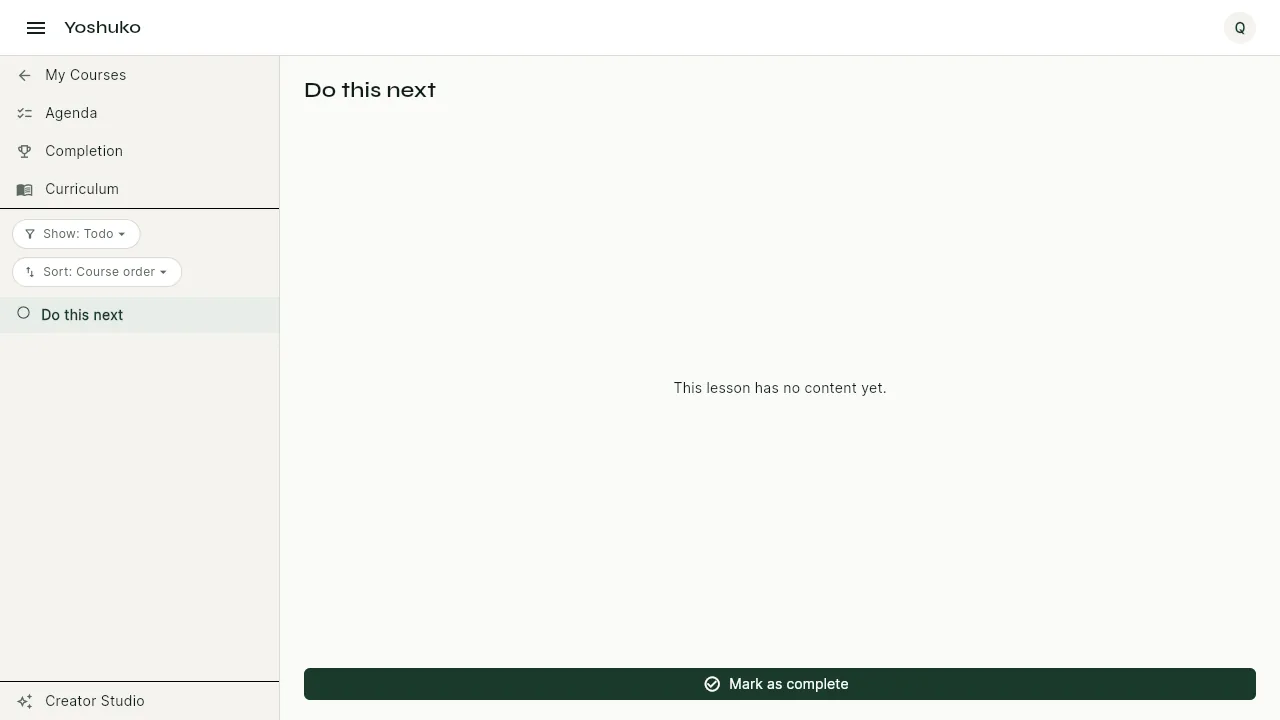
- A lesson with nothing to hand in. Read or watch it, then press Mark as complete. The button changes to Completed, and you see Lesson marked complete.
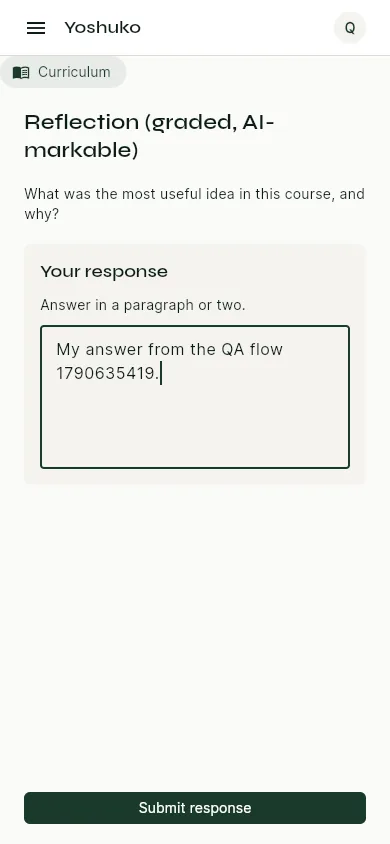
- A lesson that asks you something. Type your answer in the box, then press Submit response. You see Response submitted.
Quizzes and work you hand in on paper are covered in Quizzes and assignments.
See what to do next on the Agenda
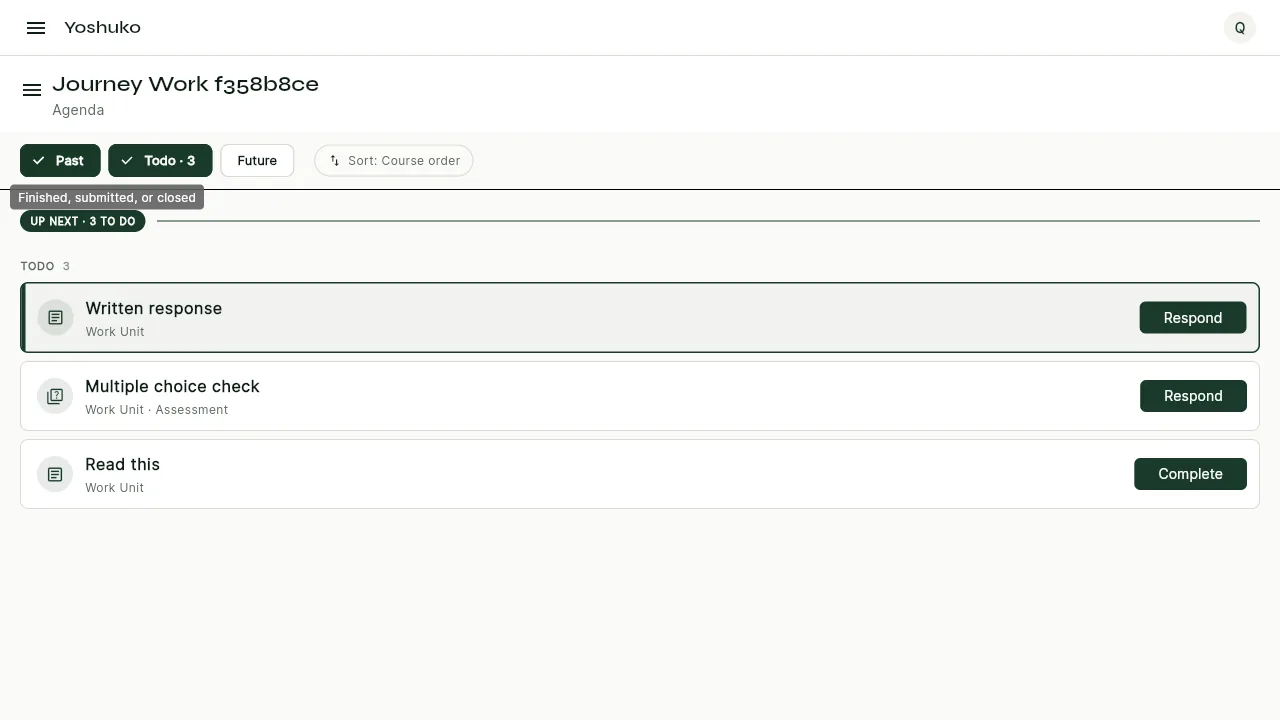
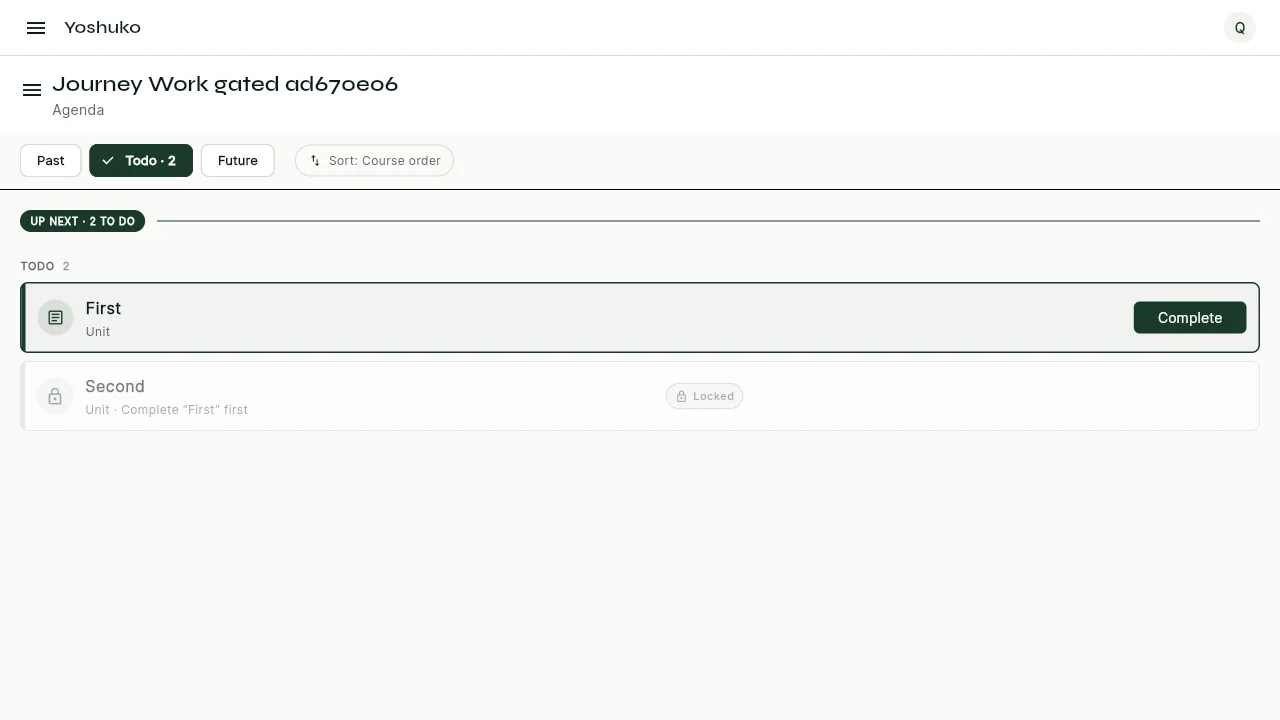
Open a course from My Courses and the Agenda is the first thing you see. It lists every lesson and assessment on the course, soonest first, under a line that reads UP NEXT · N TO DO (or NOTHING TO DO).
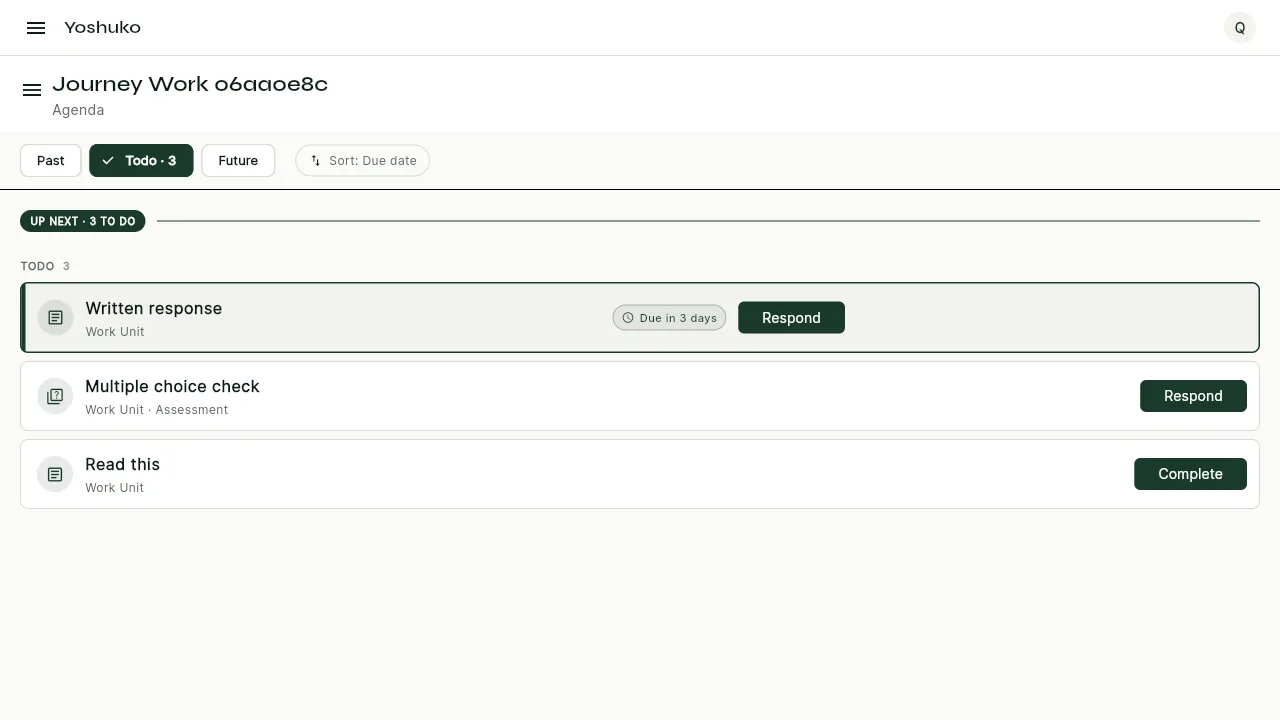
Each row tells you:
- what the work is, which unit it is in, and its points, if any;
- where you stand on it — Due today, Due tomorrow, Due in N days, Overdue by N days, a grade such as 85%, Done, Excused or Locked;
- what to do, on its button: Respond, Complete or Review.
To do the next thing:
- Press the row's button — Respond, Complete or Review.
- Or press the work's name to open it.
Either way, that lesson opens in the player.
Show only some of your work
The Agenda sorts work into three bands. Use the toggles at the top to show or hide each:
| Band | What it holds |
|---|---|
| Past | Finished, submitted, or closed |
| Todo | Open now and not yet done |
| Future | Not released yet |
If the bands you have chosen hold nothing, the Agenda says Nothing in band and offers Show everything to bring every band back.
Change the order
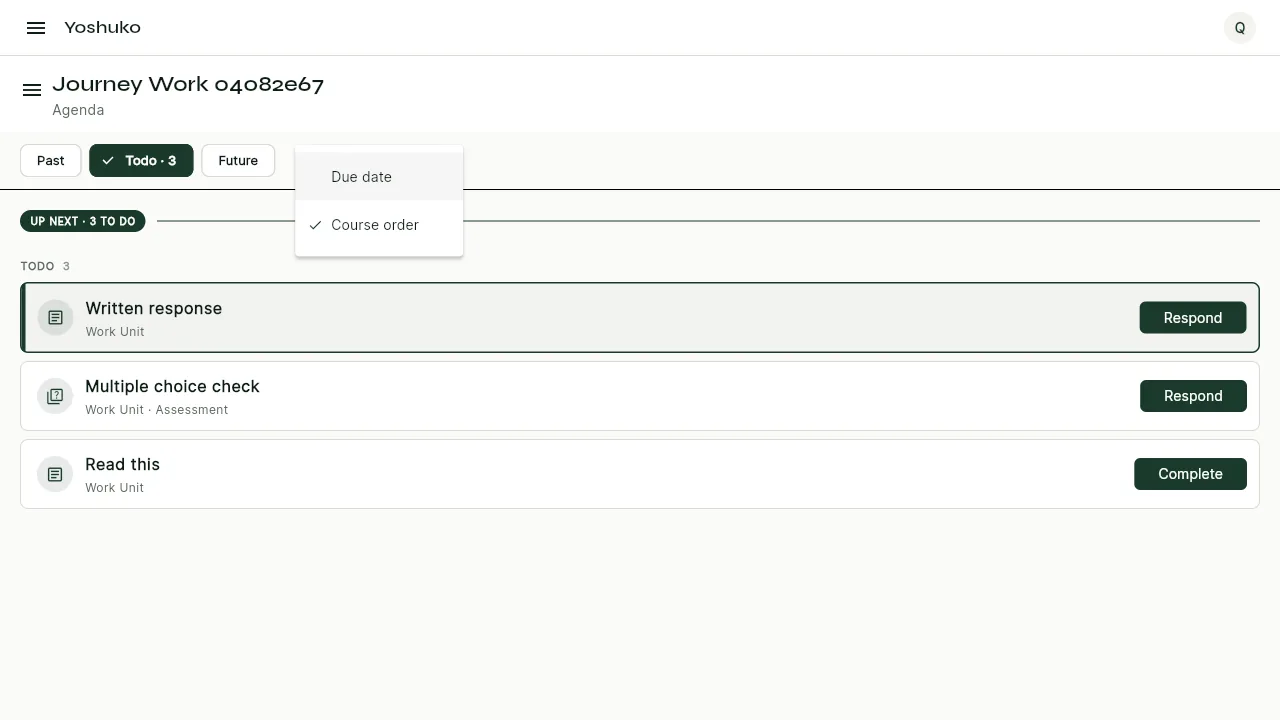
- Press Change the order (it reads Sort: order).
- Choose Due date or Course order.
You can close the menu without choosing, and your Agenda stays as it was.
Get back to where you are
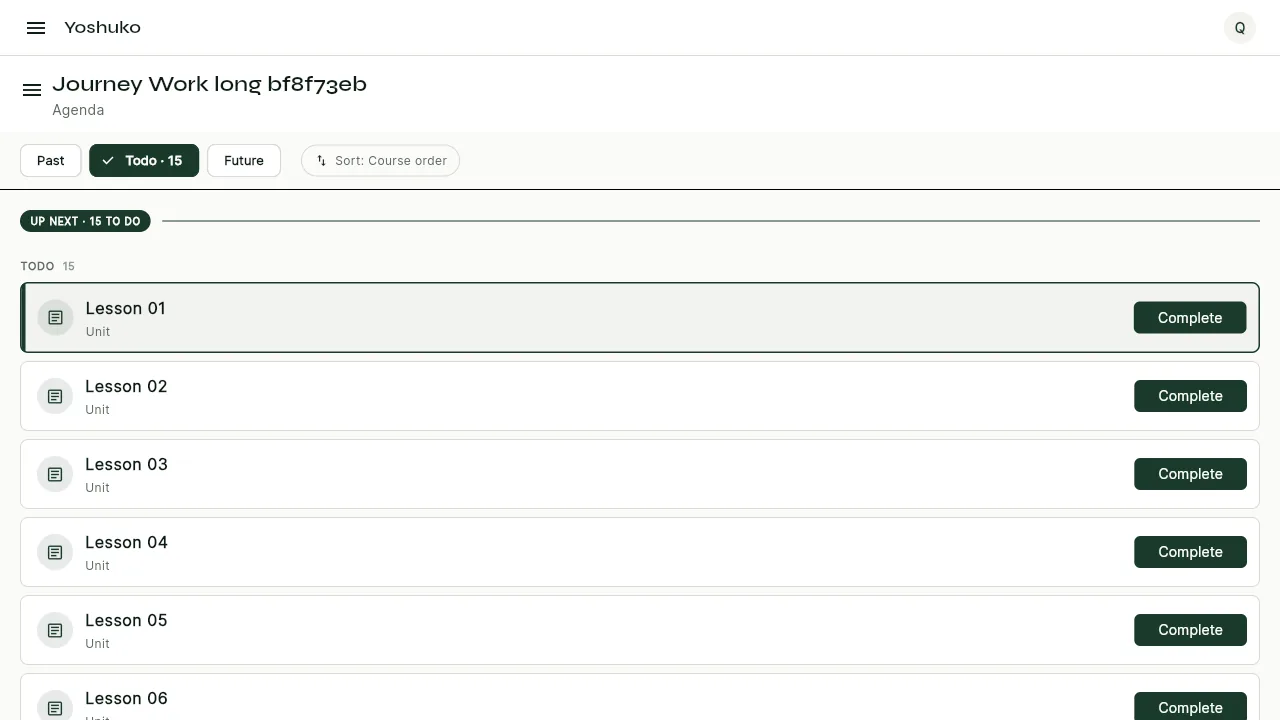
When you have scrolled up through work you have already finished, press Jump to now. The Agenda scrolls back to the work you are on.
Understand why something is locked
A locked row is faded and shows a Locked pill, with the reason written under the title. Hover over it, or press and hold on a touch screen, to see the reason again.
| The reason says | What it means |
|---|---|
| Complete "lesson name" first | Finish that earlier lesson in this unit to unlock it. |
| Complete "lesson name" in the previous unit first | Finish that lesson in the unit before. |
| Opens date | The creator has scheduled it to open on that date. |
| Closed on date | It was open until that date and is now closed. |
Check your progress
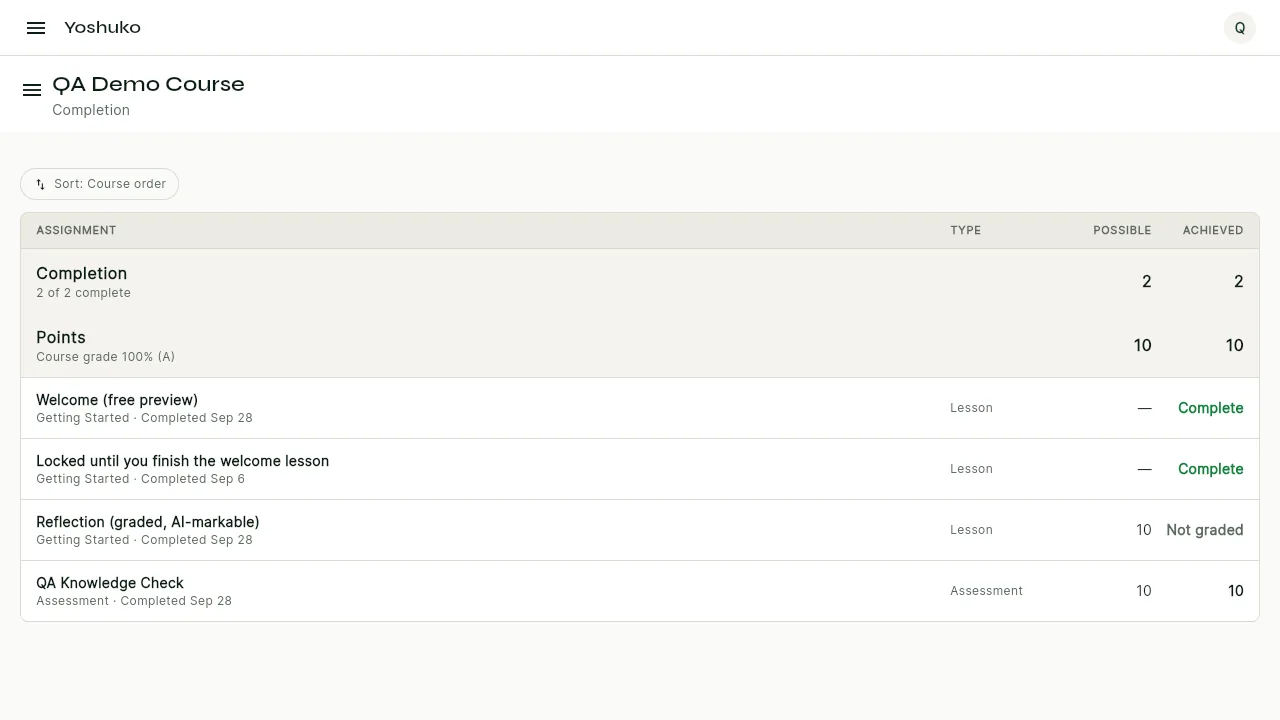
- Open the course menu (Show the course menu) and press Completion.
- The Completion total reads N of M complete. Each lesson you finish is a row underneath, with the date you completed it.
- Points shows your course grade once work has been marked.
Keep a streak going and finish the course
On My Courses, the strip at the top shows your streak — for example 3-day streak — and how many lessons you have left, such as 2 lessons until your certificate. Study on consecutive days to keep the streak going. When you mark a lesson complete on a streak of two days or more, the confirmation names it.
When you complete the last lesson, You finished the course! opens. Press See my course record to see your record, or Close.
Ask your class a question
If the course team has turned on discussion, Discussion appears in the course menu.
- Open the course menu and press Discussion.
- Press Start a topic.
- Give it a Title, and write Your question or post.
- Press Post topic. The topic opens on its own page.
- To answer a topic, type in the reply box and press Post reply.
Replies from the people who run the course carry a Course team badge. A topic marked Locked takes no new replies. You can delete your own topics and replies.
More on how discussion works for the course team: Discussions.
If something goes wrong
| You see | What it means | What to do |
|---|---|---|
| No coursework yet | The course has not published any lessons yet | Check back later — new work appears here, soonest first. |
| You are all caught up | Every published lesson and assessment is complete | Nothing to do. Well done. |
| Nothing in band | The bands you are showing hold nothing | Press Show everything. |
| Could not load your coursework | The Agenda could not load | Press Retry. |
| Failed to load lesson | The lesson could not load | Press Retry. |
| Discussion is not open for this course | The course team has not turned discussion on | Contact the course team another way. |
| Could not mark this lesson complete. | The change was not saved | Try again. |