Storefront and custom domain
Your storefront is your organisation's public home: a page that lists your published courses, carrying your name and branding. Every organisation gets one on a Yoshuko address from the start; you can also serve it from a domain you own. Branding takes about five minutes; a custom domain takes a few minutes of your time plus however long your DNS provider takes.
Before you start
- You need to be a member of the organisation in the creator studio.
- A custom domain is included on every paid plan — see pricing. The Yoshuko subdomain is available on every plan.
- For a custom domain, you need access to the DNS settings of a domain you own. Yoshuko does not sell domains.
See your storefront
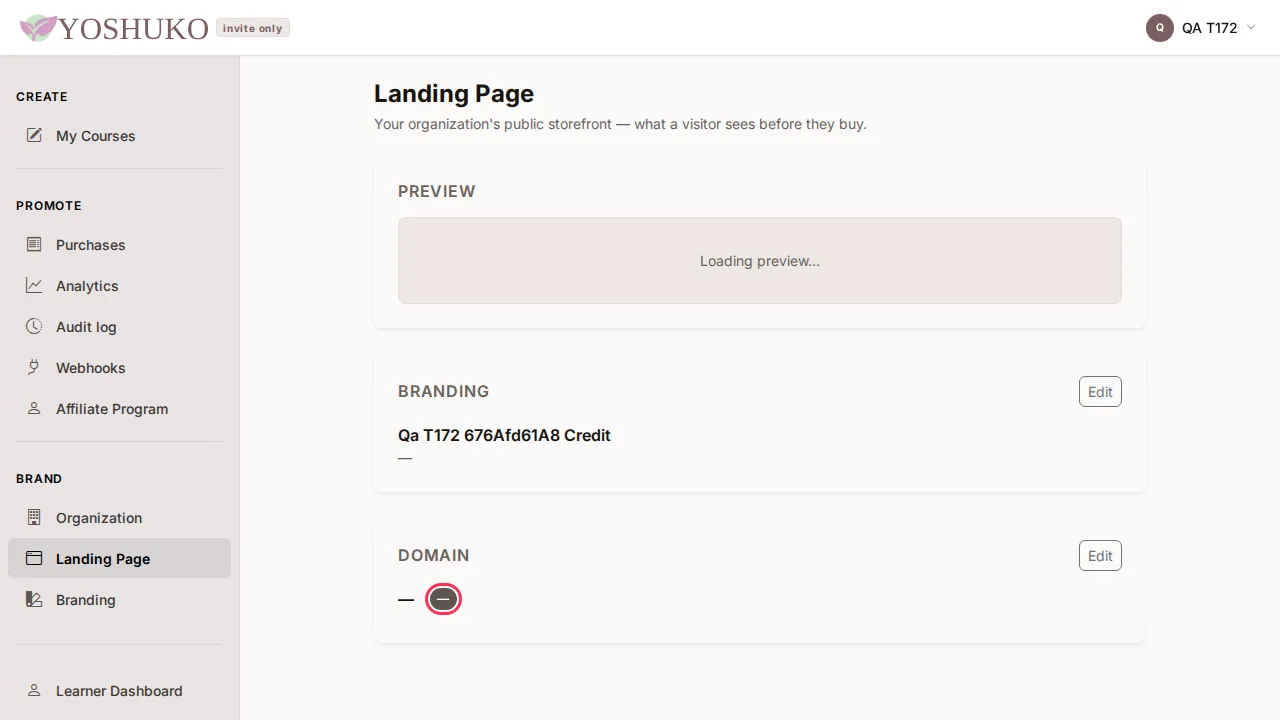
In the creator studio's left-hand menu, choose Landing Page. This is the page for your whole organisation — not the Landing Page inside a single course's menu, which is your course listing.
- Preview shows the address your storefront is live at. Press View your landing page to open it in a new tab.
- Branding summarises your name, logo and tagline. Edit takes you to where you change them.
- Domain shows your storefront's address and the state of any custom domain: No custom domain, Pending verification, Verified or Needs attention.
What visitors see
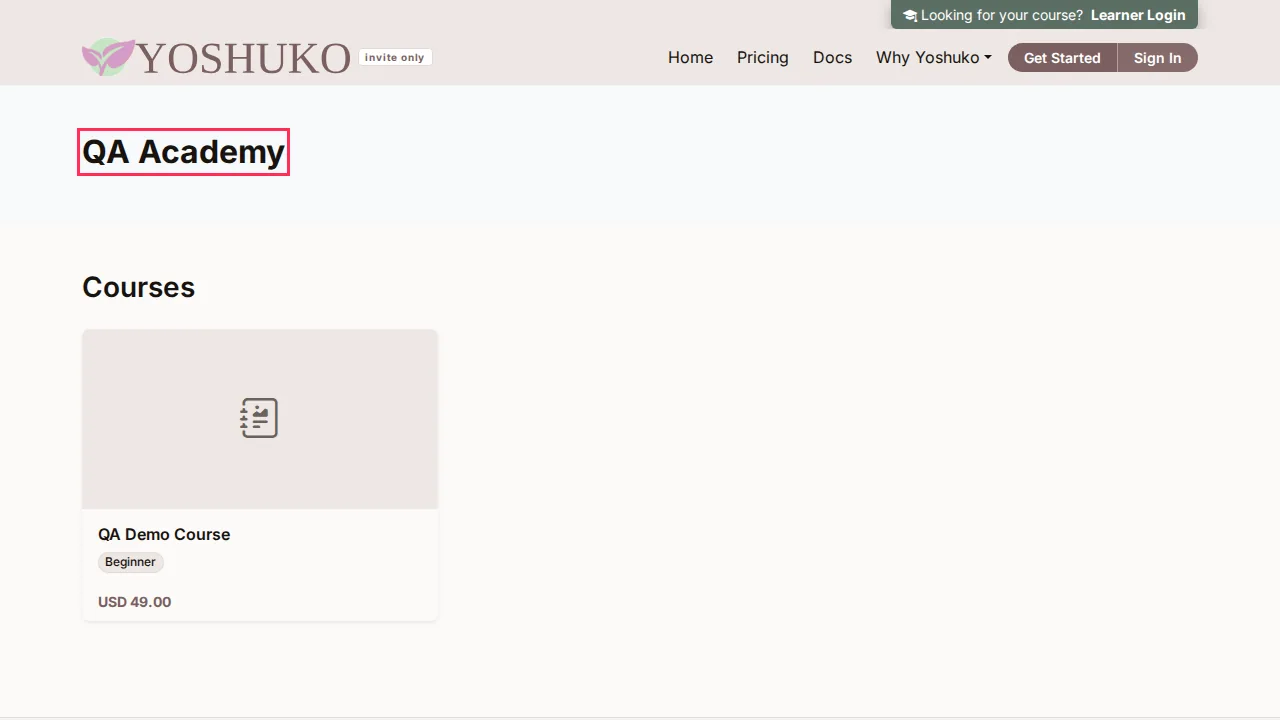
Visitors see your organisation's name and a card for each published, public course. Choosing a card opens that course's landing page, where they can enrol or buy. If you have not published anything yet, the page says so — for example No published courses yet. — rather than showing an empty grid.
When your storefront is served from its own address (your Yoshuko subdomain or your custom domain), course pages and checkout stay on that address, so a buyer never leaves your storefront to pay.
Change your Yoshuko subdomain
- On Landing Page, press Edit in the Domain card. The Custom Domain page opens.
- Under Your Yoshuko subdomain, type a new Subdomain: 3–63 characters, lowercase letters, numbers and hyphens only.
- Press Save. Because this breaks any link or bookmark people have to your old address, Yoshuko asks Change your subdomain? — type the new subdomain to confirm and press Confirm.
Use your own domain
Use a subdomain of a domain you own, such as courses.example.com — not the bare
domain (example.com) itself.
- On Landing Page, press Edit in the Domain card.
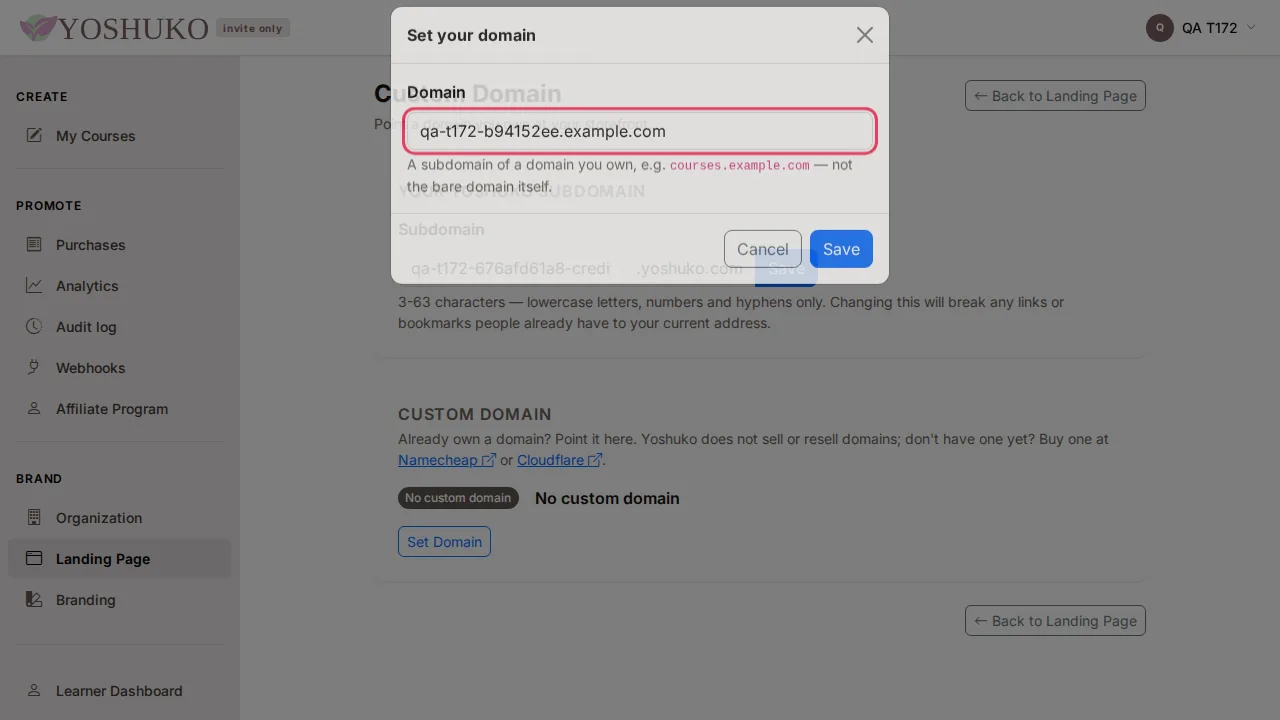
- Under Custom domain, press Set Domain (or Change Domain if you already have one).
-
Type your Domain and press Save. The status becomes Pending verification and a card appears headed Add these records at your registrar.
-
At your domain's DNS provider (Cloudflare, Namecheap, GoDaddy, Route 53 or wherever the domain is managed), add both records exactly as the card shows them:
Record Name Value CNAME record your domain, e.g. courses.example.comthe address shown on the card TXT record (proves you control this domain) _yoshuko-challenge.followed by your domain, e.g._yoshuko-challenge.courses.example.comthe value shown on the card — it is unique to your organisation -
Press Check now. When both records are found you see Verified — your domain is live. and the status becomes Verified.
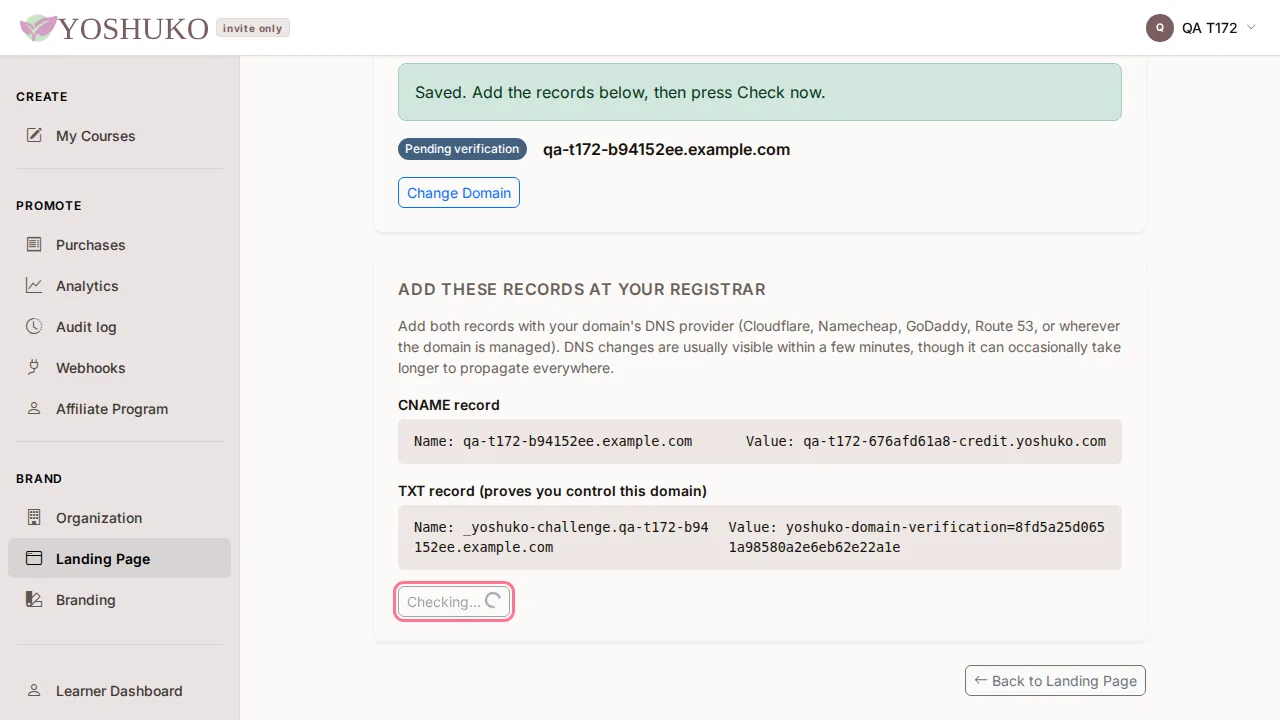
DNS changes are usually visible within a few minutes but can take longer. You do not have to keep pressing Check now: Yoshuko keeps checking in the background and emails you when the domain is verified.
Brand your organisation
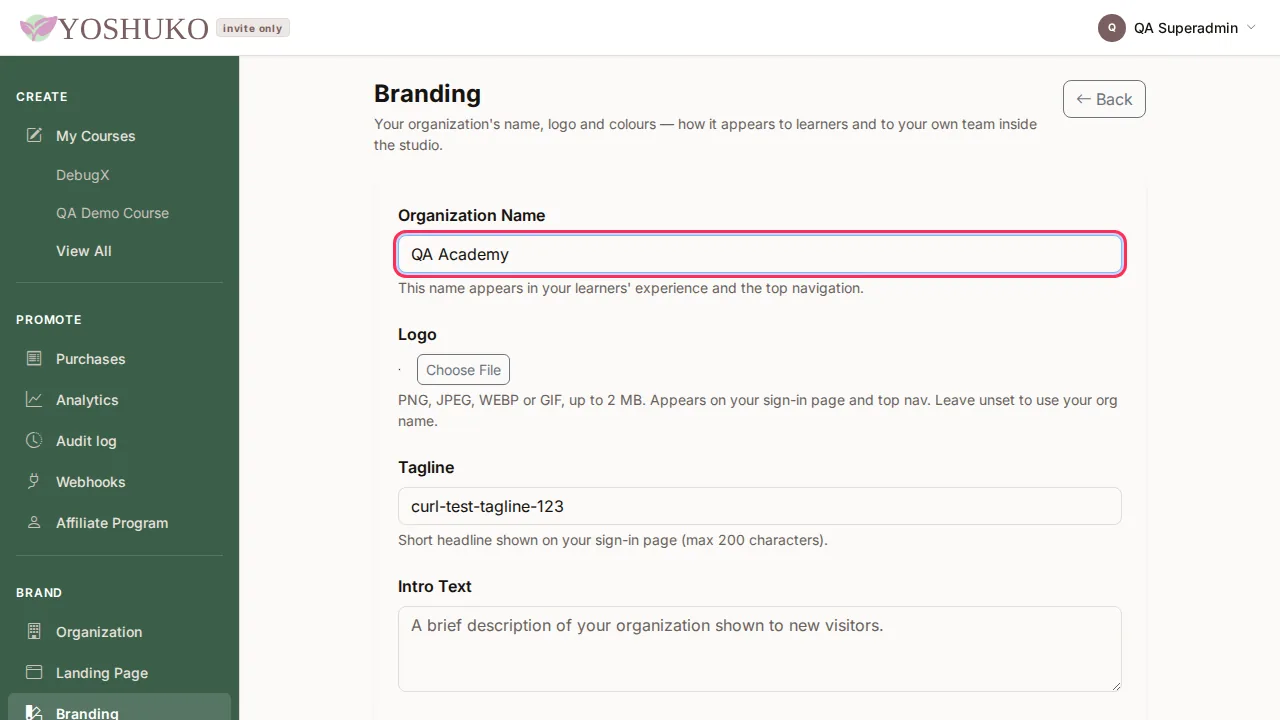
In the left-hand menu, choose Branding (or press Edit on the Branding card of Landing Page or Organization). Change what you need, then press Save — you see Branding saved successfully. Changes show on your pages straight away.
| Setting | What it does |
|---|---|
| Organization Name | Shown to your learners and in the top navigation. |
| Logo | Choose File — PNG, JPEG, WEBP or GIF, up to 2 MB. Shown on your sign-in page and top navigation; without one, your organisation's name is used. |
| Tagline | Short headline on your sign-in page, up to 200 characters. |
| Intro Text | A brief description of your organisation shown to new visitors. |
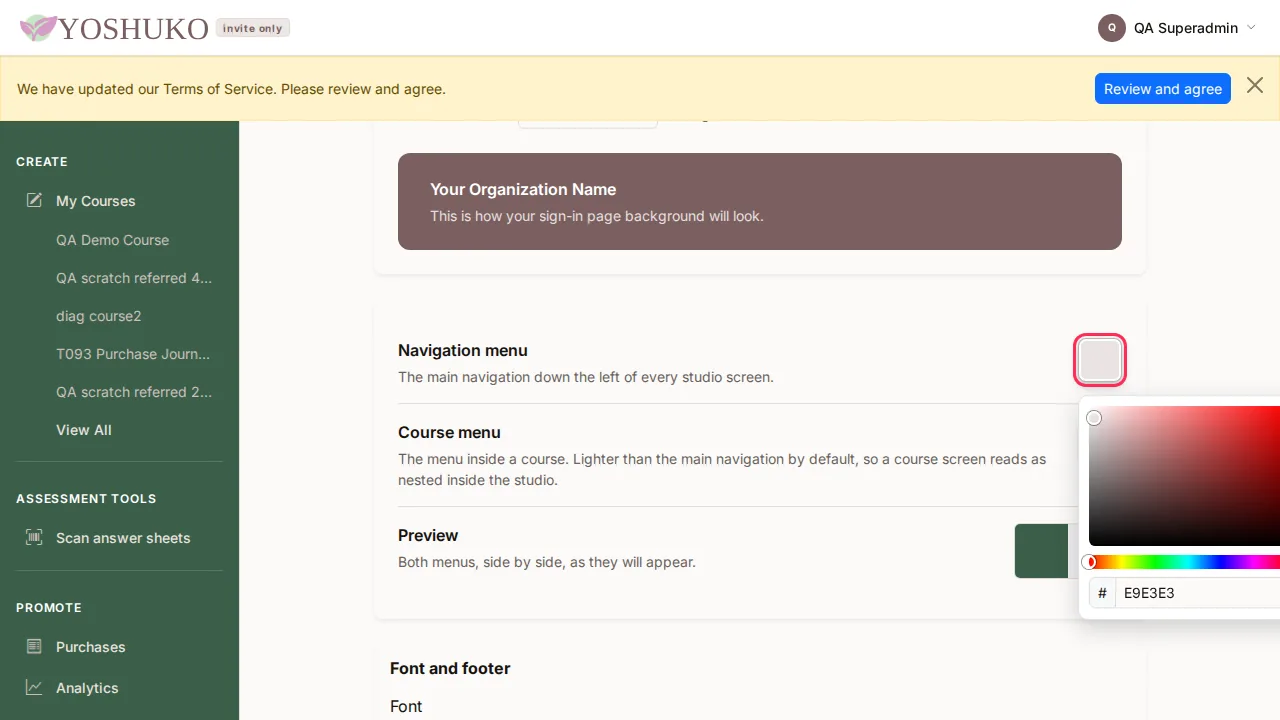
| Accent Color | Pick a colour scheme, or type a Custom color as a hex value such as #7B5F5F. Used for your sign-in page background and button highlights. |
| Navigation menu | The colour of the main menu down the left of every studio screen. Choose from the swatch, or type a hex value. |
| Course menu | The colour of the menu inside a course. Preview shows both menus side by side. |
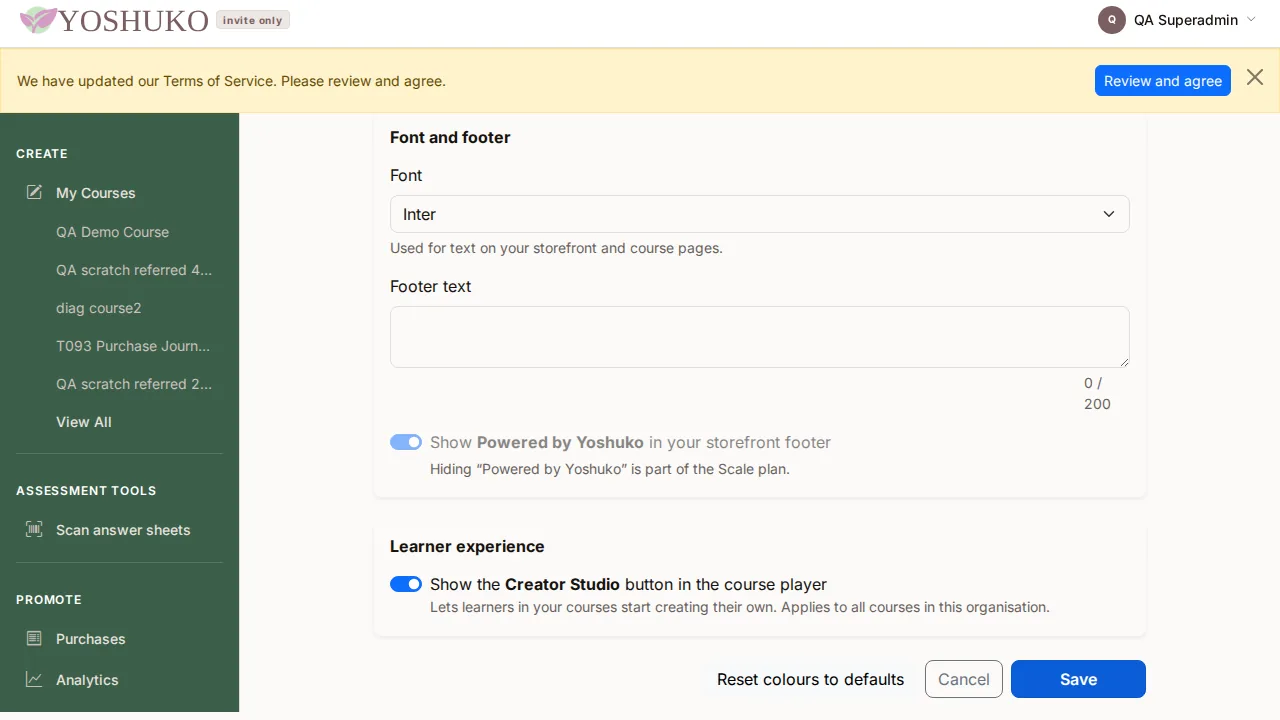
| Font | The font for text on your storefront and course pages. |
| Footer text | Your own footer on the storefront, up to 200 characters. |
| Show Powered by Yoshuko in your storefront footer | Whether the Yoshuko credit appears. If your plan does not allow hiding it, the switch stays on and a note underneath says which plan does. |
| Show the Creator Studio button in the course player | Lets learners in your courses start creating their own. Applies to all courses in the organisation. |
Reset colours to defaults puts the colours back; Cancel discards unsaved changes.
If something goes wrong
| You see | What it means | What to do |
|---|---|---|
| No published courses yet. on your storefront | You have not published a public course. | Publish a course — see Organise a course. |
| Custom domains are included on every paid plan. Choose a plan to add one. | Your organisation has no paid plan, so Set Domain is unavailable. | Press Choose a plan, or see pricing. Your Yoshuko subdomain still works. |
| We could not find the CNAME record yet (or TXT, or both) | Yoshuko cannot see that record yet. | Check the name and value match the card exactly, wait a few minutes and press Check now again. |
| Needs attention with Verification timed out after 24 hours. | The records were not found within 24 hours of saving the domain. | Fix the records, then press Change Domain and save the same domain again — that restarts the check. |
| Could not load your domain settings — reload to try again. or Could not load your landing page. Reload to try again. | The page's details did not load. | Reload the page. |
| We could not load your affiliate program. on Share | The Share page did not load. | Press Try again; the message disappears once it loads. See Affiliates. |
| No invite codes yet., No affiliates yet., Referral links appear here once you approve an affiliate., No referred sales yet. on Share | You have not started an affiliate programme yet — nothing is wrong. | See Affiliates. |