Create your account
About five minutes. You sign up with your email address and a password, confirm a mobile number with a texted code, then confirm your email with a six-digit code. Creators and learners sign up through different doors; this page covers both.
Before you start
- An email address you can read now, and a mobile phone that can receive a text.
- Creators, during the alpha: an access key from us. Keys are emailed when your place is confirmed and only work with the address they were sent to. No key yet? See Ask for an invitation.
- Learners never need an access key.
Create a creator account
Start from Start building on the home page, Get Started on a pricing plan, or Get Started at the top of the page. The Create Account tab is where you start.
-
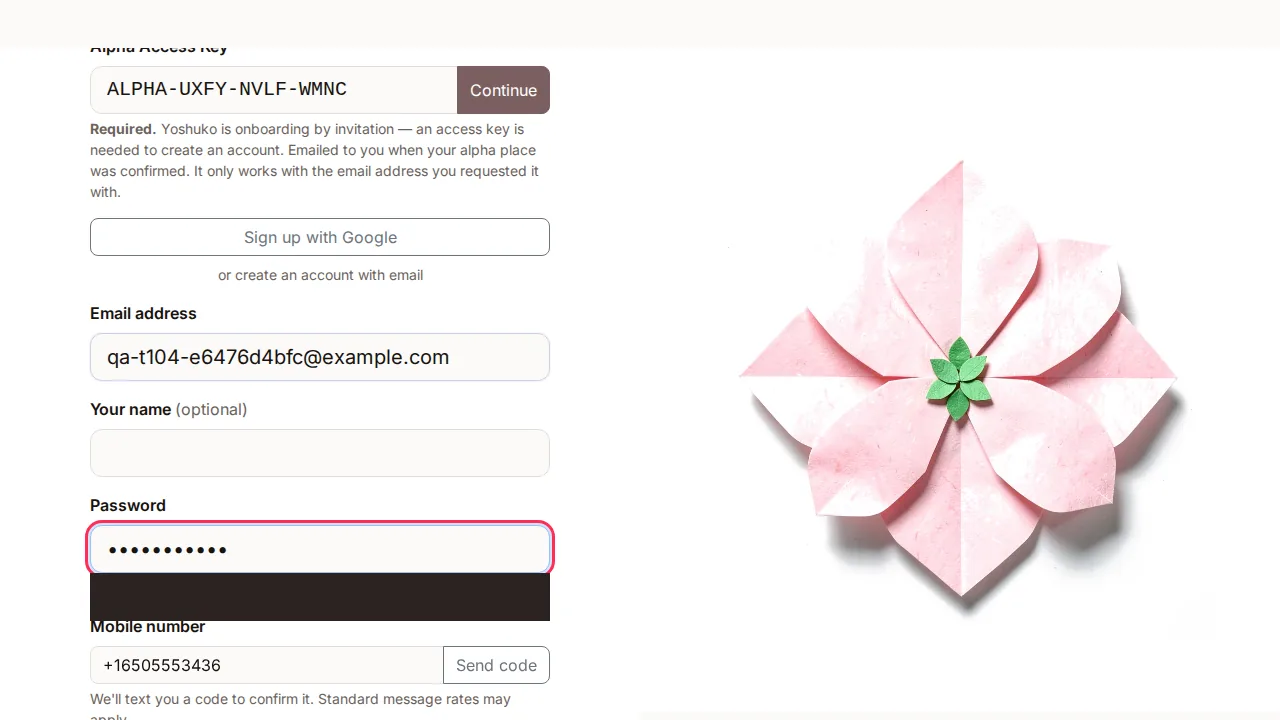
If the page asks for an Alpha Access Key, type it (it looks like
ALPHA-XXXX-XXXX) and press Continue. The rest of the form opens once the key is accepted.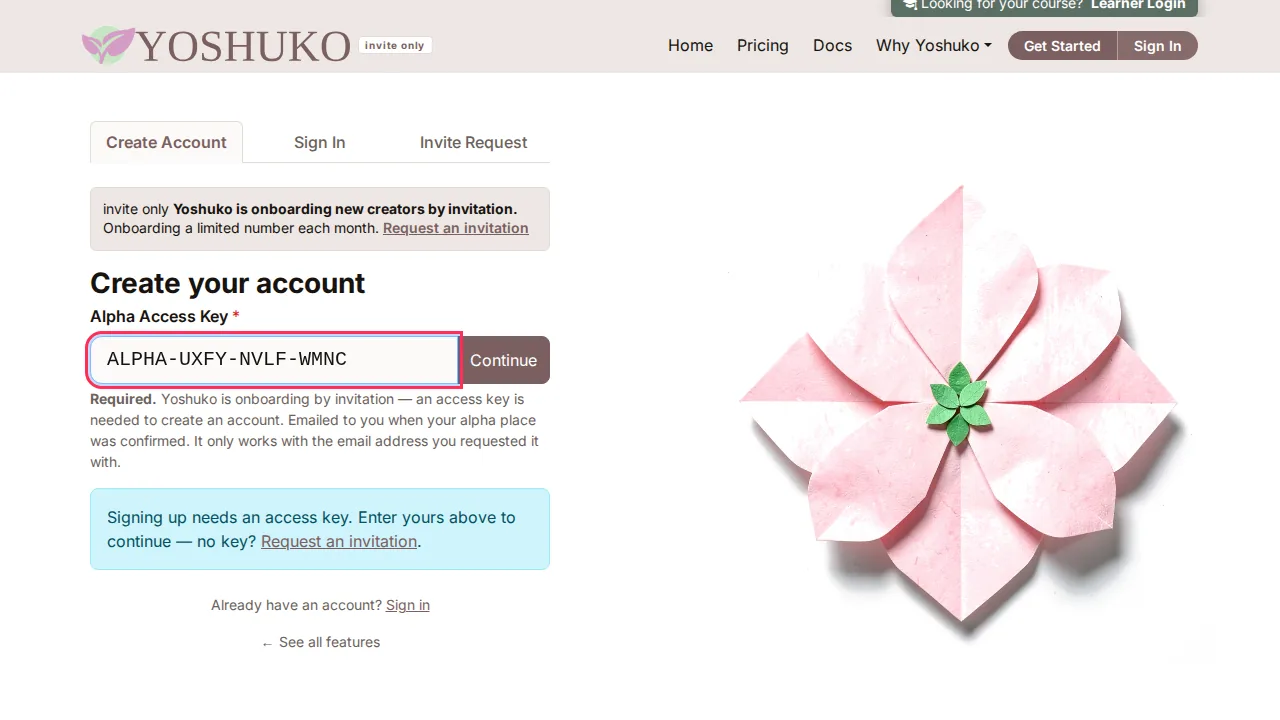
-
Enter your Email address, and optionally Your name.
-
Choose a Password — at least 8 characters.
-
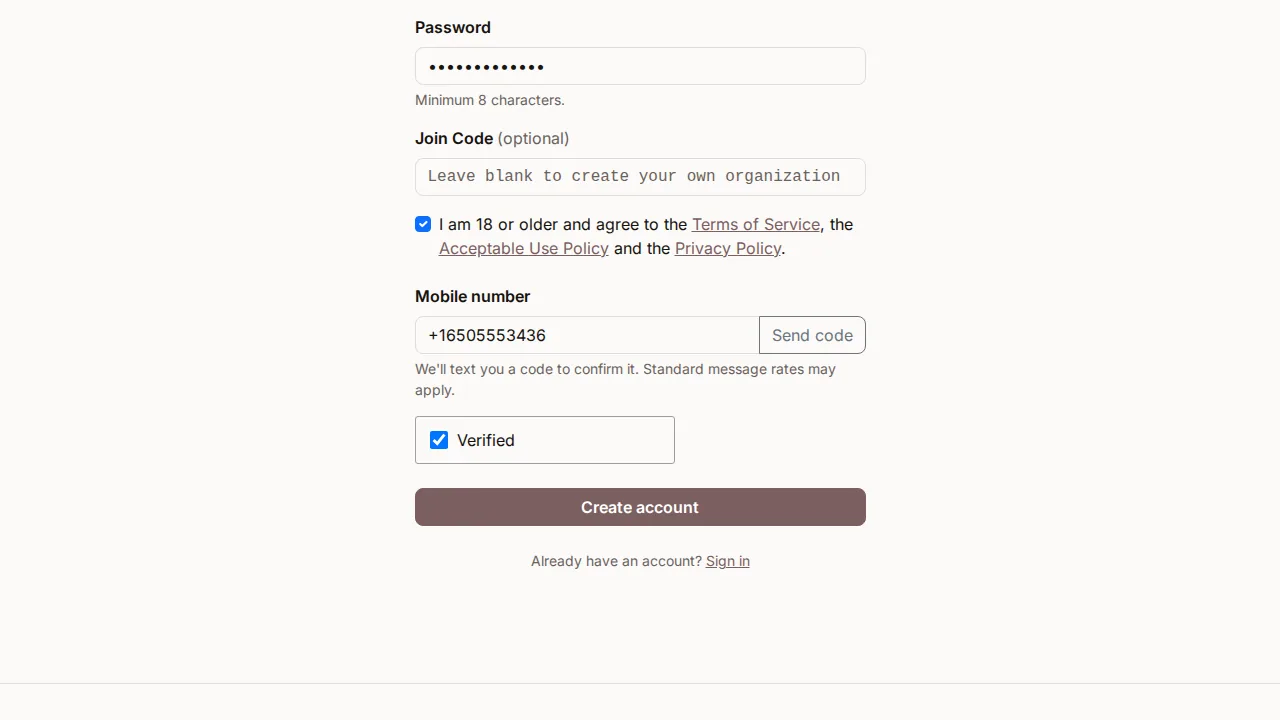
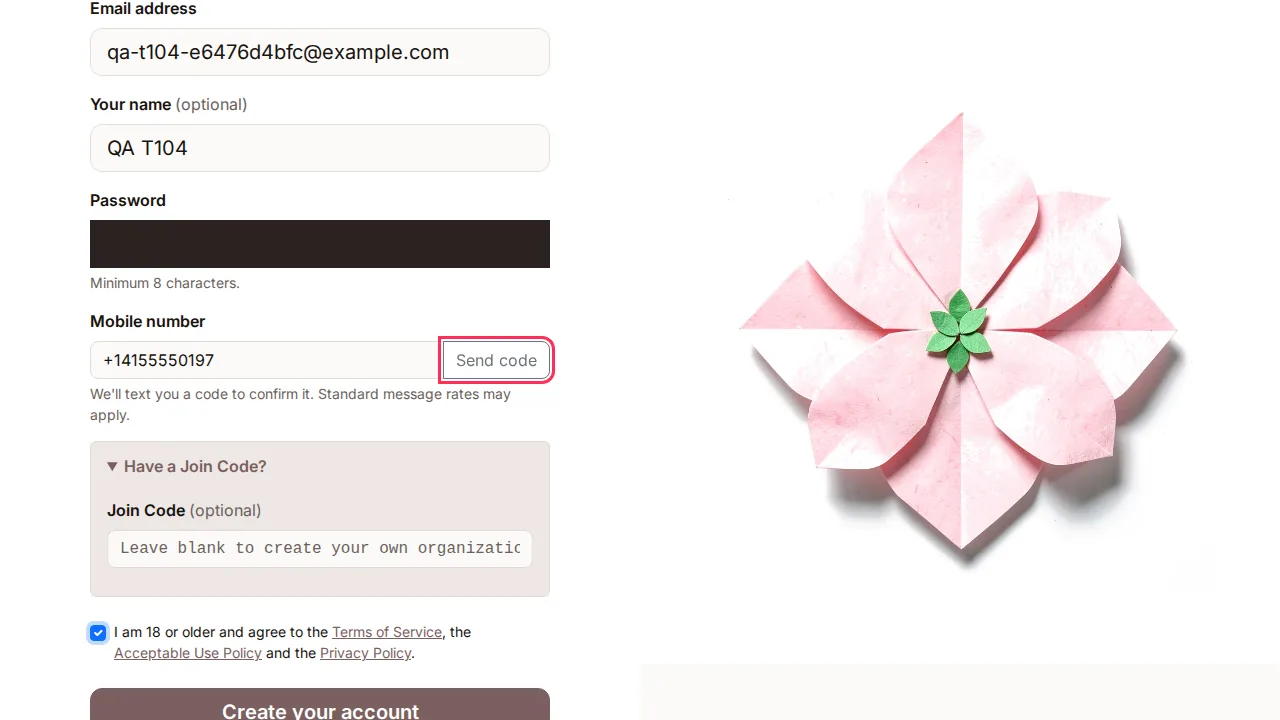
Confirm you are a real person. Enter your Mobile number and press Send code, then type the code into Enter the code we texted you. The step changes to Number confirmed. (Change number lets you use a different one; Resend code sends another text.)
If you are offered a choice under How should we confirm you are a real person?, you can pick Start a paid plan instead and pay by card once your account is set up. You only need one of the two.
-
Joining an existing organisation? Open Have a Join Code? and enter it in Join Code. Leave it blank to create your own organisation.
- Tick the box to confirm you are 18 or older and agree to the Terms of Service, the Acceptable Use Policy and the Privacy Policy.
-
Press Create your account.
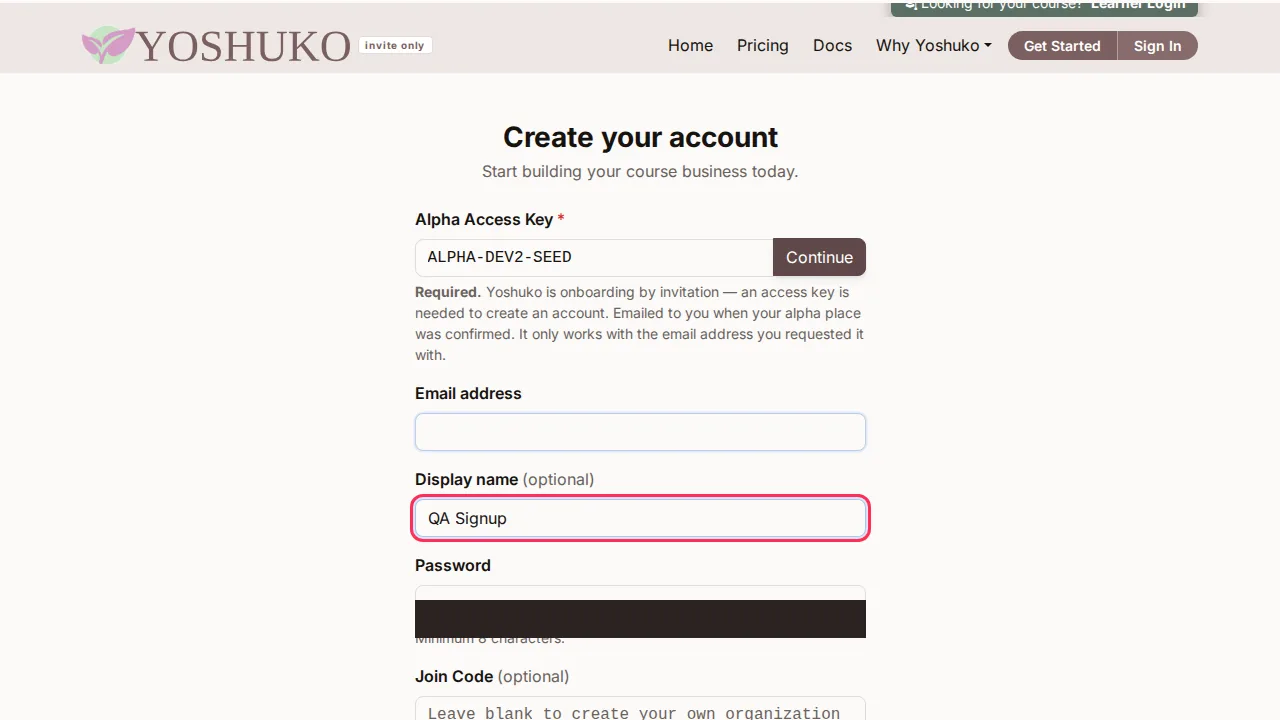
The standalone sign-up page
The sign-up page is a single-page version of the same form. Its fields are named slightly differently — Display name instead of Your name — and its button reads Create account. Everything else works the same way.
If you came from a pricing plan, the form reminds you which plan you chose — payment is taken at checkout, after the account exists.
Sign up with Google
Where it is offered, Sign up with Google on the Create Account tab creates your account from your Google identity instead of a password. During the alpha, enter and Continue past your access key first.
Confirm your email address
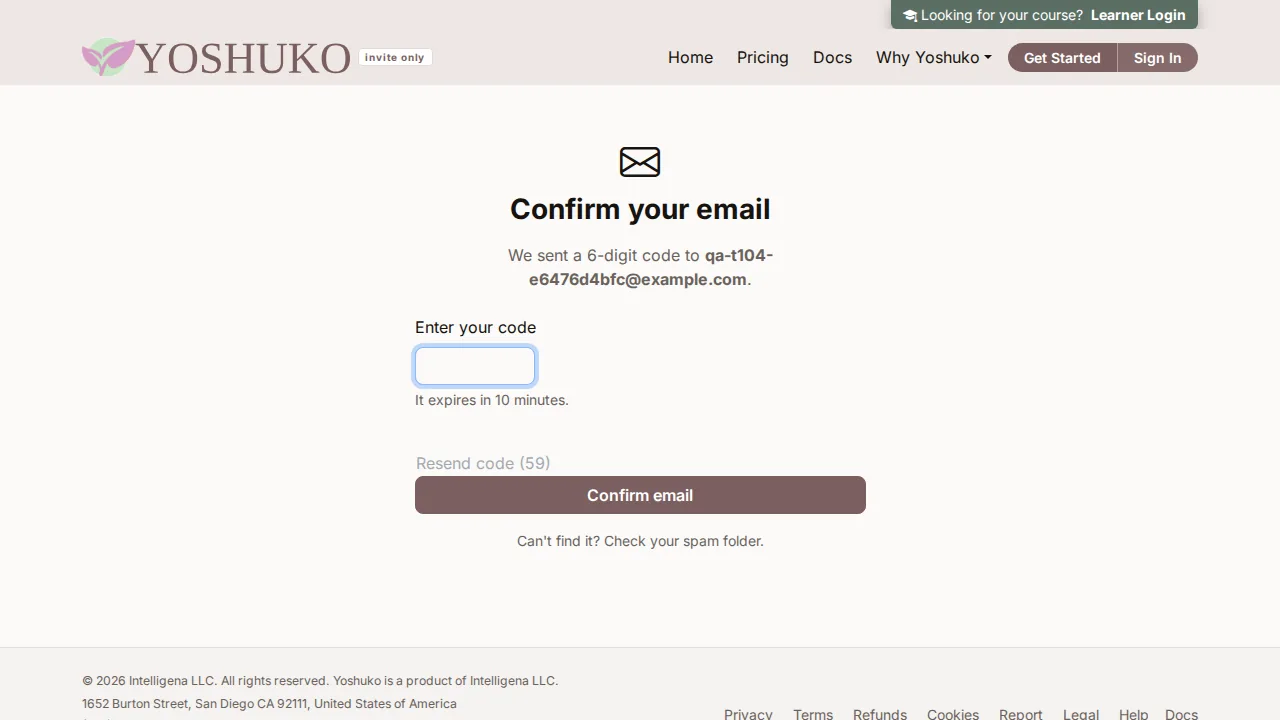
Straight after you sign up, Yoshuko shows Confirm your email and sends a 6-digit code to your address.
- Type the code into Enter your code. It expires in 10 minutes.
- Press Confirm email.
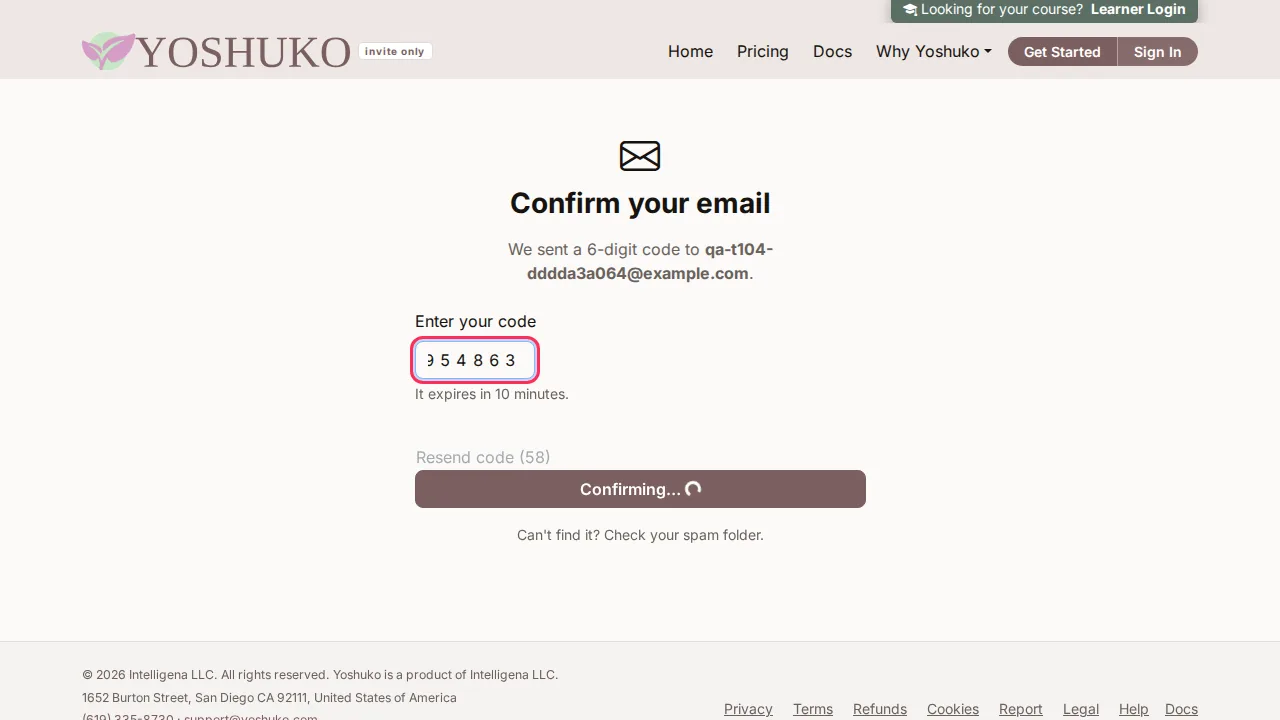
Your account is now confirmed and you are signed in. A creator goes on to the creator studio — see Set up your organisation. A learner goes to their courses.
Code not arrived? Check your spam folder, then press Resend code.
An older confirmation link
If you are clicking a confirmation link from an older email rather than typing a code, the page shows Verifying your email… and then either Email verified! or Verification failed with the reason — for example This link has expired or has already been used. From there you can Create a new account or, if you already confirmed, Sign in here.
Sign up as a learner
Learners sign up at the learner sign-in page — press Learner Login at the top right of the Yoshuko home page, or use the sign-in link your course creator sent you.
- Under Create your account, enter your Email, and optionally your Name.
- Choose a Password.
- If your teacher gave you one, enter the Course Code (optional).
- A Mobile number is optional here.
- Tick the box to agree to the terms, then press Create account.
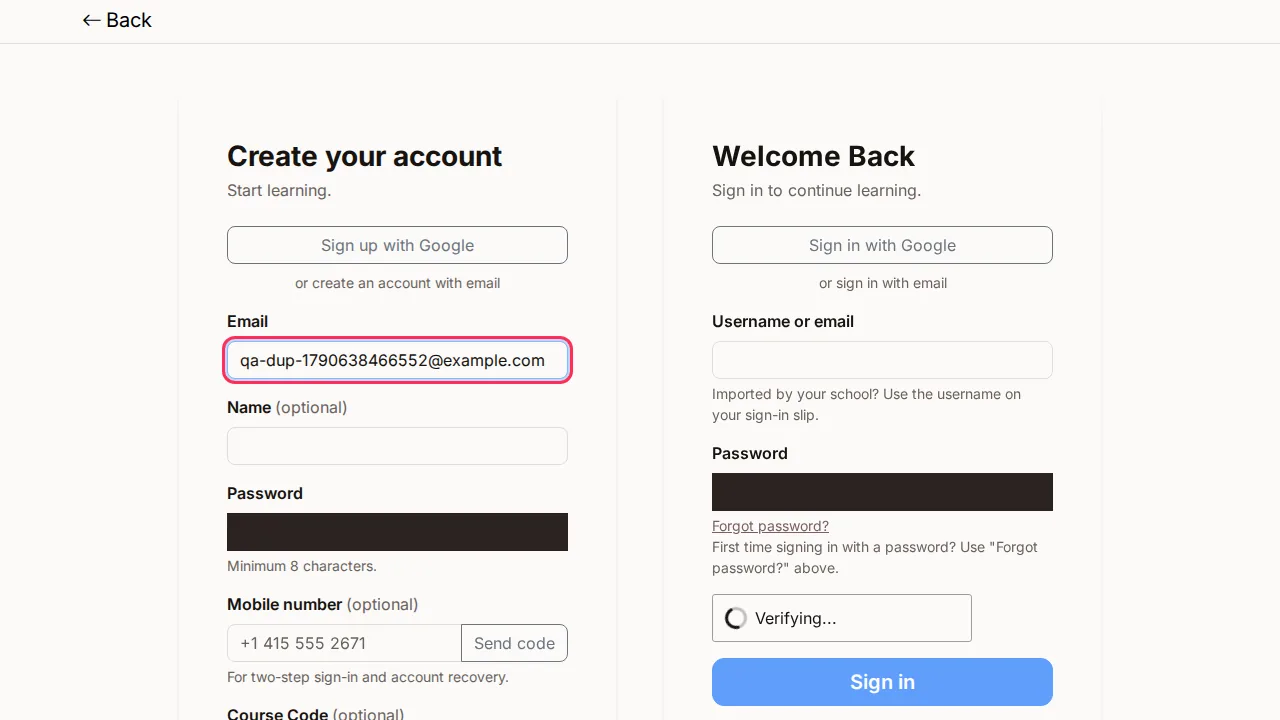
Then confirm your email with the code, as above. You land in your courses — see Take a course.
If something goes wrong
The form keeps what you typed when it refuses a sign-up, and shows the reason next to the field that caused it.
| You see | What it means | What to do |
|---|---|---|
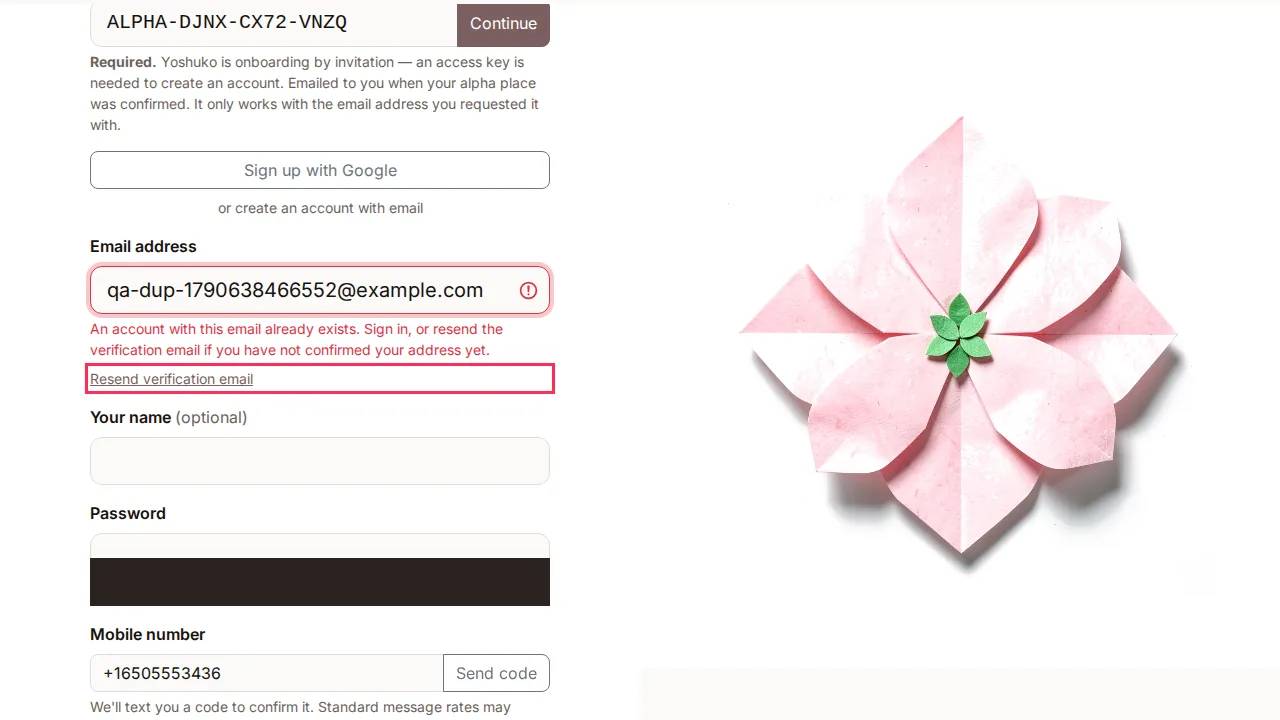
| An error under Email address saying the address is already registered | An account already exists for that address | Press Resend verification email under the field if you never confirmed it, or use the Sign In tab |
| An error under Password | It is shorter than 8 characters | Choose a longer password |
| An error under the terms checkbox | The box was not ticked | Tick it and submit again |
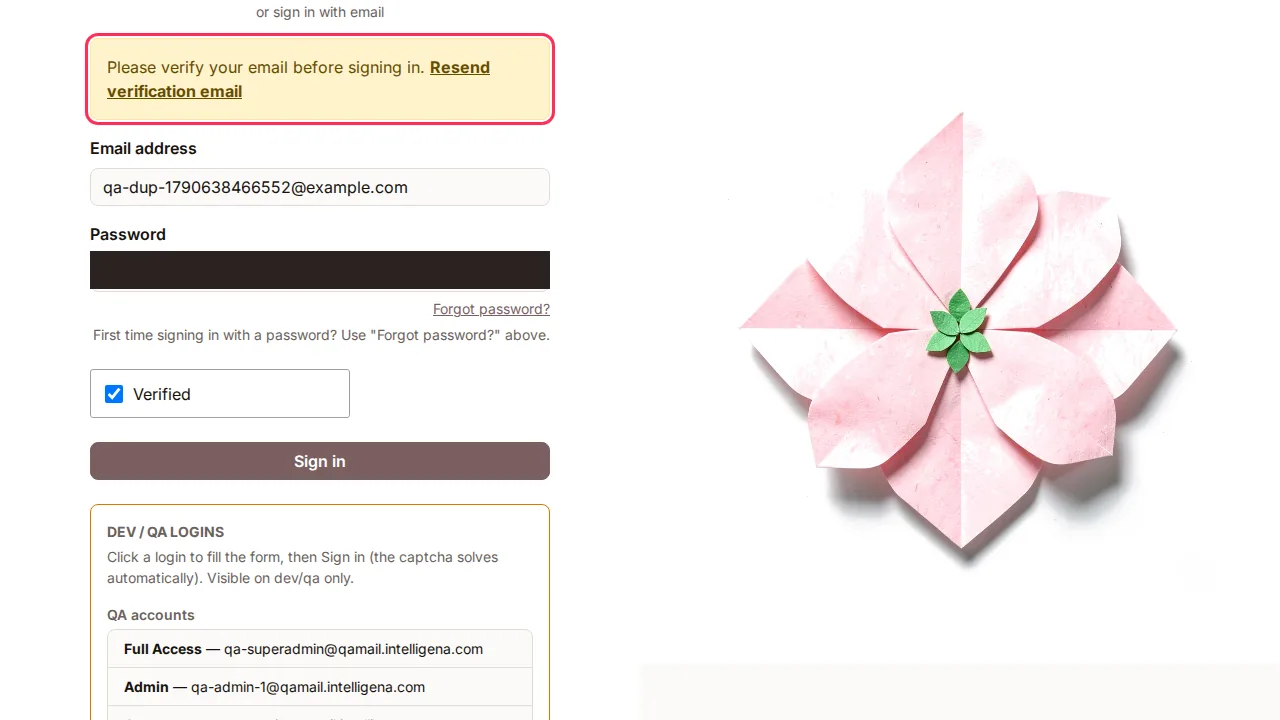
| Please verify your email before signing in. on the Sign In tab | The account exists but its email was never confirmed | Press Resend verification email in that message, then enter the new code |
| The learner form says the address is already registered | Same as above, on the learner page | Press Resend verification email under the form |
| Signing up needs an access key | Creator sign-up is invitation-only during the alpha | Ask for an invitation |
| The access key is refused | It was issued to a different email address | Sign up with the address the invitation was sent to |
| The email code is refused | It is wrong or older than 10 minutes | Press Resend code and use the newest one |